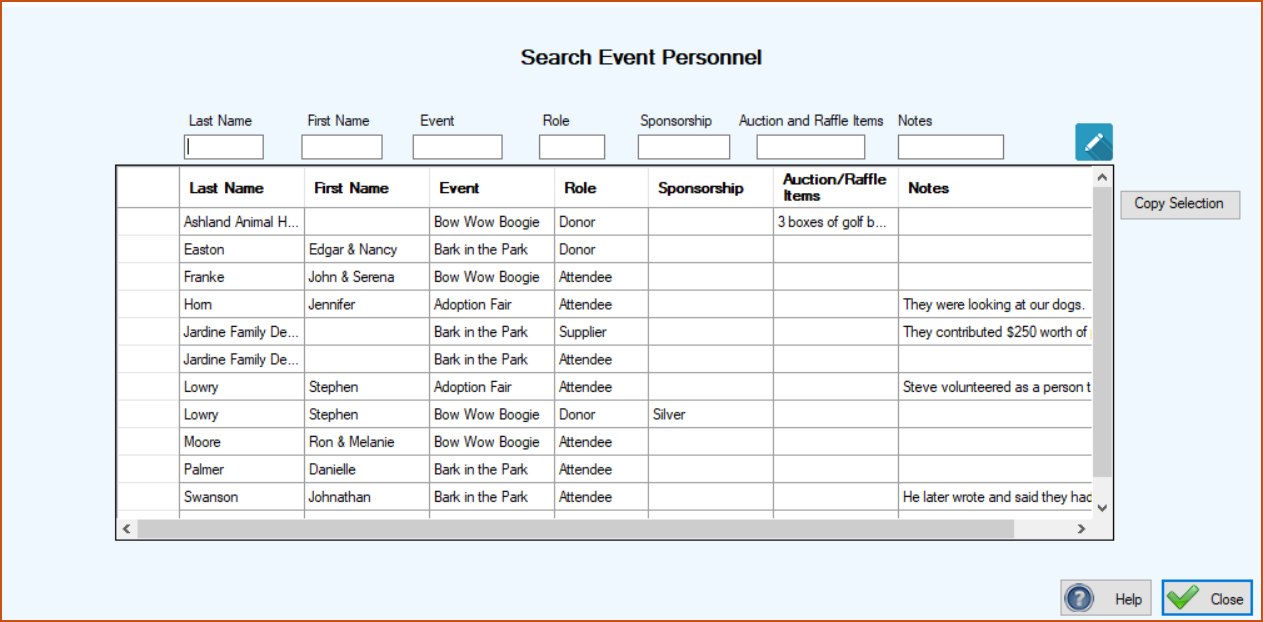
This program lets you search your people and organizations that contributed to your events. This is important for the simple reason that the people that contributed to your event this year are the ones most likely to contribute to this same event next year. Also, they are likely to contribute to other events that you have. When we say ‘contribute’ we don’t mean just actual money but also things like food, music, supplies, prizes, and venue.
You can also keep track of who attended the event because they will probably want to attend the next event.
The greatest contributor to the success of an event is most often the sponsors. You can record those so that you can ask them to sponsor your future events.
The biggest advantage of using TTR to record information about your events may be that you add everyone connected to your PCO file and they become part of your rescue family. You can send them newsletters and keep them informed of everything happening with your rescue.
Like our other search programs you put a character, or characters, in the text box above the field that you want to search. The grid will then list the PCOs that either start with or contain that character or character sequence. You can enter additional characters in other text boxes to further filter your list.
When the Search screen initially appears it shows every PCO that has ever been associated with your events regardless of their role. You can then quickly filter the fields to quickly find just what you are looking for. It’s very valuable.
Every field is a ‘Starts With’ field except Auction and Raffle Items and Notes.
You can also sort the grid by clicking the column headers.
At any time you can transfer the contents of the grid to Excel by clicking in the uppermost, left hand cell of the grid to select all of the records and then clicking Copy Selection. Then go to Excel and click Paste or ‘Crtl V’.