
-
Adding One or Two New Completed Vaccinations for an Individual Animal
-
Adding One or Two New Completed Vaccinations for Multiple Animals at the Same Time
-
Editing Details of a Completed Vaccination
-
Deleting a Completed Vaccination Record
Adding One or Two New Completed Vaccinations for an Individual Animal
1. On the TTR Home screen under Modules, click Animals to open the Manage Animals screen.
2. In the center grid, locate the animal that received the vaccination and select the record by clicking the cell at the farthest left on the row containing the animal’s information.
3. On the right side of the screen in the “Choose an Action” dropdown list, select Vaccinations to open the Manage Vaccinations screen.
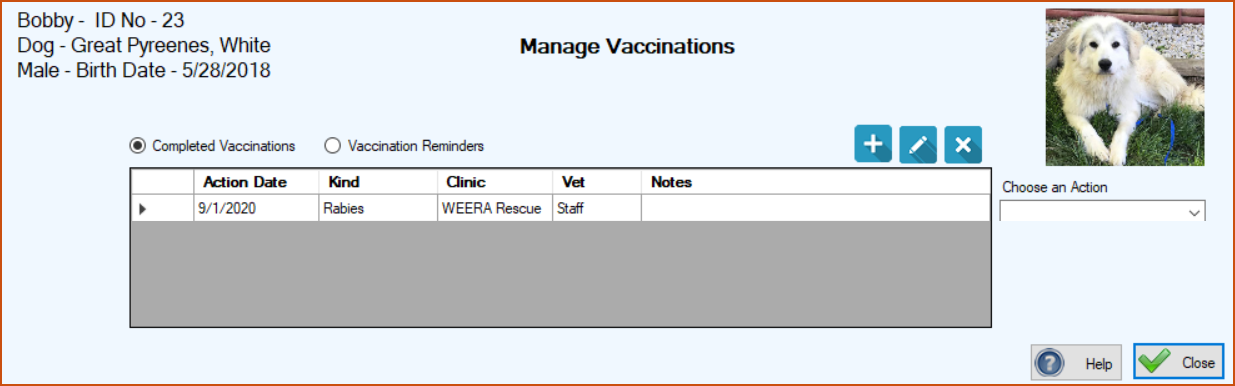
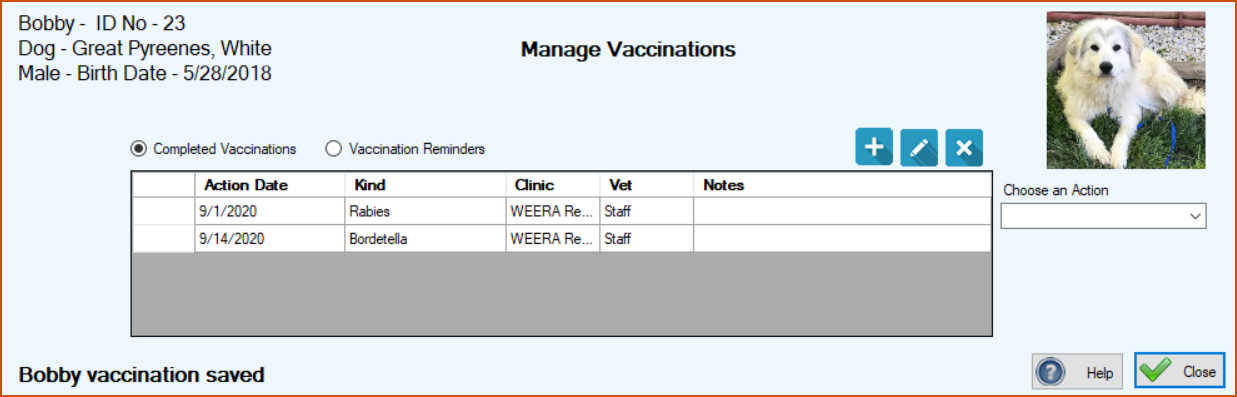
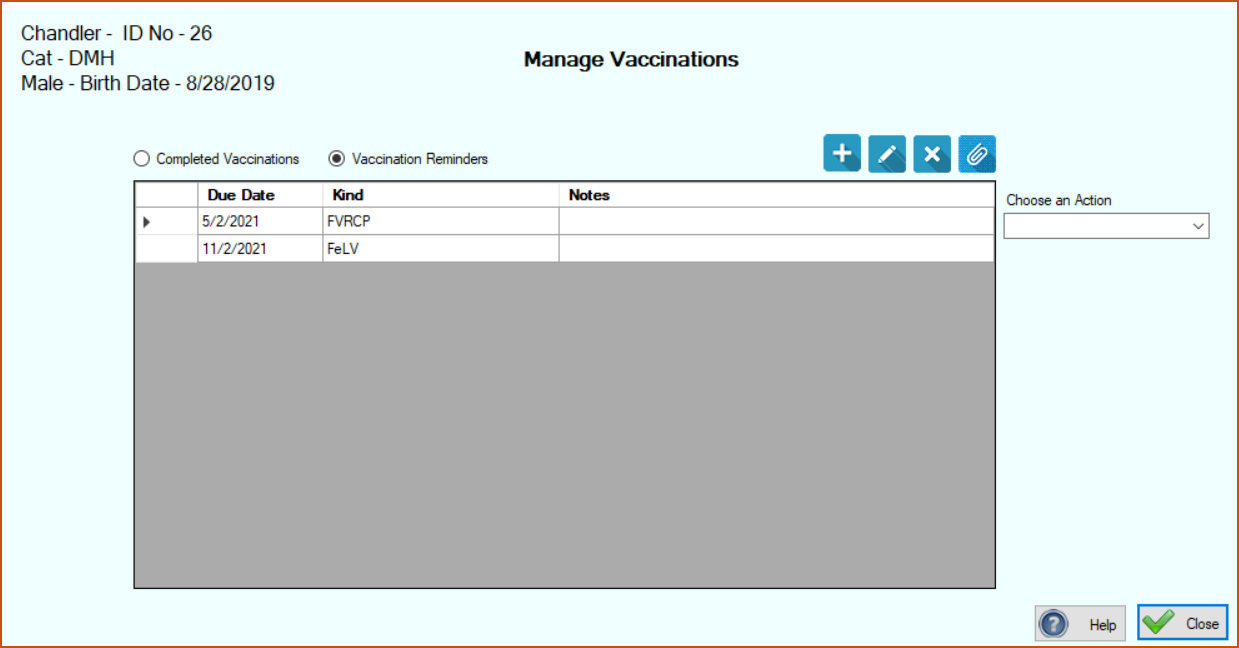
(a) Manage records of completed vaccinations, allowing you to view, edit, and delete them (covered on this page); and
(b) View, set, and manage vaccination reminders (covered in the REMINDERS section).
4.Click the Add New Vaccination button ( ) to open the Record Vaccination(s) screen.
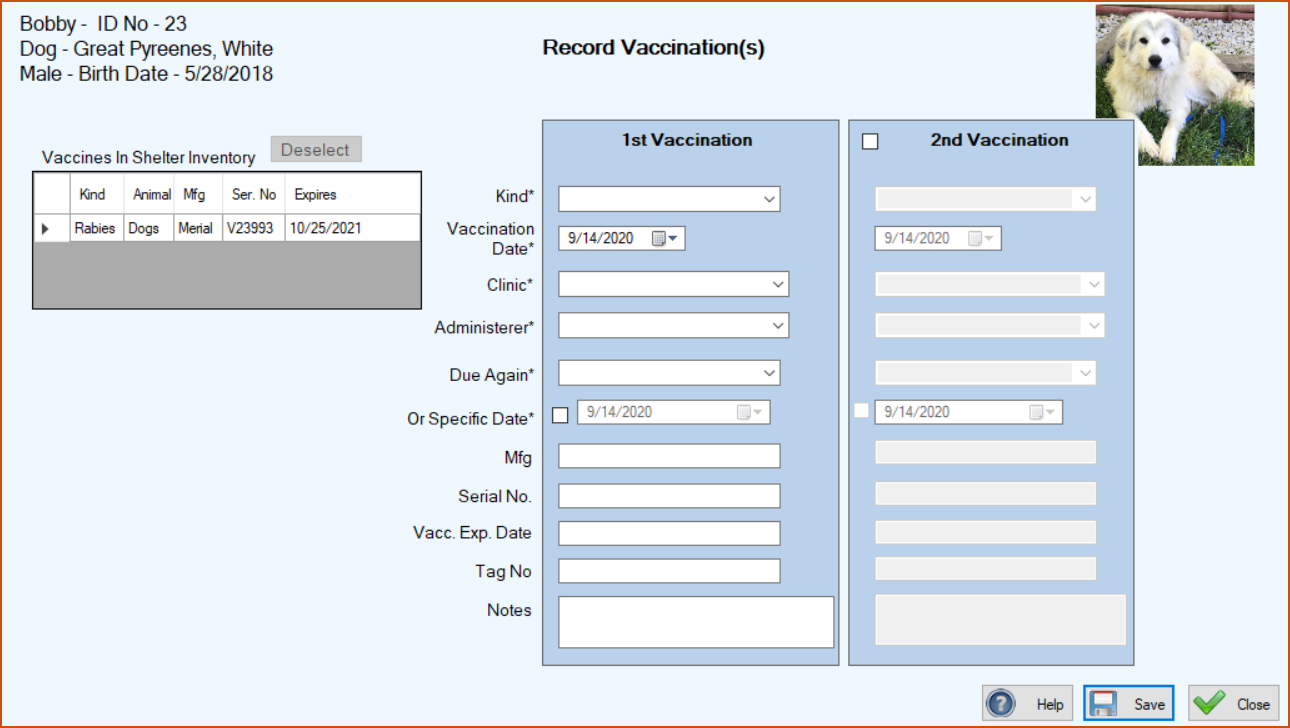
OR
OR
6.In the Vaccination Date field, type the month, day, and year the vaccination was given or use the Date Picker to select the date. (Note: For vaccinations, the system will accept only today’s date or an earlier date.)
7.In the Clinic field, type the name or select one from the drop-down list that was created from the PCO records for companies or organizations for which you selected the “Animal Clinic or Hospital” checkbox.
8.In the Administerer field, type the name of the person who administered the vaccination or select a name from the drop-down list that was created during system setup for Adding & Managing Veterinarians. (See Important Note (b) in Step 7 above if the Administerer is a staff member at your shelter.)
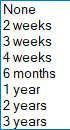
9.Decide if you want to use the Due Again or Specific Date field to establish an automatic reminder for a future date from today.
10.The Mfg (manufacturer), Serial No., Vacc. Exp. Date, Tag No, and Notes fields are all optional, so make entries as desired. (Note: If you selected one of the “Vaccines in Inventory” for the Kind of vaccine, the Vaccine Expiration Date field on the Vaccination screen will always have an entry because the expiration date is required when you set up Vaccines in Inventory. If you included Manufacturer and Serial Number when you set up the Vaccines in Inventory, that data will also appear in the relevant fields on the Vaccination screen.)
Your screen should now look something like this:
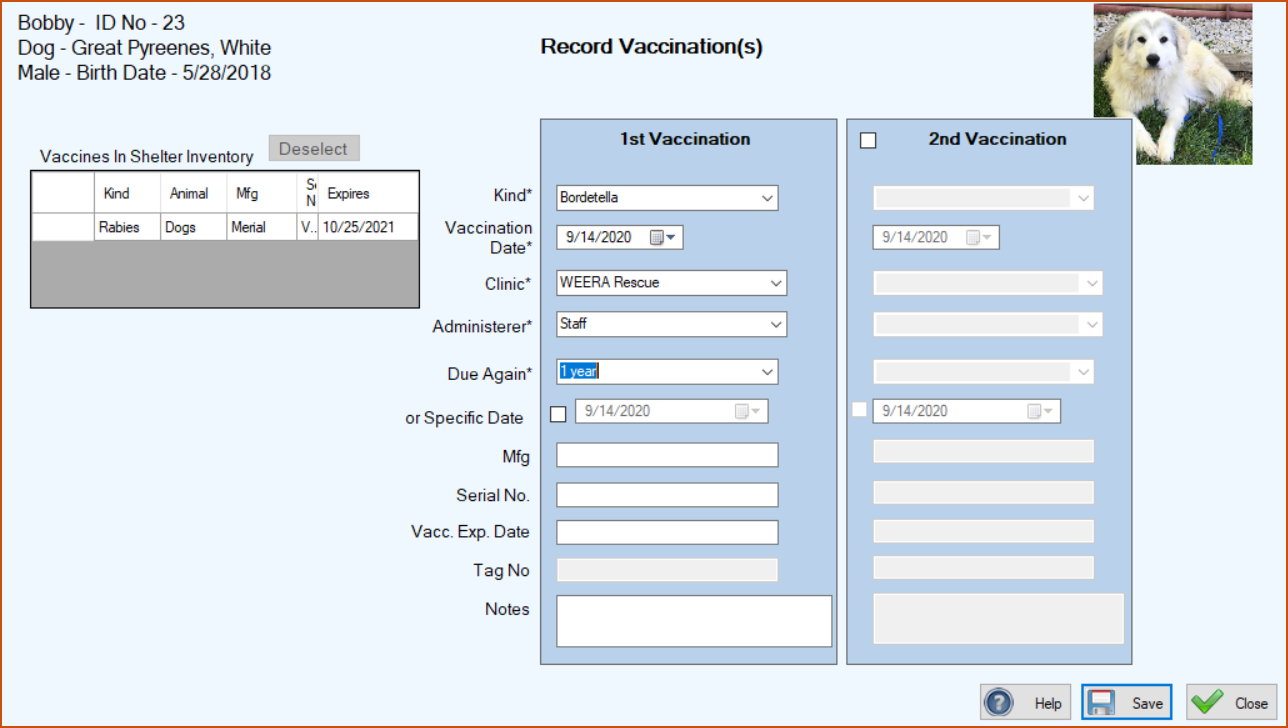
11.To add a second completed vaccination for the same animal, click the checkbox at the top of the 2nd Vaccination section and perform Steps 5 through 10 above for the 2nd Vaccination section.
12.Click Save. You are returned to the Manage Vaccinations screen where you will see the added “Completed Vaccination” in the center grid, along with a confirmation message at the lower left corner of the screen.
Adding One or Two New Completed Vaccination(s) for Multiple Animals at the Same Time
1. On the TTR Home screen under Modules, click Animals to open the Manage Animals screen.
2. In the center grid, select the animals that received the vaccination(s):
|
TO SELECT
|
DO THIS
|
|
Multiple animals adjacent to each other
|
Click the cell to the left of the uppermost animal you want to select, hold down the Shift key on your keyboard, and then click the cell to the left of the bottommost animal you want to select.
|
|
Multiple animals not adjacent to each other
|
Click the cell to the left of the uppermost animal you want to select, hold down the Ctrl key on your keyboard, and then click the cell to the left of each additional animal you want to select.
|
Note: Multiple animals must be the same type (e.g., all dogs or all cats), so look at the Animal column in the center grid when making your selections.
3. On the right side of the screen in the Choose an Action dropdown list, select Vaccinations. A confirmation popup appears, displaying the names of the animals you selected.
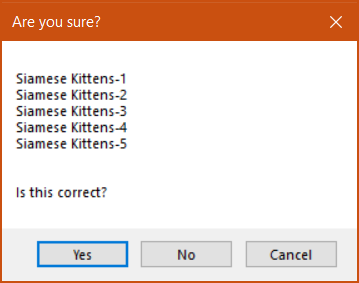
4.If these names are not correct, click No to return to the Manage Animals screen to repeat Steps 2 and 3.
If the names are correct, click Yes to continue. The Record Vaccination(s) screen appears, allowing you to record one or two vaccinations for all selected animals whose names appear in the upper left corner of the screen. (Note: The identical vaccination information you enter and save on this screen will be applied to the records for all selected animals, including reminders.)
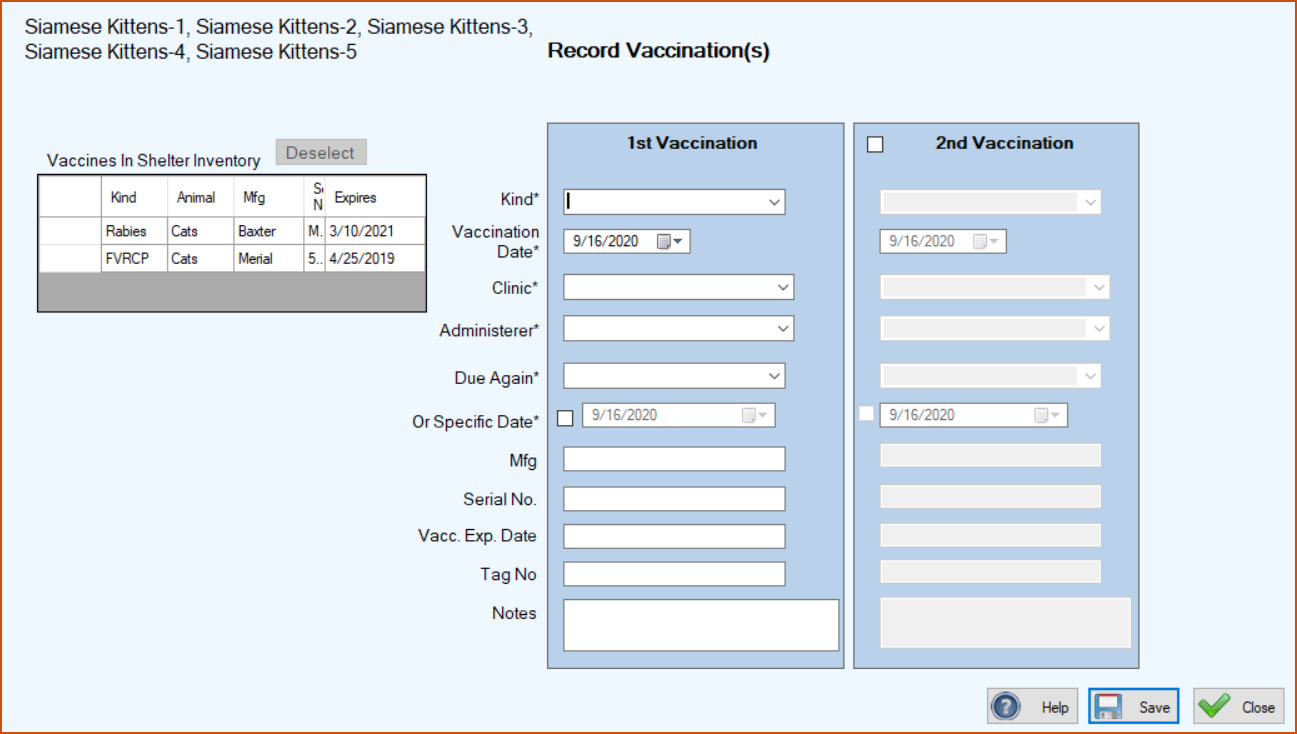
5.Perform Steps 5 through 12 in the section above for Adding One or Two New Completed Vaccinations for an Individual Animal.
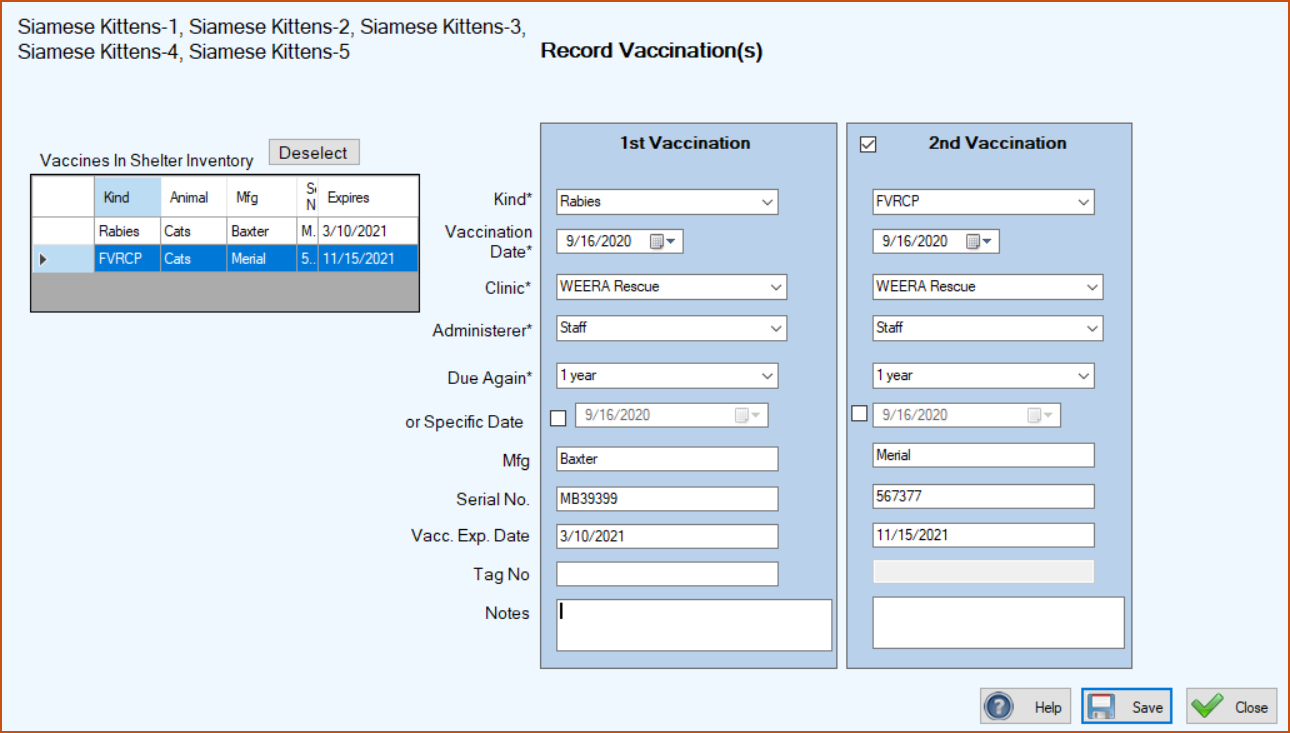
6. Click Save. You are returned to the Manage Animals screen where the selected animals are still highlighted and the confirmation message “Vaccinations for multiple animals saved” appears in the lower left corner of the screen. (Note: To view the records of the vaccinations you just added, select one animal at a time in the Manage Animals screen grid and click the Vaccinations button to see the Manage Vaccinations screen.)
Editing Details of a Completed Vaccination
1. On the TTR Home screen under Modules, click Animals to open the Manage Animals screen.
2. In the center grid, select the animal whose vaccination you want to edit by clicking the cell at the farthest left on the row containing the animal’s information. (Note: You can edit only one vaccination for one animal at a time.)
3. On the right side of the Manage Animals screen in the Choose an Action dropdown list, select Vaccinations to open the Manage Vaccinations screen.
4. With “Completed Vaccinations” selected above the center grid on the Manage Vaccinations screen, double-click the cell at the farthest left on the row containing the vaccination information to open the Vaccination screen.
5.Make the desired change(s) and click Save. You are returned to the Manage Vaccinations screen where you will see a confirmation message at the lower left corner of the screen. If you edited information that appears in the columns in the center grid, you will also see those changes.
Deleting a Completed Vaccination Record
1.On the TTR Home screen under Modules, click Animals to open the Manage Animals screen.
2. In the center grid, select the animal whose vaccination you want to delete by clicking the cell at the farthest left on the row containing the animal’s information. (Note: You can delete only one vaccination for one animal at a time.)
3. On the right side of the Manage Animals screen in the Choose an Action dropdown list, select Vaccinations to open the Manage Vaccinations screen.
4. With “Completed Vaccinations” selected above the center grid on the Manage Vaccinations screen, click the cell at the farthest left on the row containing the vaccination information.
5.Click the Delete button. A confirmation popup appears.
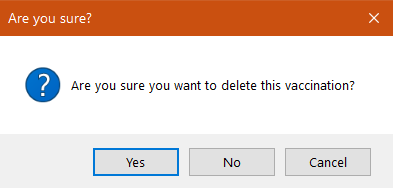
6.To complete the deletion, click “Yes.” You are returned to the Manage Vaccinations screen where the deleted vaccination has disappeared from the center grid and a confirmation message appears in the lower left corner indicating that the vaccination and any related reminder has been deleted.