To Create a Health Procedure
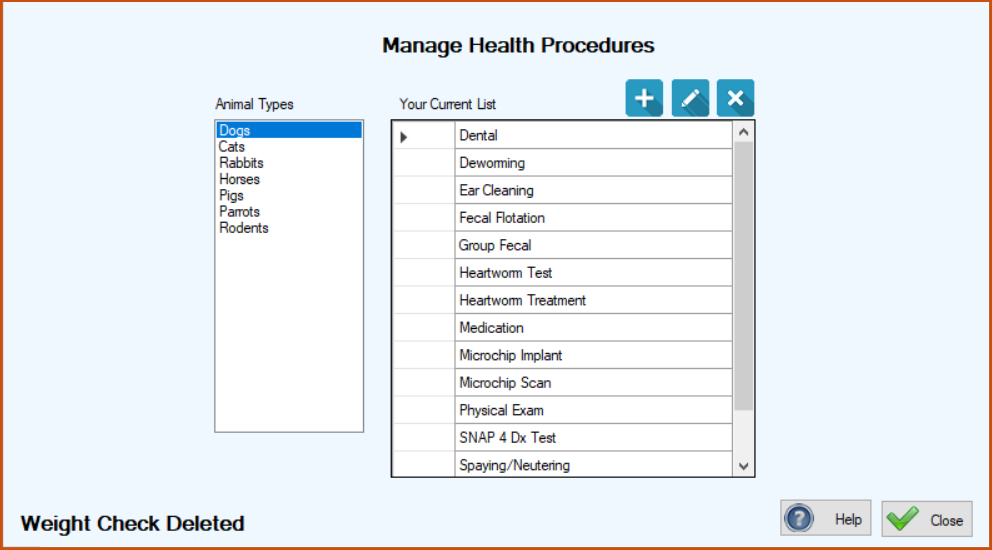
1.On the TTR Home screen, click Health Procedures in the Customization section, or click Customization on the horizontal navigation bar at the top of the Home screen and select Health Procedures from the dropdown list.
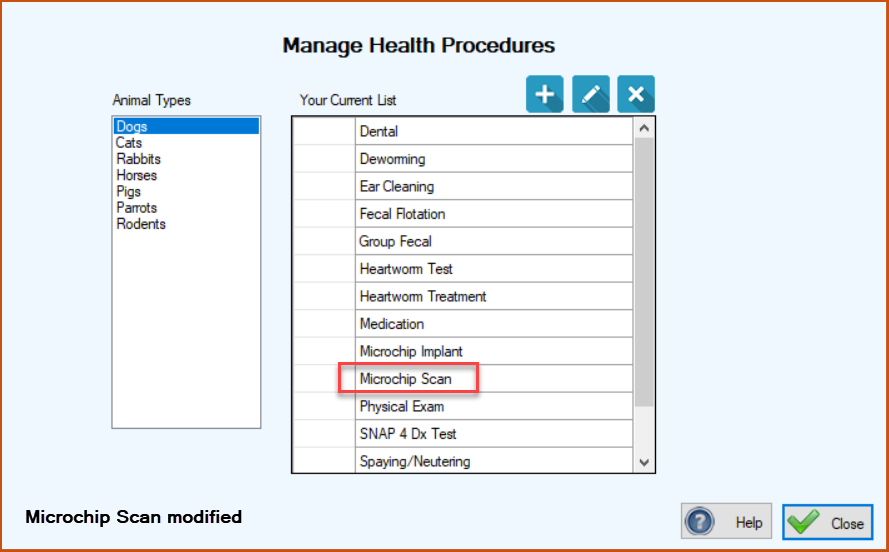
The Manage Health Procedures screen opens, showing a list on the left of the Animal Types you have created in your system, and a grid in the center designed to display the existing list of health procedures you have created for the Animal Type selected from the list on the left.
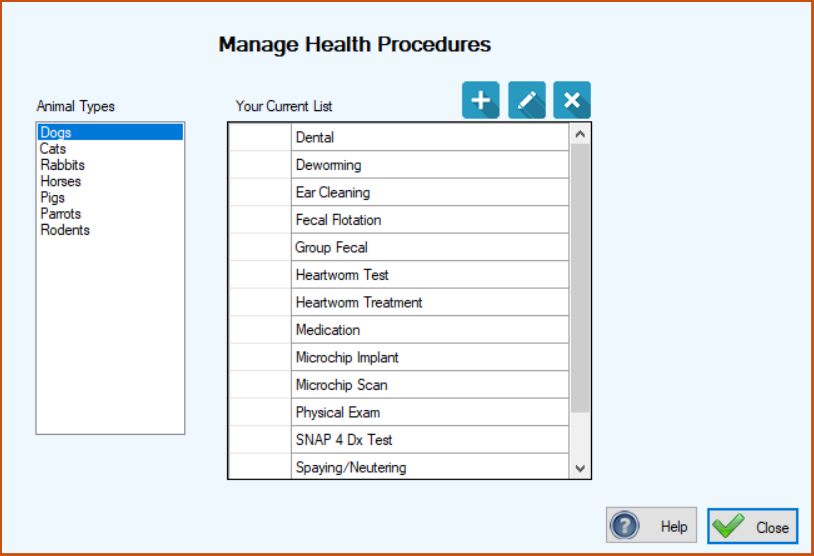
2.In the Animal Types list on the left, select the type of animal for which you want to create a new procedure, e.g., Horses.
3.Click the blue Add button ( ). The Animal Health Procedure screen appears, showing the selected Animal Type and the empty Animal Health Procedure field, ready for your entry.
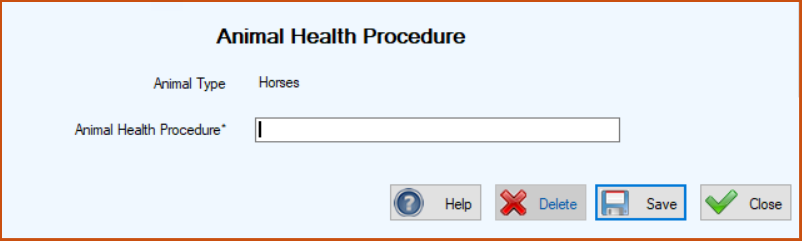
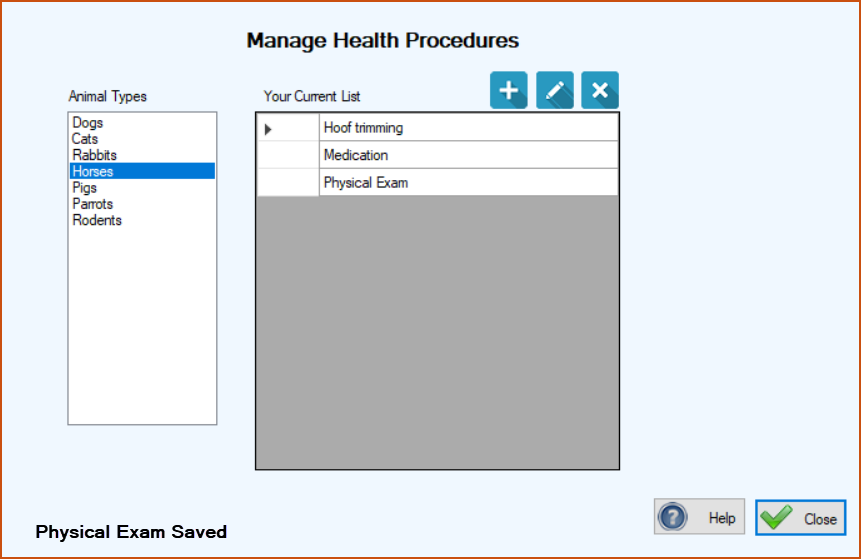
4.Type in the name of the new procedure, e.g., hoof trimming, and click Save. The Animal Health Procedure screen closes and you are returned to the Manage Health Procedures screen, where you can see the procedure you just added appearing in “Your Current List” in the center grid, along with a confirmation message at the lower left.
To Edit a Health Procedure
1.On the TTR Home screen, click Health Procedures in the Customization section, or click Customization on the horizontal navigation bar at the top of the Home screen and select Health Procedures from the dropdown list. The Manage Health Procedures screen appears, with the first Animal Type selected in the list on the left.
2.If the procedure you want to edit is for a different Animal Type than the one selected by default, click the one you need. The list in the center grid will change to show the procedures established for the selected Animal Type.
3.In the center grid, double-click the cell to the immediate left of the item you want to edit. The Animal Health Procedure screen opens, showing the selected Animal Type and the selected procedure in the Animal Health Procedure field, ready for editing.
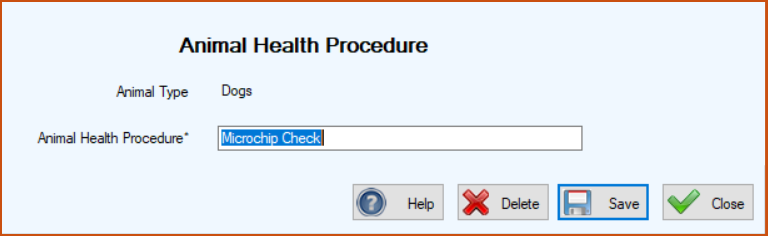
4.Make the desired change in the Animal Health Procedure field and click Save. The Animal Health Procedure screen closes and you are returned to the Manage Health Procedures screen, where you can see your changed item in the center grid and a confirmation message at the lower left.
To Delete a Health Procedure
1.On the Manage Health Procedures screen, in the list on the left, select the Animal Type associated with the procedure you want to delete. The list of procedures for that Animal Type appear in the center grid.
2.In the center grid, select the row containing the procedure you want to delete by clicking the blank cell to the immediate left of the procedure name.
3.Click the Delete button ( ). A popup window will appear, asking if you’re sure you want to make the deletion.
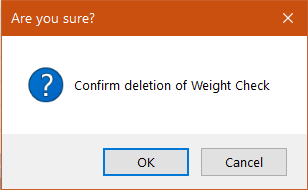
4.To complete the deletion, click OK in the popup window. The popup disappears and you are back at the Manage Health Procedures screen, where the item you deleted for the selected Animal Type no longer appears in the center grid, and a confirmation message appears in the lower left corner.