
To connect a PCO to an event as a donor:
1.On the TTR Home screen under Modules, click the People, Companies, Organizations button to open the Manage People, Companies, and Organizations screen.
2.Use one of these methods to select the PCO you want to connect to an event:
OR
– In the Show field to the left of the center grid, select People or Companies and Organizations, and then in the Last Name field above the center grid, begin typing the letters of the PCO’s last name or organization name until the only item appearing in the center grid is the desired PCO, indicating it is selected because the row is highlighted and has an arrow in the leftmost cell.
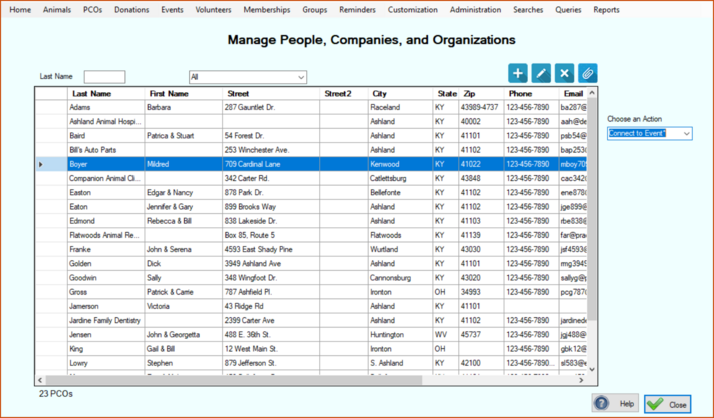
3.With the desired PCO selected, click the Connect to Event item from the drop-down menu to the right of the center grid. The Event Connection screen appears, displaying a list of all events in the system.
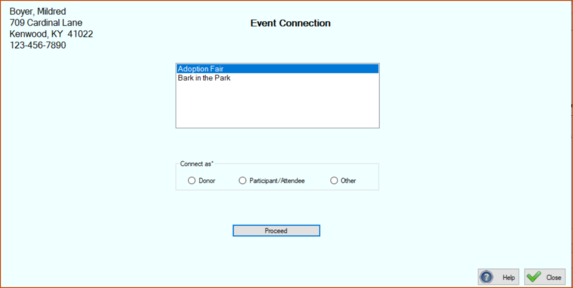
4.Click the name of the event to select it.
5.In the “Connect as” field, click Donor.
6.Click the Proceed button. The Event Donation screen opens, showing the name of the selected event at the top of the screen.
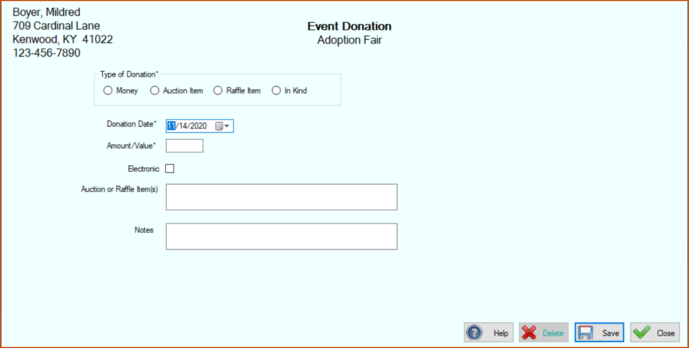
7.In the Type of Donation field, click the appropriate radio button.
8.In the Donation Date field, type or select the date of the donation.
9.In the Amount/Value field, enter the monetary value of the donation.
10.If the donation was money given through electronic means, click to select the Electronic checkbox.
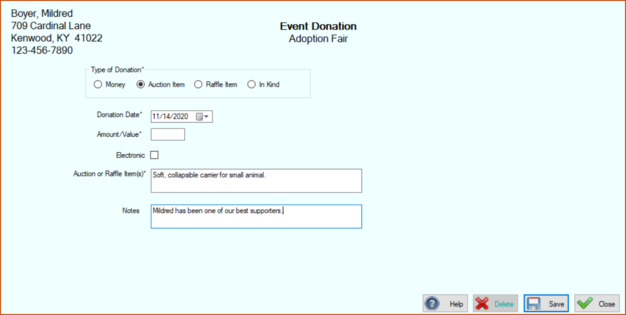
11.If you selected Auction Item or Raffle Item in Step 7, enter a description of the item(s) in the Auction or Raffle Item(s) field.
12.Enter any desired notes in the optional Notes field. For example, if a monetary donation was made electronically, you might want to indicate the source, such as PayPal or Facebook.
13.Click Save. You are returned to the Event Connection screen where you will see a confirmation message in the lower left corner.