
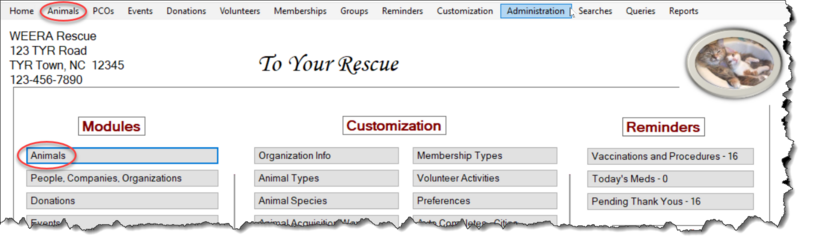
The Manage Animals screen is your “control center” for all recordkeeping for the animals in your care. To open the Manage Animals screen, simply click Animals on the navigation bar at the top of the TTR Home screen or click the Animals button in the Modules section of the Home screen.
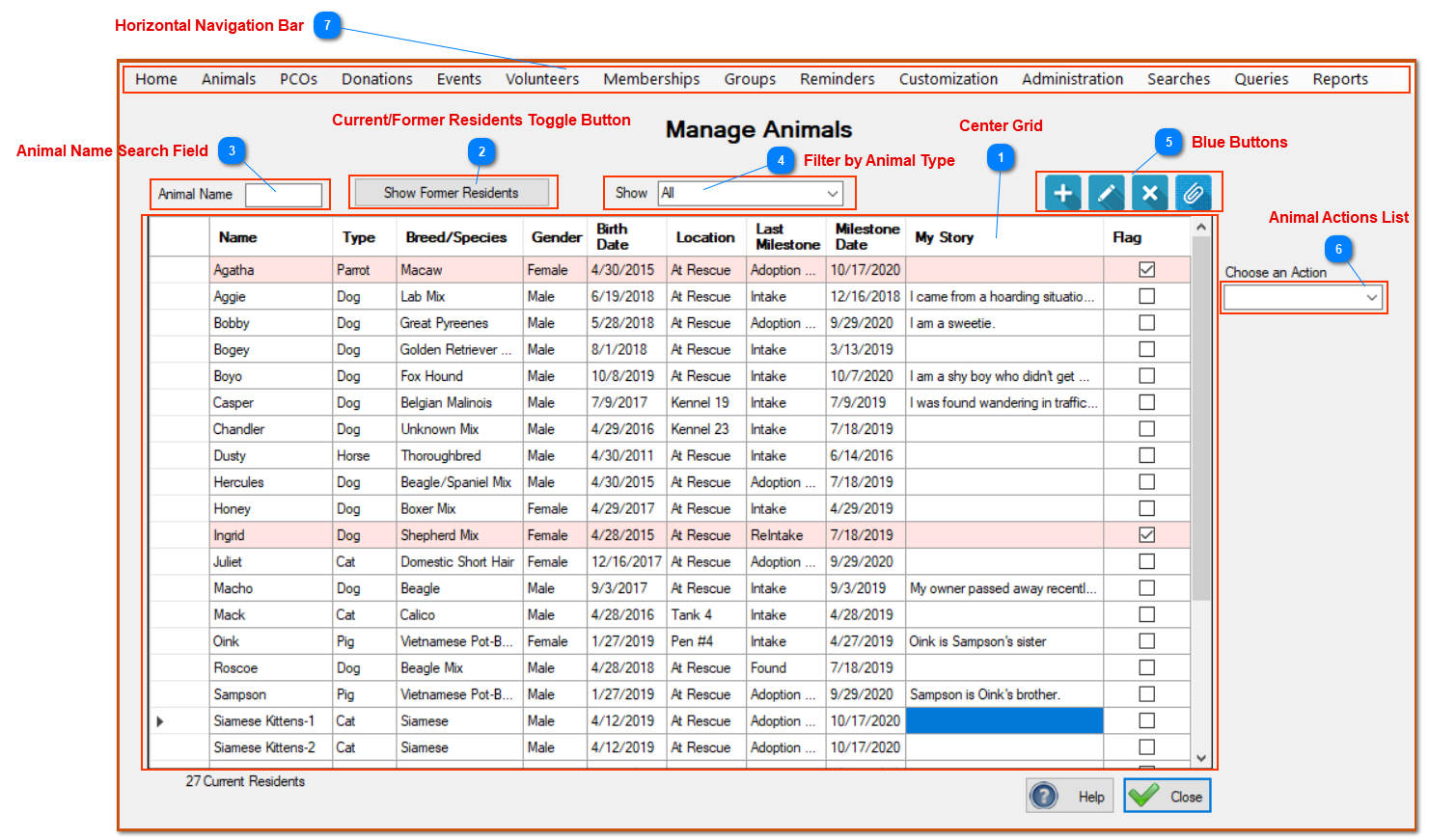
When the Manage Animals screen opens, so does a whole realm of special features. The screen has several distinct sections and tools, as indicated by the numbered areas in the screen image below.
Viewing Instructions:
1.To see a description of a numbered item in the image:
– Hover your cursor over the blue numbered circle or the red rectangle surrounding the item for a popup window,
OR
OR
– Click the blue numbered circle or the red rectangle to be taken to the description further down this page.
2.Close a popup window by moving your cursor away from the numbered circle and red rectangle.
Note: If you choose to go to the description of a numbered item further down this page, return to the top of the page by clicking “Top” at the right side of the screen. To return to the Manage Animals screen image, click the blue circled number beside the item’s title.
Manage Animals Screen Description
|
Center Grid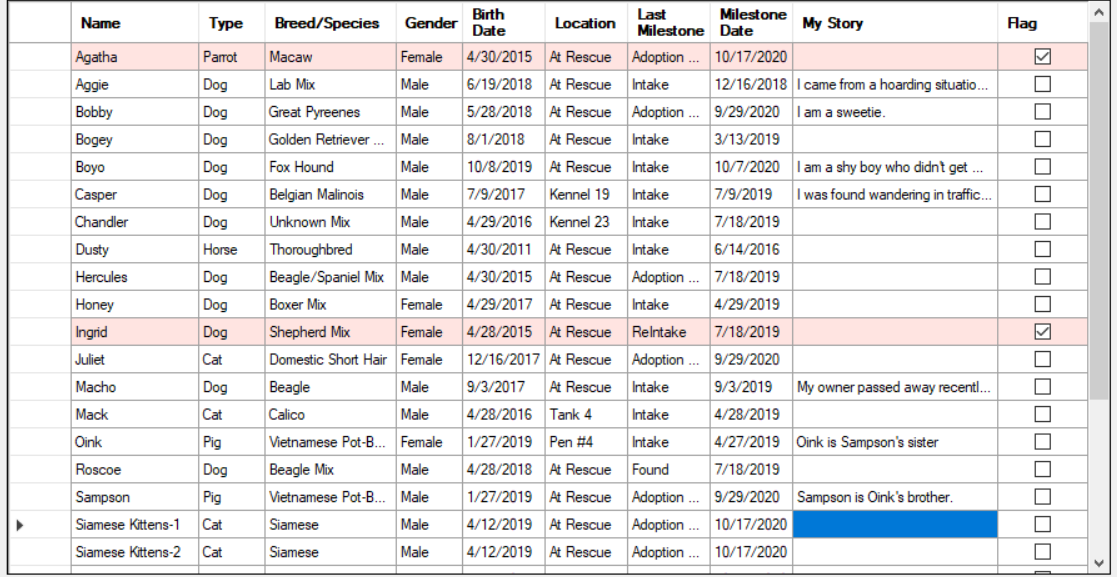 When you open the Manage Animals screen, the center grid displays a list of all the animals currently in your care,
either at your shelter or in a foster home, along with a snapshot of the details taken from information entered
on various other screens accessed from the Manage Animals screen. Just below the grid on the left, you can
see the total number of animals whose details are displayed in the grid. Use the vertical scroll bar on the right
to move down through the entire list.
|

|
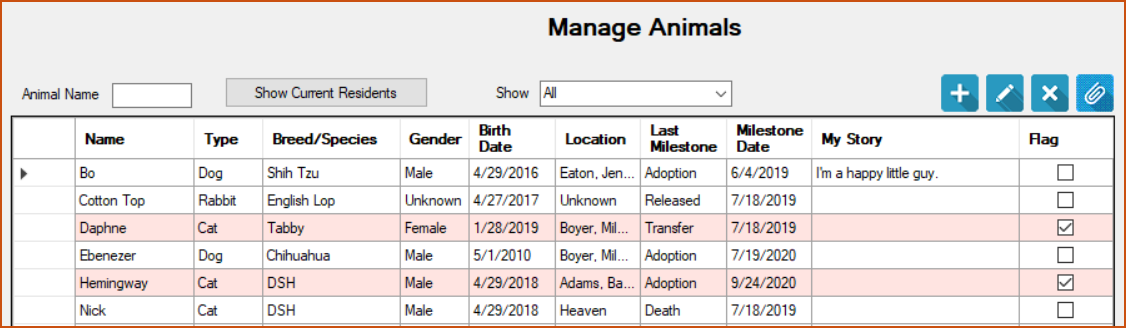
Current/Former Residents Toggle Button
|
|
Top
|



|
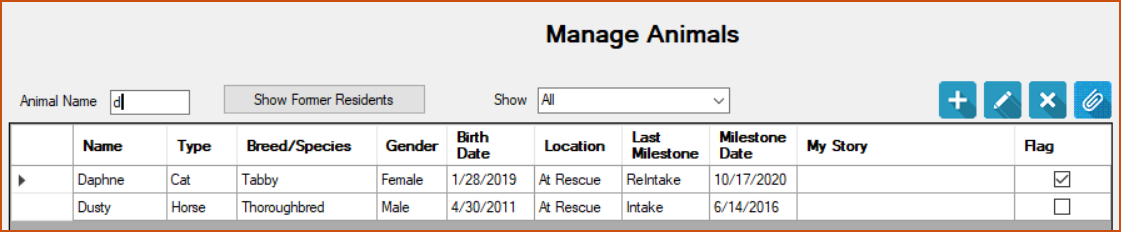
Animal Name Search Field This field enables you to easily find a specific animal by name. As you begin typing in the Animal Name Search field,
the list of animals in the grid narrows down to names beginning with those letters. For example, entering an “s” will
take you to the first “s” in the list and the grid will display all animal names starting with “s” in alphabetical order.
Entering “sa” will take you to the first “sa” in the list and any other names starting with “sa” will also appear, and so on.
 |
|
Top
|

|
Filter by Animal Type This tool allows you to filter the center grid by type of animal (dog, cat, horse, etc.). The available selections in the
dropdown list are determined by what you create in your system setup when you customize your Animal Types.
|
|
Top
|

|
Blue Buttons These buttons allow you to perform important actions related to one or more animals you have selected in the
center grid. To help you recall the purpose of a button, you can hover your cursor over it to see a “tool tip.”
 = Add a new animal = Add a new animal = Edit details about a animal = Edit details about a animal = Delete animal record(s) = Delete animal record(s) = Add and manage attachments (photos, videos, documents, notes, URLs) = Add and manage attachments (photos, videos, documents, notes, URLs) |
|
Top
|

|
Animal Actions List Click the down arrow to display a list of available actions and then click the desired item in the list to open a
related screen where you can enter, view, and/or manage a variety of actions and health-related information
for the animals you selected in the center grid. (Note: You will find detailed information and procedures for each of these
screens on their respective Help pages.)
The current dropdown list contains these selections:
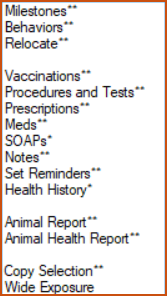 For items with a single asterisk, you can select only a single animal in the grid. For items with two asterisks, you can select
two or more animals if you wish.
|
|
Top
|


