
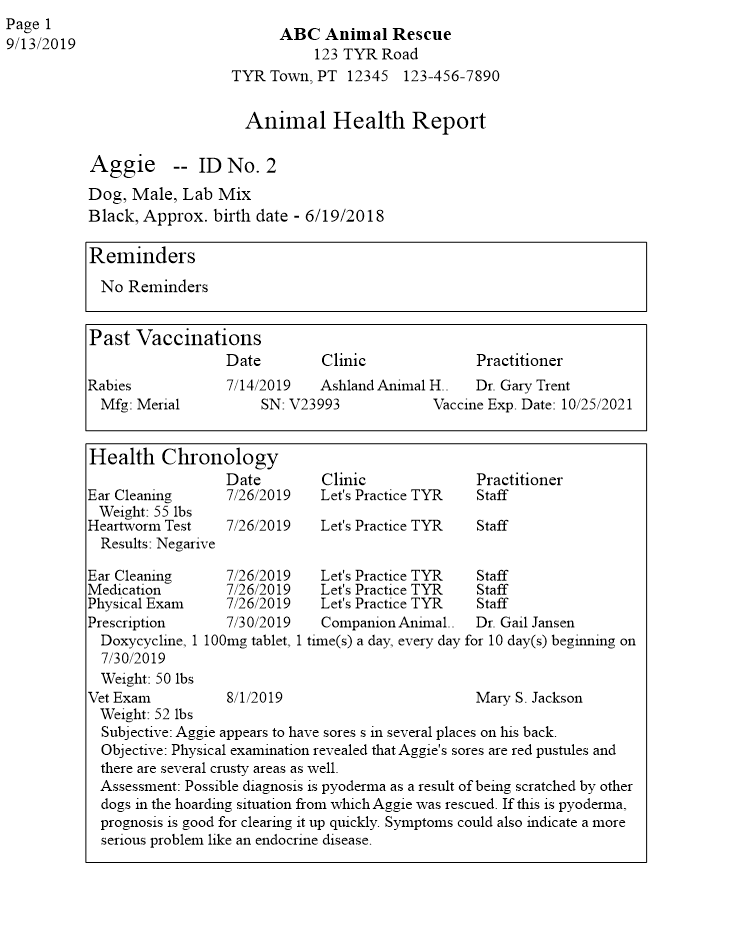
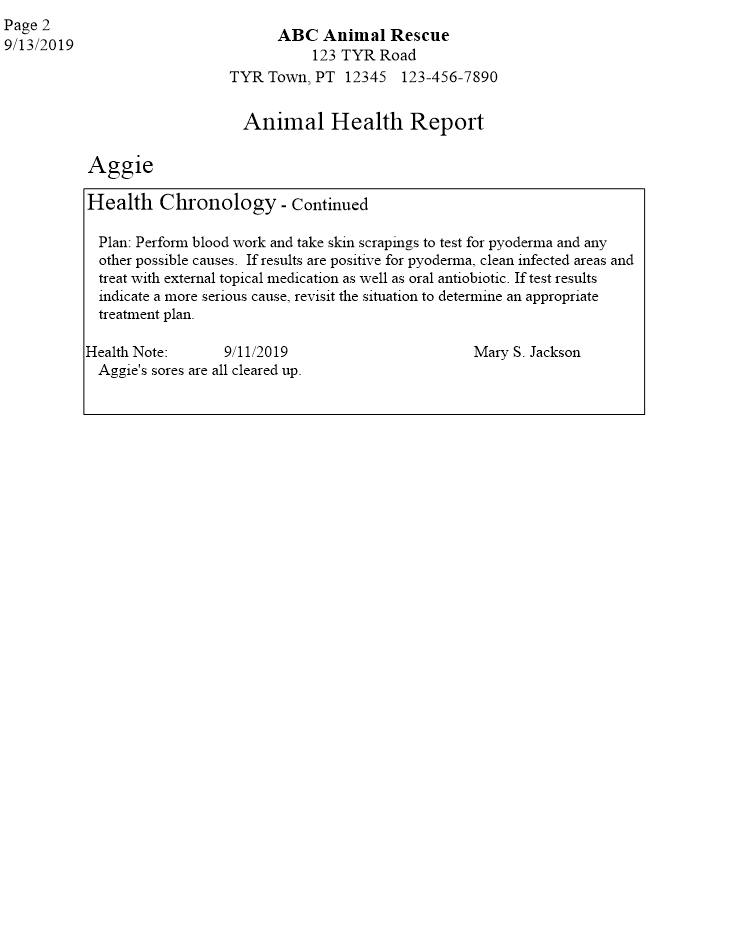
After you enter health information for each of your animals, TTR enables you to view and print a report that compiles all that health information into a single document, like the example below. Follow the steps below the example to view and print a report for a single animal or a series of reports for multiple animals.
 |
 |
To view and/or print a heath report for a single animal:
1.On the TTR Home screen, click the Animals button to open the Manage Animals screen.
2. In the center grid on the Manage Animals screen, click the leftmost cell on the row containing the information for the animal whose Health Report you want to view and print. The row becomes highlighted, with a right-pointing arrow in the leftmost cell.
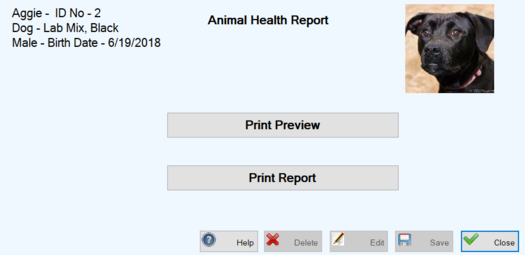
3. Click the Health Report button at the bottom of the list under Animal Health at the right of the center grid. The Animal Health Report screen appears.
-
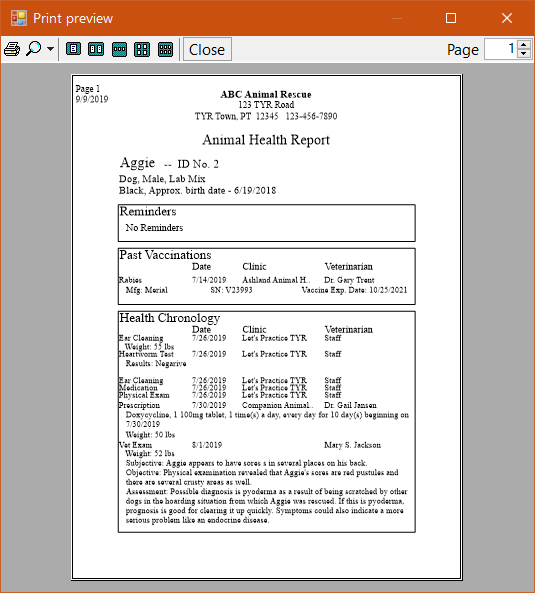
To print the report directly from the Print Preview dialog box to your default printer, click the Print button at the upper left.
-
To print the report to a different printer or to make specific print settings that require the Windows Print dialog box, do this:
To view and/or print heath reports for multiple animals:
1.On the TTR Home screen under Modules, click Animals to open the Manage Animals screen.
2. In the center grid, select the animals whose health reports you want to view and/or print:
|
TO SELECT
|
DO THIS
|
|
Multiple animals adjacent to each other
|
Click the cell to the left of the uppermost animal you want to select, hold down the Shift key on your keyboard, and then click the cell to the left of the bottommost animal you want to select.
|
|
Multiple animals not adjacent to each other
|
Click the cell to the left of the uppermost animal you want to select, hold down the Ctrl key on your keyboard, and then click the cell to the left of each additional animal you want to select.
|
Note: Multiple animals do not have to be the same type.
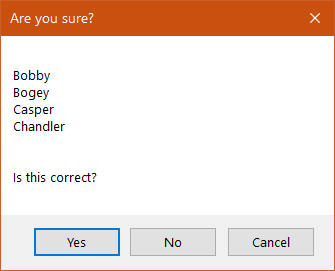
3. On the right side of the screen under Animal Health, click the Health Report button. A confirmation popup appears, displaying the names of the animals you selected.
4.To print the report without viewing it first, follow Step 4 above.
5.To view the report before printing it, follow Step 5 above.