
-
Adding a medication administered to one animal
-
Adding a medication administered to multiple animals
-
Editing details of a medication entry
-
Deleting a medication entry
Adding a Medication Administered to One Animal
1.On the TTR Home screen under Modules, click Animals to open the Manage Animals screen.
2. In the center grid, select the record of the animal that received the medication by clicking the cell at the farthest left on the row containing the animal’s information.
3. On the right side of the screen under Animal Health, click the Meds button to open the Manage Meds screen.

 ) to open the Medicine Given screen.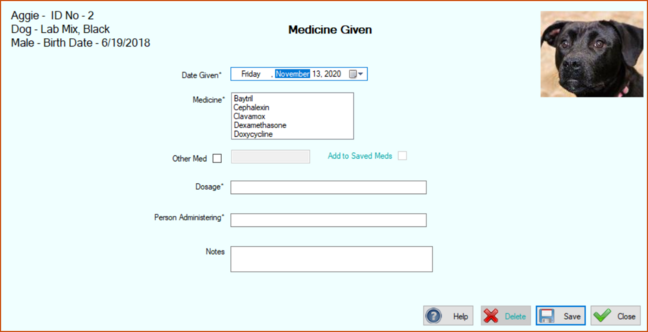

Adding a Medication Administered to Multiple Animals
1.On the TTR Home screen under Modules, click Animals to open the Manage Animals screen.
2. In the center grid, select the animals that received the medication:
|
TO SELECT
|
DO THIS
|
|
Multiple animals adjacent to each other
|
Click the cell to the left of the uppermost animal you want to select, hold down the Shift key on your keyboard, and then click the cell to the left of the bottommost animal you want to select.
|
|
Multiple animals not adjacent to each other
|
Click the cell to the left of the uppermost animal you want to select, hold down the Ctrl key on your keyboard, and then click the cell to the left of each additional animal you want to select.
|
3.On the right side of the screen under Animal Health, click the Meds button. A confirmation popup appears, displaying the names of the animals you selected.

4.If these names are not correct, click No to return to the Manage Animals screen to repeat Steps 2 and 3.
5. If the names are correct, click Yes to continue. The Medicine Given screen appears, allowing you to record the same medication information for all selected animals whose names appear in the upper left corner of the screen.
6.Perform Steps 5 through 10 for Adding a Medication Adminstered to One Animal.
Click Save. You are returned to the Manage Animals screen where the animals you selected are still highlighted in the center grid, and a confirmation message appears in the lower left corner of the screen.
Editing Details of a Medication Entry
1. On the TTR Home screen under Modules, click Animals to open the Manage Animals screen.
2. In the center grid, select the animal whose medication entry you want to edit by clicking the cell at the farthest left on the row containing the animal’s information. (Note: You can edit only one medication entry for one animal at a time.)
3. On the right side of the screen under Animal Health, click the Meds button to open the Manage Meds screen.
4. With “Meds Given” selected above the center grid, double-click the cell at the farthest left on the row containing the medication information. The Medicine Given screen opens.
5.Make the desired change(s) and click Save. You are returned to the Manage Meds screen where you will see a confirmation message at the lower left corner of the screen. If you edited information that appears in the columns in the center grid, you will also see those changes.
Deleting a Medication Entry
1.On the TTR Home screen under Modules, click Animals to open the Manage Animals screen.
2. In the center grid, select the animal whose medication entry you want to delete by clicking the cell at the farthest left on the row containing the animal’s information. (Note: You can delete only one medication entry for one animal at a time.)
3. On the right side of the screen under Animal Health, click the Meds button to open the Manage Meds screen.
4. With “Meds Given” selected above the center grid, click the cell at the farthest left on the row containing the procedure or test information.
5.Click the Delete button. A confirmation popup appears.

6.To complete the deletion, click “Yes.” You are returned to the Manage Meds screen where the deleted procedure or test has disappeared from the center grid and a confirmation message appears in the lower left corner.