To Their Rescue(TTR) is a computer-based software application that runs on a single computer. On this page, we’ll address technical requirements for computers running TTR, and then we’ll look at the actual installation procedures. We’ll also cover the procedures for installing updates.
Computer Requirements
Before you install TTR, check to make sure your computer hardware and operating system meet these requirements:
- Operating system: Microsoft Windows 7 Home Pro or any later version of Windows
- Disk space: At least 8 Mb of free disk space
- RAM: At least 2Gb of RAM
- Monitor resolution and font size: At least 1366 x 768 (Notes: The clearest resolution setting is 1920 x 1080, although fonts will be smaller. Because of differing screen sizes and resolutions, you might need to make adjustments to your display setting for TTR to appear optimally. To adjust, right-click on your computer’s desktop, select Display Settings, and select a resolution with higher numbers than the current setting if available. Higher numbers mean better resolution. You can also increase the font size in the Scale and Layout settings from 100% to a higher number (we suggest no higher than 125%), using a preset selection or selecting Advanced scaling settings to enter your own percentage, keeping in mind this setting change will also increase the size of some application screens, icons, and other items, affecting their appearance as well. If you have display problems after adjusting your display settings, contact TTR Support at contact@toyourrescue.org for assistance.)
Performing the Installation
When you complete your purchase of TTR, you will receive a link to download the software. When you receive the link, follow these steps:
1. Click the download link provided. The file to be downloaded is a zip folder named TTR_Installer.zip.
Note: Depending on your browser settings, you might be prompted for a location to save the zip folder. If so, save it to a location of your choice, e.g., in the Downloads folder provided by Windows.
2. Open the TTR_Installer.zip folder, where you will see another folder named TTR_Installer.
3. Open the folder named TTR_Installer and you will see a file named TTR_Install.exe.
4. Double-click the file named TTR_Install.exe to start the install process.
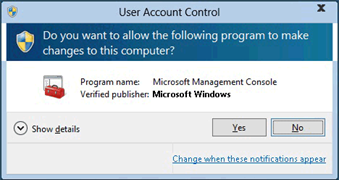
Note: Depending on your computer’s security settings, after you double-click the TTR_Install.exe file, you might see a User Account Control popup window that looks something like the one below. If so, click Yes to start the install process.
When the installation is complete, you will see the TTR icon on your computer’s desktop and a shortcut on your taskbar.
Installing Updates
After you begin using TTR, check frequently to make sure you always have the latest release. The release number of your current version appears in the title bar on all TTR screens.
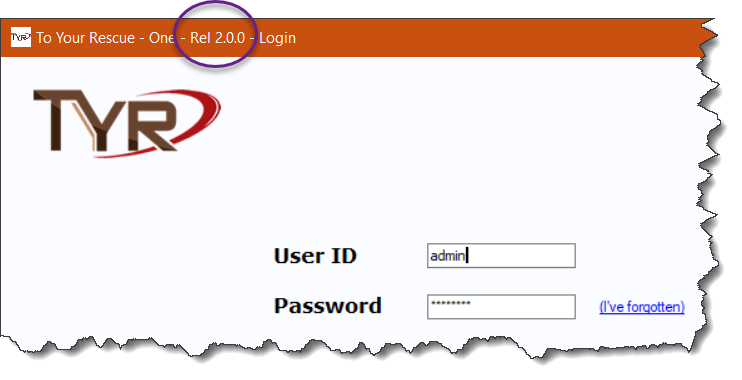
To check for and download the latest release, follow these steps:
1. On the TTR Home screen under Administration, click “Check for Latest Release.” The Latest Release screen opens, showing the version number of the release currently installed on your computer. This should match the number shown on the title bar at the top of every screen in the application.
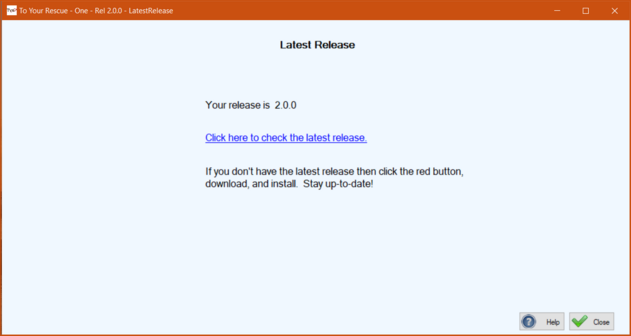
2. On the Latest Release screen, click the link “Click here to check the latest release.” This will take you to TTR’s release downloads web page.
3. Compare your release number to the latest release on the web page.
4. If the number of the release on the web page is higher than your release number, click the Download button to access the latest version.
5. Once the new release has downloaded, close TTR. (Note: Updates cannot be installed while the TTR application is open.)
6. Follow steps 2 through 4 above for “Performing the Installation” to install the latest release.
A Note about TTR and Anti-Virus Programs
Some anti-virus programs and web browsers might alert you that the file TTR_Install.exe is dangerous. They do that when they don’t recognize the file name. Of course, this file is completely safe but if your anti-virus program won’t allow you to do the install, you might need to change its security settings or temporarily disable it just until the installation is complete. If you must disable your anti-virus program, we recommend disconnecting from the Internet during this time and then reactivating your anti-virus program before reconnecting to the Internet. (If your web browser alerts you when you try to do the download, you will likely be given an option to download anyway. The TTR installation file is safe, so choose the option to go ahead with the download.)
If you have MIcrosoft Windows Defender running, you might see a popup window like this:
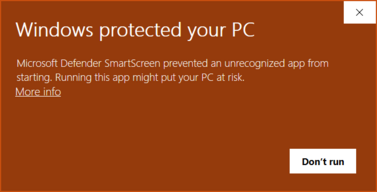
If so, click “More info” to continue. The popup will change like this:
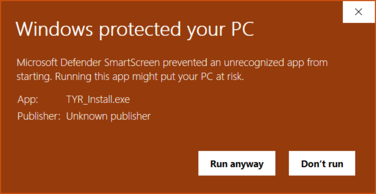
Click “Run anyway” and Windows Defender should allow you to continue with the installation.
Important Note: If your anti-virus program continues to prevent the installation, we might be able to provide some guidance. However, because there are several different anti-virus programs on the market, we might not have the information necessary to help you resolve the issue. For this reason, we ask that you request assistance from the manufacturer of your anti-virus software.
Successful Installation
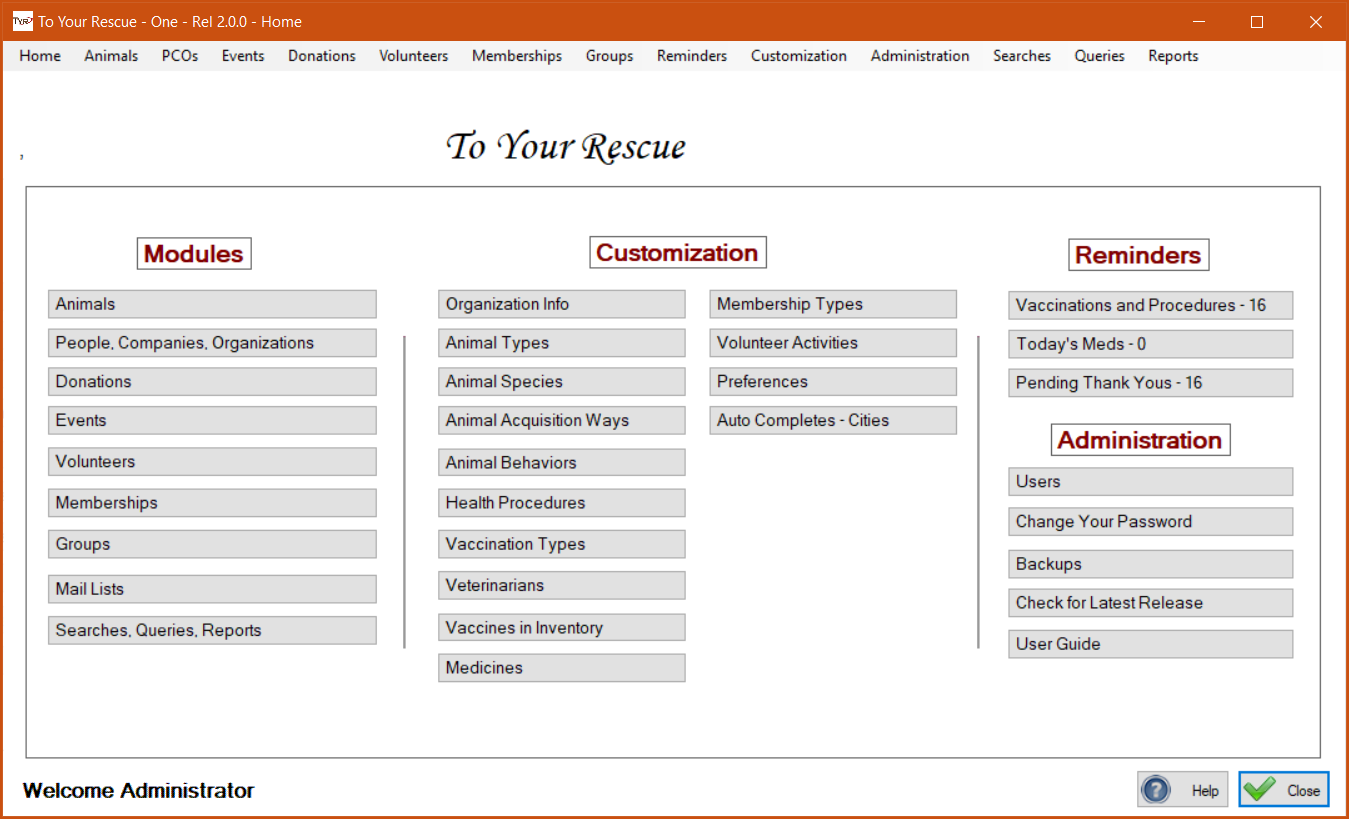
You’ll know if TTR has installed the way that the designers intended if your home screen looks similar to the image below. If you have any difficulty reading the text, change your display settings as described above under Computer Requirements / Monitor Resolution.