Groups give you another way to maintain good records on your activities. There are lots of groups; e. g., adopters, volunteers, donors, clinics, vets, etc but these are not what we’re talking about here. They are all handled and managed by other TTR modules. Here we’re talking about groups that are not managed in other modules; groups like the Board of Directors and special committees. Later you will want to know who served on the Board or on a specific committee and maybe some notes about their contributions; you can record this information in Groups.
- Adding a New Group
- Adding Group Members
- Deactivating a Group
- Deactivating a Group Member
- Seeing Membership History
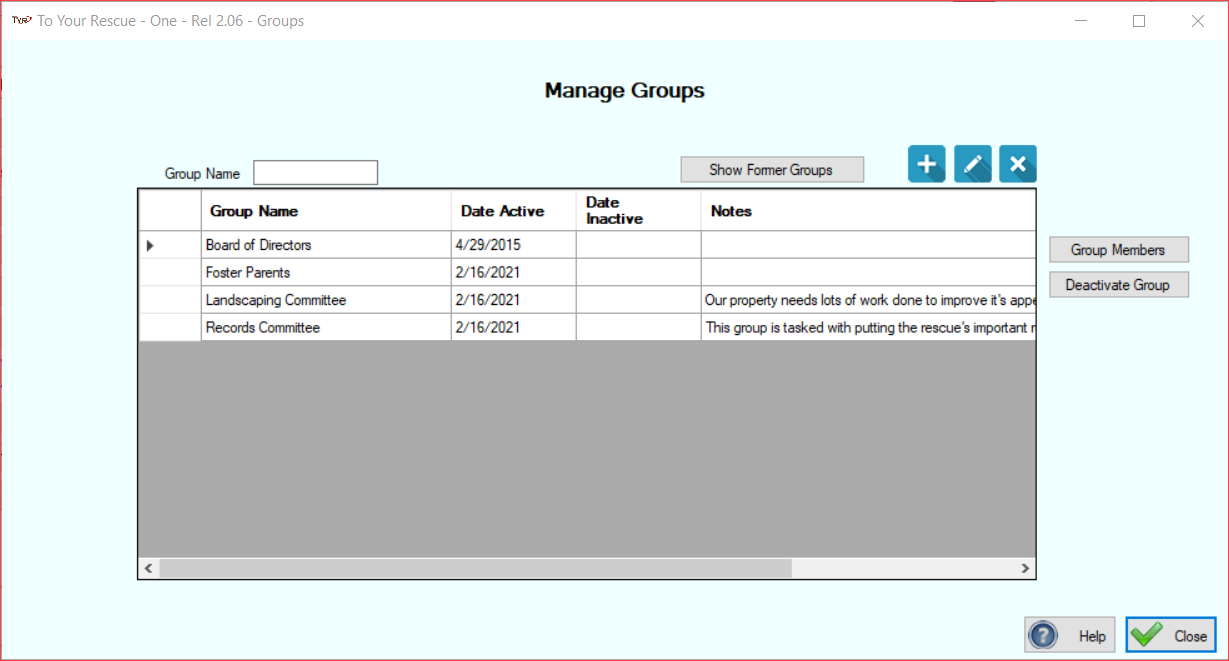
To add a new group just click the plus button and the Group screen will appear. Put in the name of the group, select the date the group was started, put in some notes about the group if you so desire, and click Save.
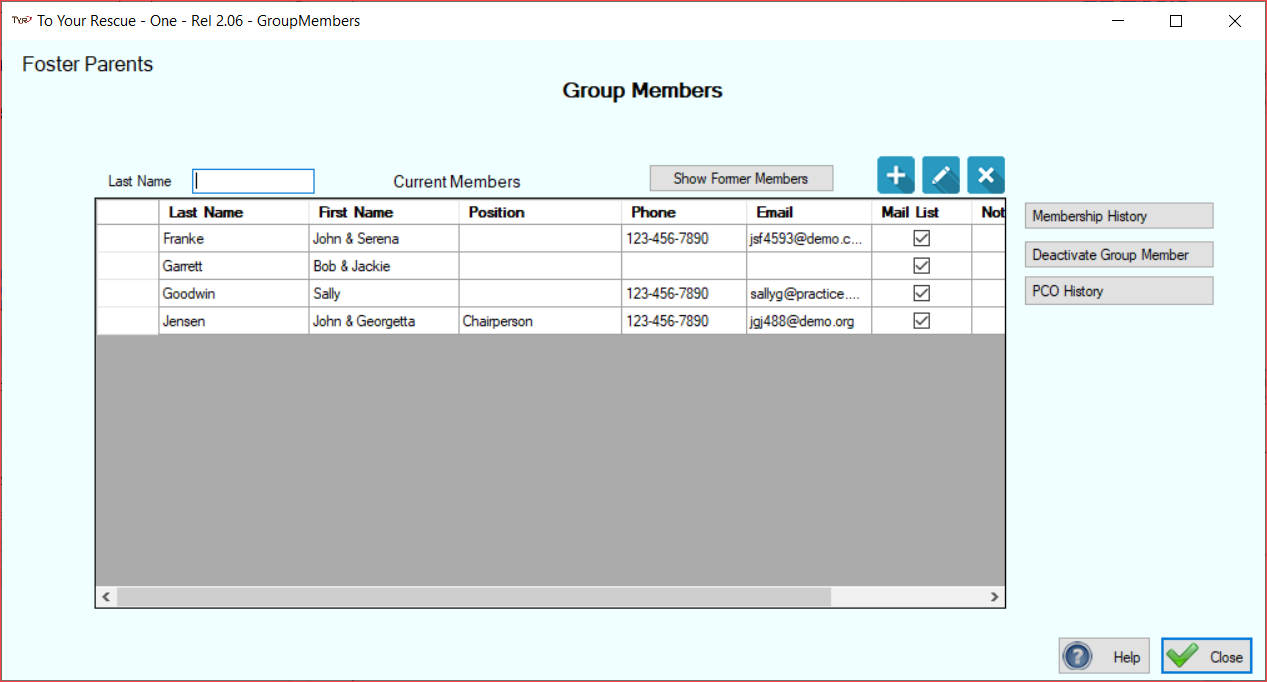
You can add people to each group selecting the group and clicking the Group Members button. You will get a screen like the one below. It will show you the current members of the group and clicking the plus button will allow you to add another person to the group.
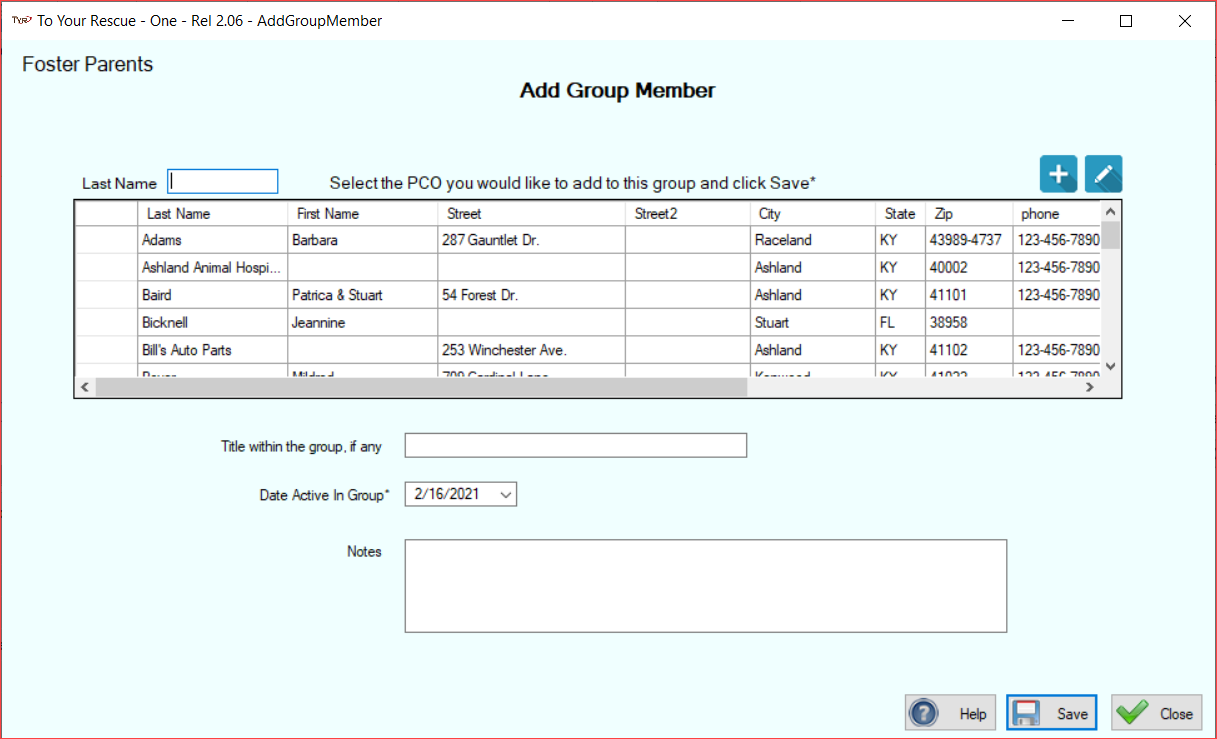
To add a person to the group click the plus button and you will get a list of all the people in your database. You will select the person from your list of people and if they are not in the list you will have to add them by clicking the plus button.
Groups, and especially adhoc groups, generally have a lifespan. You may want to deactivate the group and in this way will always be able to look back and see information about it; who was in it, what did it accomplish, etc. You cannot delete a group if it has members even if those members have been deactivated. So, the way to keep it from showing in your current groups is to deactivate it. You can always select Former Groups from the Groups screen and see the group listed there.
Group members come and go. If you made a mistake by entering them then we suggest you delete them by clicking the ‘X’ button. Usually you will want to retain that they were a member of the group at one time. In this case it is best to deactivate them. Just select the member and click the Deactivate Group member button.
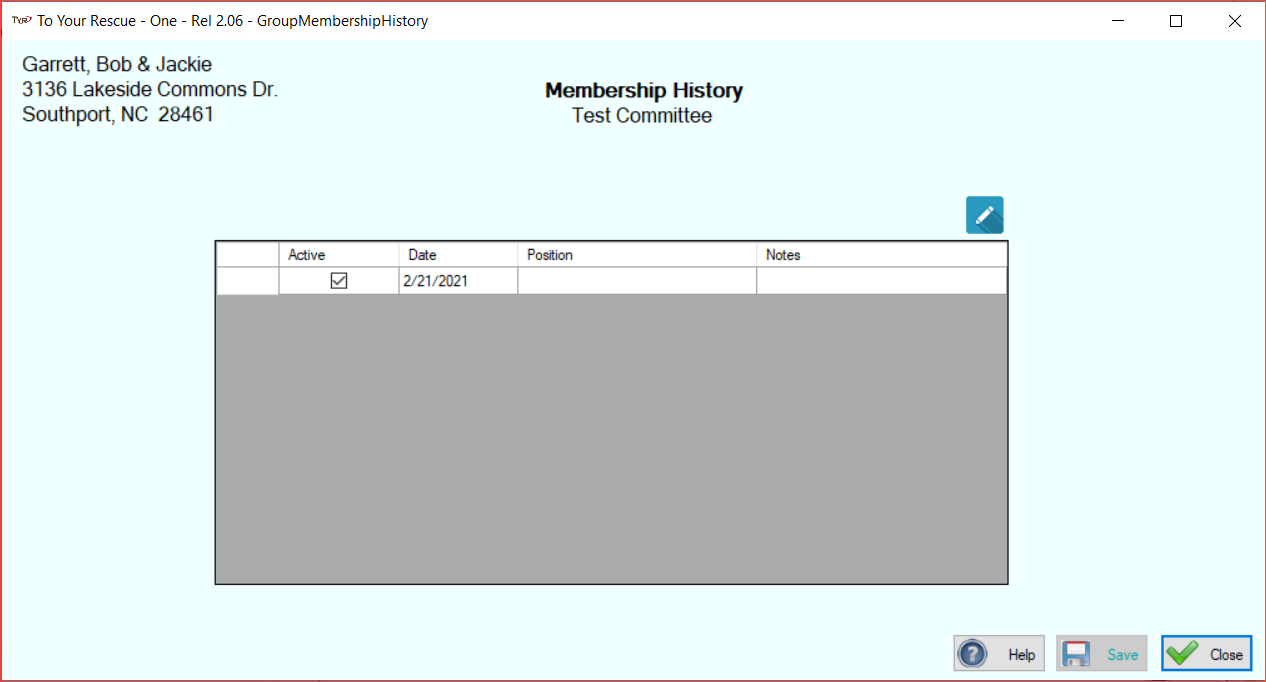
This screen just you the period of time that any particular member is, or was, a member of a specific group.