
Before restoring your database, check to make sure you have the TTR application installed on your computer. If you need to reinstall the application, click here for instructions. If you cannot locate the .zip file containing the TTR installer program, contact TTR Support at 910-249-9696 or contact@toyourrescue.org.
To Restore Your Database
1.On the TTR Home screen under Administration, click the Backups button, OR select Manage Backups from the Administration list on the horizontal navigation bar at the top of the screen to open the Manage Backups screen.
2.On the Manage Backups screen, find the row containing the date and time of the backup file you want to use to restore your database, usually the one with the most recent date and time stamp.
Note the information in the Path and File Name columns. The Path shows the location where the backup folder and file are located, and the File Name is the name of the folder containing the database backup file created by TTR when you did the backup.
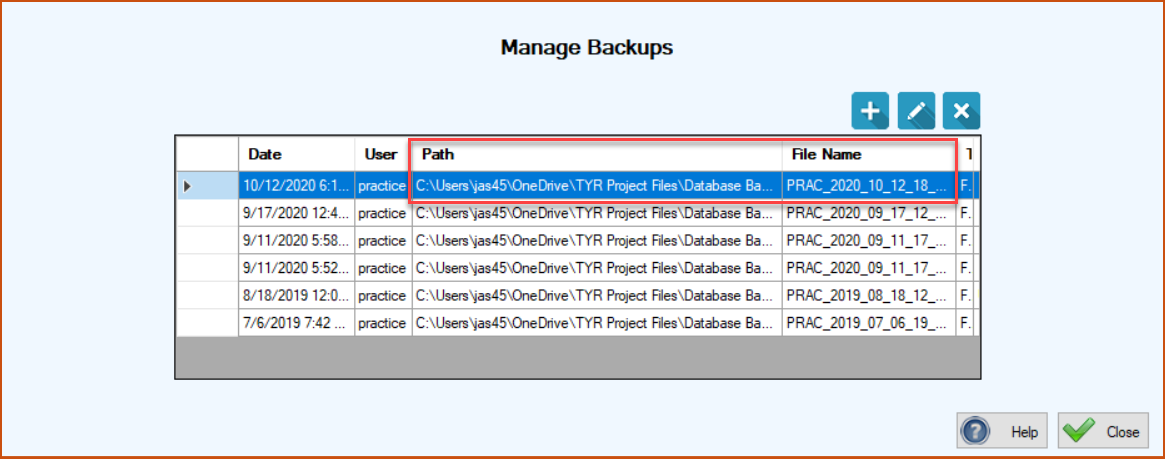
3.With your mouse, click in the cell containing the Path information to highlight it and then press the Ctrl and C keys on your keyboard simultaneously to copy the information to your computer’s clipboard.
Note: If you store your backup files on a CD, flash drive, or external hard drive, make sure that data storage device is inserted in or attached to your computer before you go to Step 4. If you store your files in the cloud (OneDrive, Google Drive, etc.), make sure you’re online with that service.
4.Open Windows File Explorer, and follow these steps to locate your database backup file:
(a). Click in the Quick Access field in Windows File Explorer (item #1 in the image below), and press the Ctrl and V keys on your keyboard simultaneously to paste the Path information into the Windows Explorer Quick Access field.
(b). Press Enter on your keyboard. Windows File Explorer takes you to the path shown in the Quick Access field, where you can see a list of all your TTR backup folders stored in that location (item #2 in the image below).
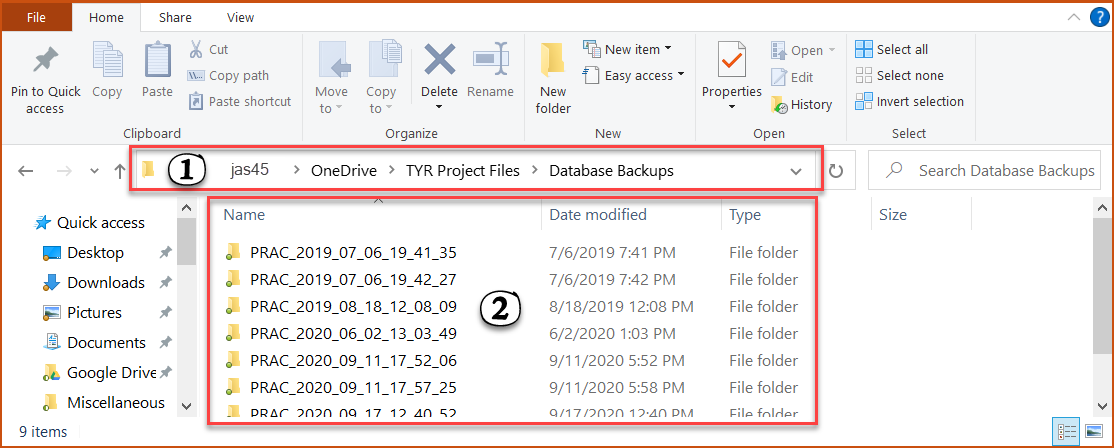
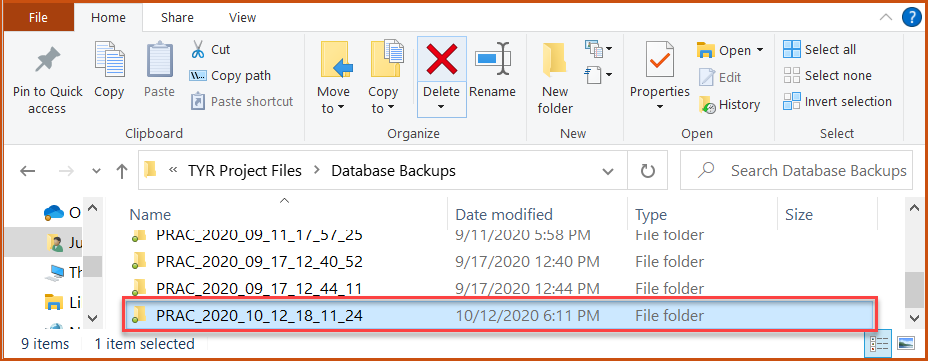
5.Find the folder containing the backed up database file you want to restore.
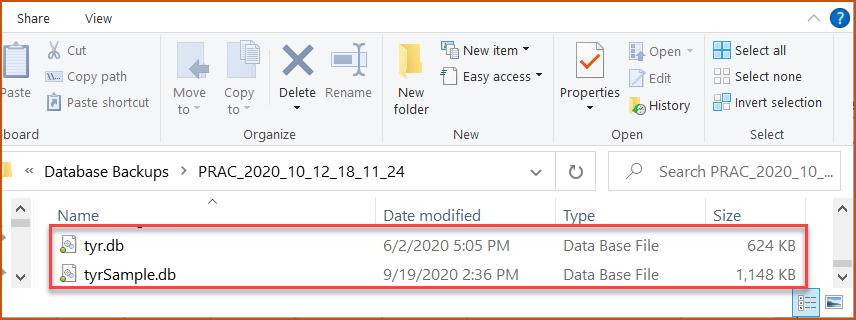
6.Open that folder and copy the file named “tyr.db.” If the folder also contains a file named “tyrsample.db,” copy that as well. Ignore any other files.
7.In Windows File Explorer, go to your Windows C:/ drive and find the folder named “TTRDB.” If a TTRDB folder doesn’t appear at the Windows C:/ level, then create one.
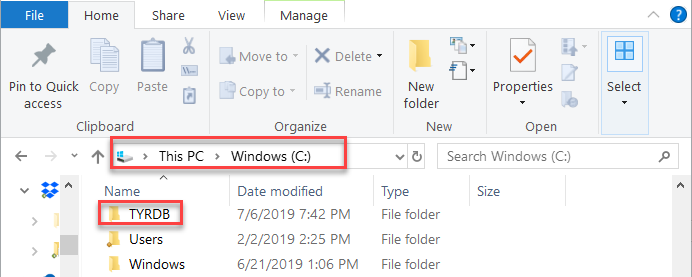
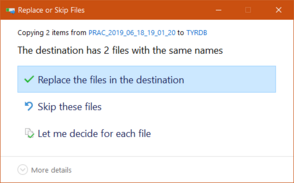
8.Paste the copied “tyr.db” file (and “tyrsample.db” if you copied that as well) into the TTRDB folder. If a file with the same name already exists, Windows will ask you what you want to do.
-
Choose “Let me decide for each file.” This enables you to compare the dates of the files to determine whether you might already have newer files than the ones you’re trying to restore. If the existing files are newer, select “Skip these files.” If the existing files have an older date than the ones you’re restoring, select “Replace the files in the destination” to replace the existing files in the TTRDB folder with the ones you are restoring.