
Some rescues help families in their area by helping them pay for the spaying and neutering of their pets. It’s just another way that rescues are working to reduce the number of unwanted pets.
The family will ask the rescue for financial help and the rescue will issue a voucher to them that they can then use to ‘pay’ for the operation. The clinic performing the operation will accept this voucher for payment and then send it to the rescue that will then actually pay the clinic. Some rescues offer this and they don’t pay the entire costs but only a certain percentage of the cost and the family will pick up the rest. But, regardless of the amount the rescues pay they are helping and making a valuable contribution to their community.
TTR can help you manage this program if you have one or want to begin one.
Let’s assume you have started this program, have advertised it to your community, have arranged with clinics and veterinarians to accept your vouchers, and you have a standard voucher form that you will give to people that come to you for help. If you give this voucher to the family you need to collect some information from them such as name, address, pet’s name, etc. and then you come to TTR and enter this information. The voucher will then show under open vouchers.
The family will, in most cases, have the pet spayed or neutered and give the voucher to the vet who will return it to you. You will pay the vet and close the open voucher indicating that it was used. You will normally give the family a certain amount of time in which to have the operation performed. If you have not received the voucher back from the clinic then you will contact the family to see if they plan on using it. If not then you will close the voucher and indicate that it was not used. Vouchers that have been open in the system for more than 90 days will show in a light red color in the open vouchers listing.
Adding a New Voucher
Click the blue plus button above the grid and you’ll be taken to the Add New Voucher screen.
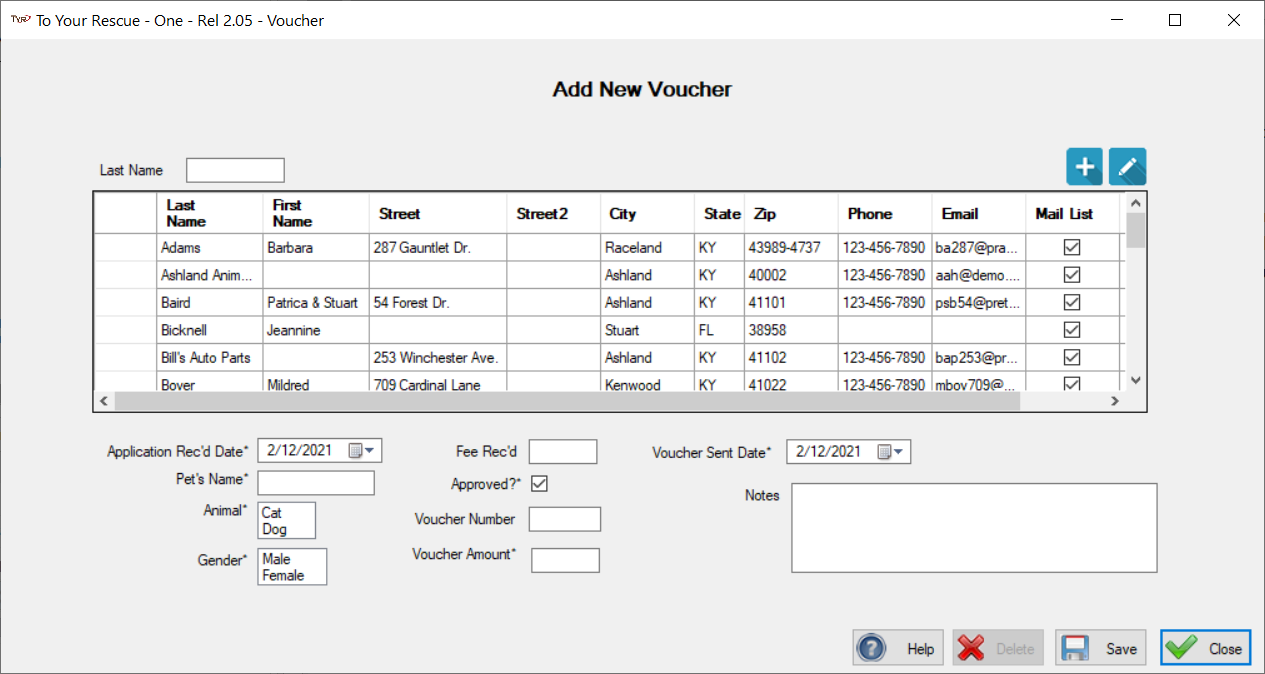
Usually, the PCO applying for the financial help will not be in the PCO grid so you will need to add them by clicking the blue plus sign button. After so doing you will be returned to the above screen with the PCO selected. You will then complete this screen and click the ‘Save’ button. If the PCO gives you money the the amount is to be put into the Fee Rec’d text box. You can leave it blank if so desired.
The Approved box is checked because it will most likely be approved. If you disapprove the application then it is unchecked. After filling in all required fields then click ‘Save’ and the voucher will be saved, you will be returned to the home vouchers screen and the voucher will be selected.
Closing a Voucher
If the voucher is used and you have paid the clinic then you need to close the voucher. Or maybe the PCO that holds the voucher has not used it for a reasonable length of time. In this case you will need to contact them and try to ascertain their intentions. If they inform you that they will not use it then you should close it out as unused and inform the clinic that it will not be honored should it be presented. If you decide against honoring the voucher because so much time as passed that the PCO has not had their animal neutered then you should close out the voucher as unused and inform the clinic that should it be presented it will not be honored by you. If the voucher is not used and if you have received partial payment from the PCO then, of course, this money must be refunded. To close the voucher select it and click ‘Close Voucher’ in the drop-down menu to the right. The screen below will appear.
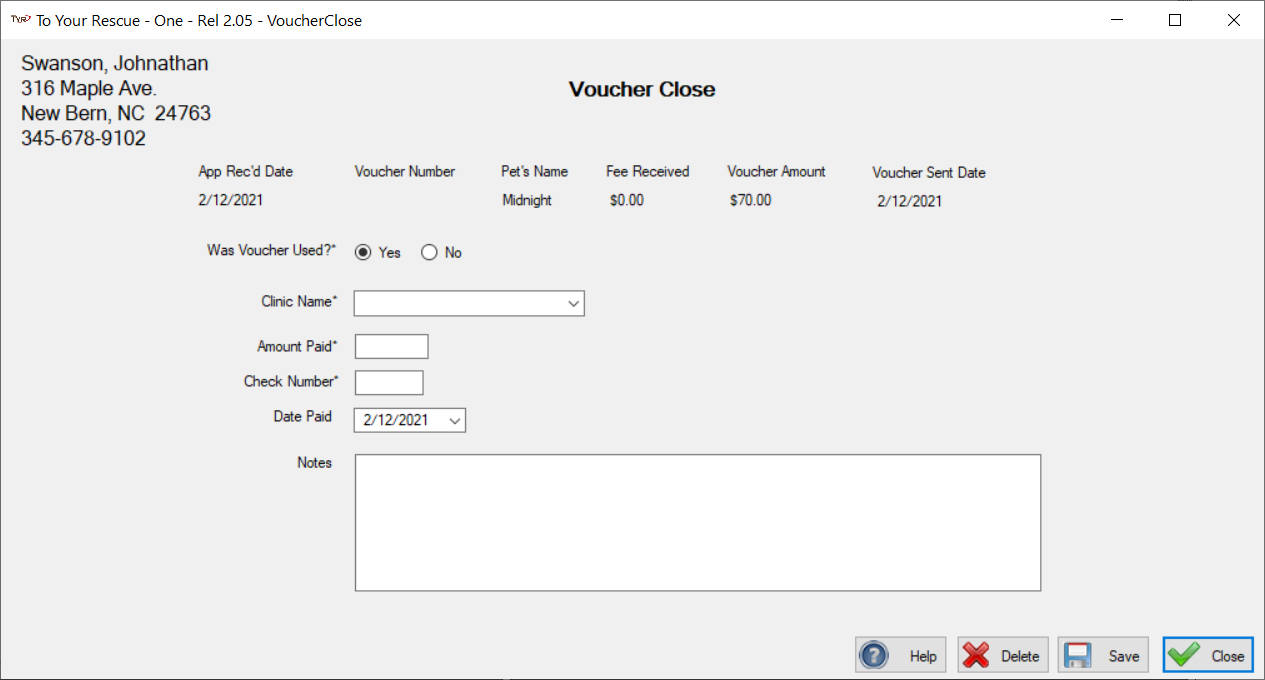
Select whether the vouched was used or not and fields will either be grayed out if the voucher is not used because they won’t apply. Enter values for those that have asterisks by their labels as they will be required. Notes are required if the voucher is unused.
Reopening a Voucher
Sometimes it may be necessary to reopen a previously closed voucher. It’s easy, just select it and then click ‘Reopen Voucher’ in the drop-down menu.