Sponsorship Levels
Connecting PCO’s to an Event
Recording a Donation to an Event
Recording a Participant or Attendee
Other Contributors
Auction and Raffle Items
Querying Event Personnel
It’s important to keep good records on your events because you’ll probably have the same or similar events in the future. You’ll need to refer back to see who attended the previous event, who volunteered, who donated money or things like food or music, who sponsored it, etc. You’ll want to contact them again to see if they would like to be a part of your upcoming event.
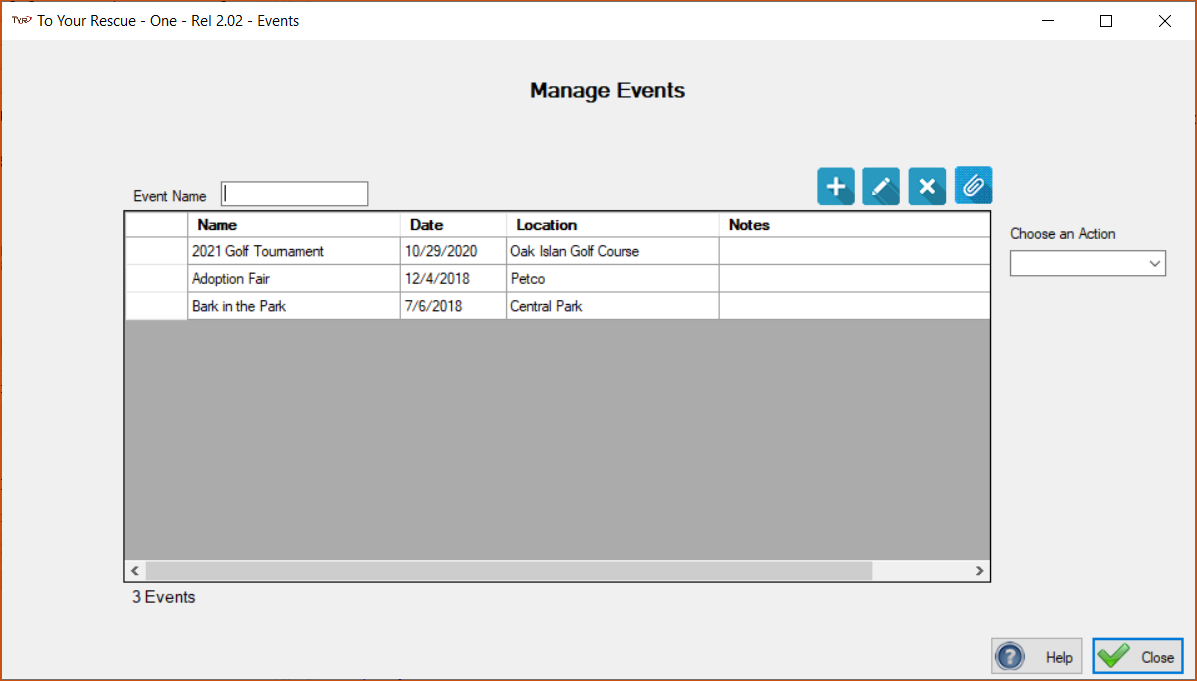
To add a new event click the blue plus sign button.
To edit an event select the event you want to edit and click the blue pencil button.
To delete an event select the event and click the blue ‘X’ button. You are not allowed to delete an event that has PCO’s connected to it. You must first delete those records which you can do by going to the Manage PCO’s screen, selecting a PCO, clicking History, finding the record and deleting it. Or you can find the record you want to delete via the Event Personnel Query facility and deleting it there.
You can add attachments such as a flyer, poster, photos, etc. to an event and these are important because they provide a good historical record of the event.
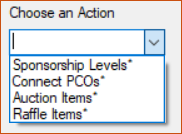
The right-hand navigation drop down box is as follows:
Sponsorship Levels
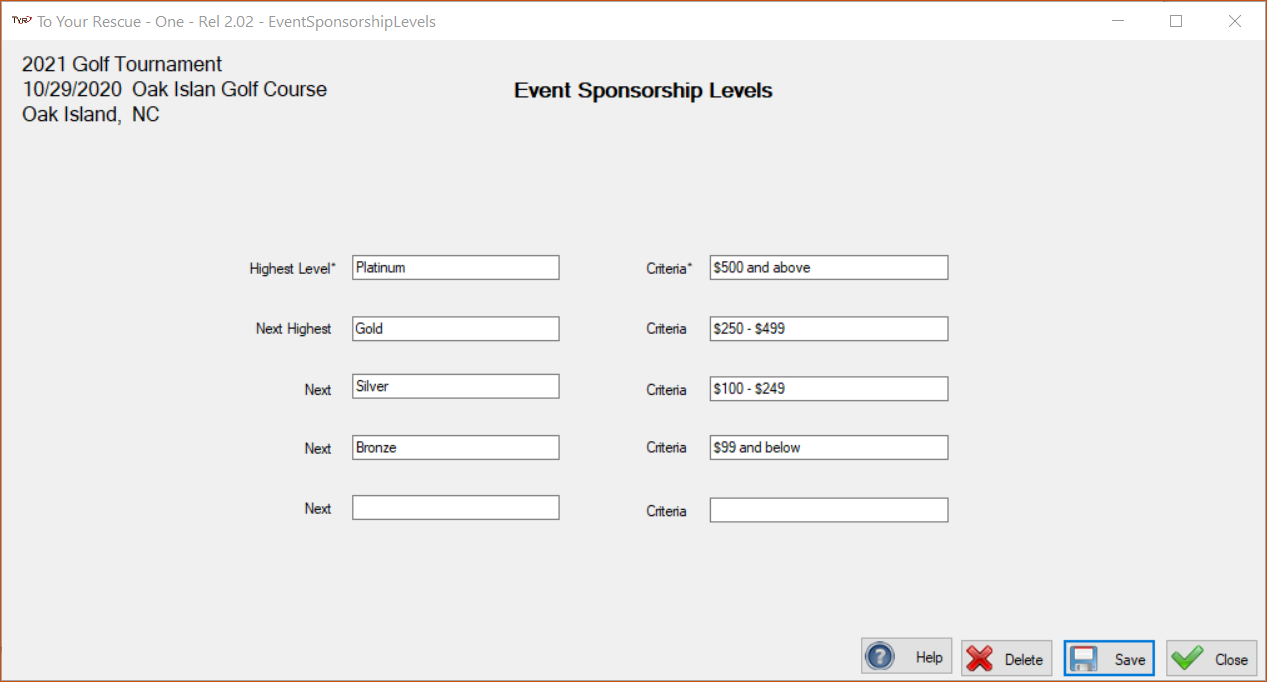
Your event, if at all possible, should have sponsors. Sponsors have more to do with making your event financially successful than anything else. Give your event different sponsorship levels and then do everything you can to solicit area businesses and known animal lovers to sponsor your event. And you will have to publicize their sponsorship with signs and banners at the actual event.
Give your event sponsorship levels like the below graphic. You can give the levels animal related names like ‘Top Dog’ or ‘Alley Cat’; use your imagination.
Connecting PCO’s to an Event
The real payoff in the Events module comes from connecting PCO’s to your events. You want to connect all of the PCO’s that had something to do with making the event a success. As mentioned above you’ll want to know who attended this event because they may be interested in attending this year’s version of the event. You’ll want to know who made a donation to the event and donations could be money, drinks, food, music, etc. Donations could also be prizes and items to be auctioned or raffled off.
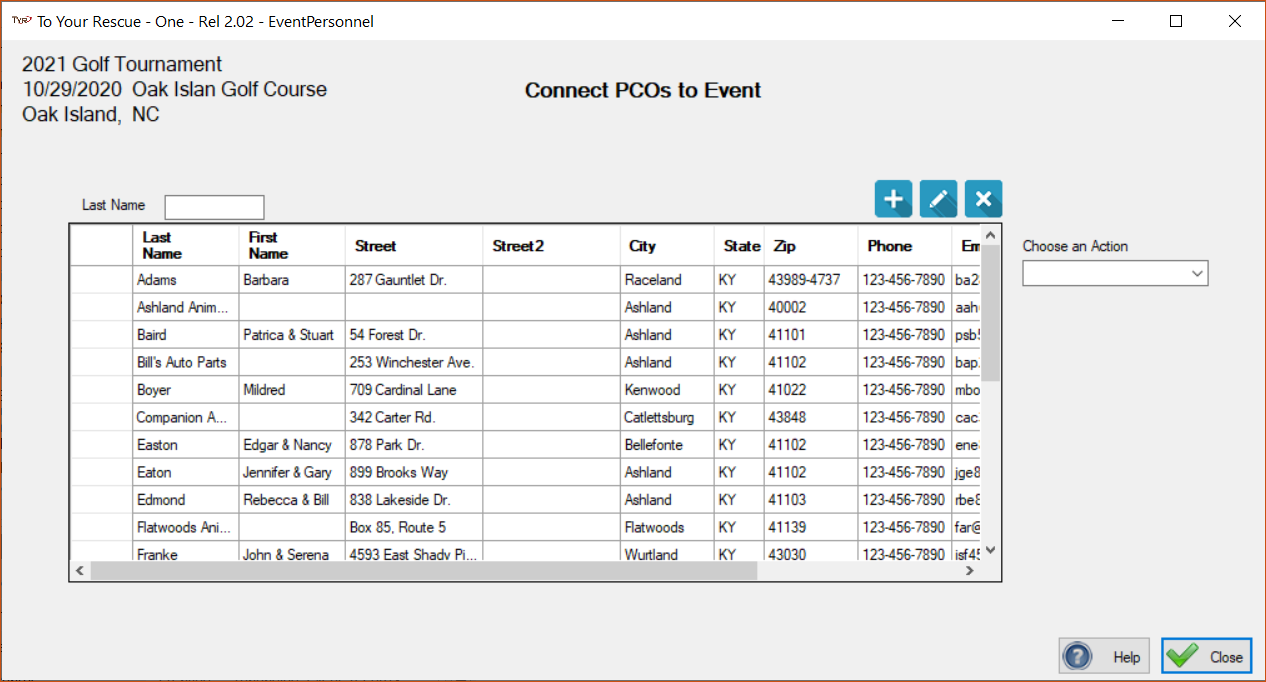
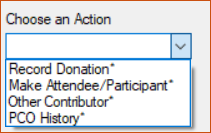
If the PCO you want to connect is not in your PCO file you can add them via the blue plus button. Or if you have updated information on them you can edit them by double clicking the row header or by selecting them and clicking the blue pencil button. Once you have a PCO selected then you have to choose an action from the right-hand drop down menu.
Recording a Donation to the Event
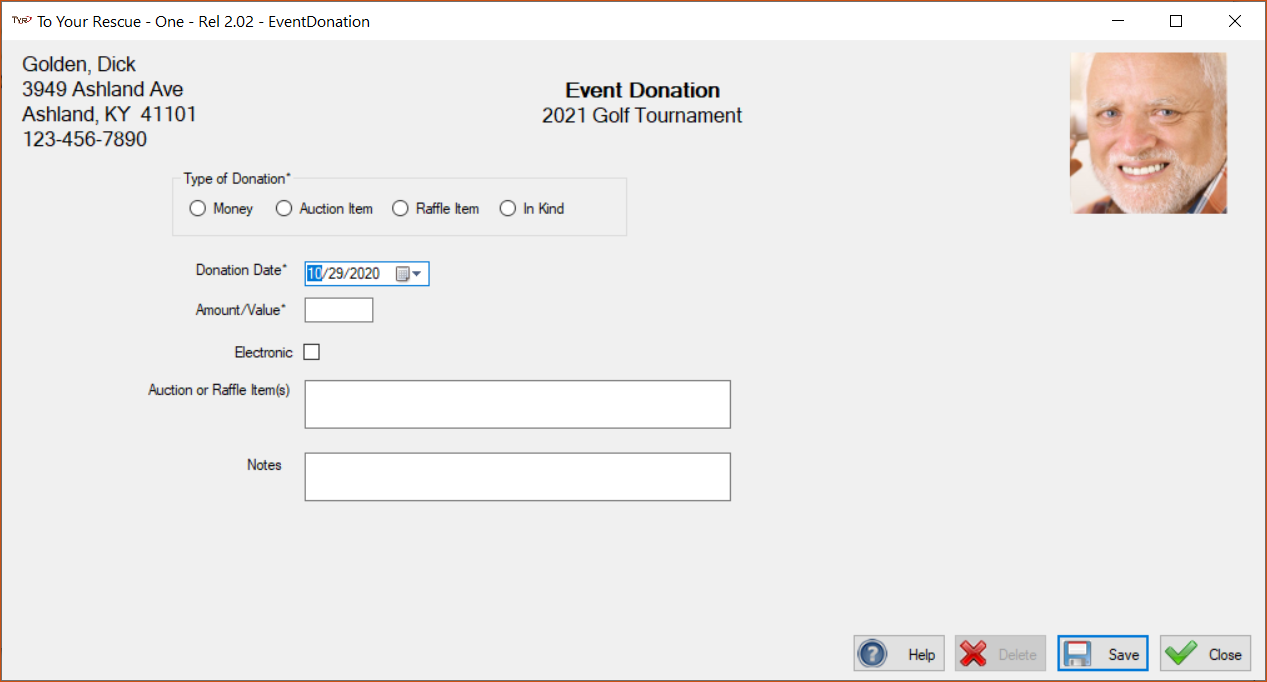
You must indicate the type of donation; whether it is money, an auction or raffle item, or an in-kind donation. An in-kind donation could be of food, drink, music, or any of many other kinds of items that are important to the event. If you indicate an auction or raffle item then you must specify just what the item(s) is.
Top of Page
Recording a Participant of Attendee
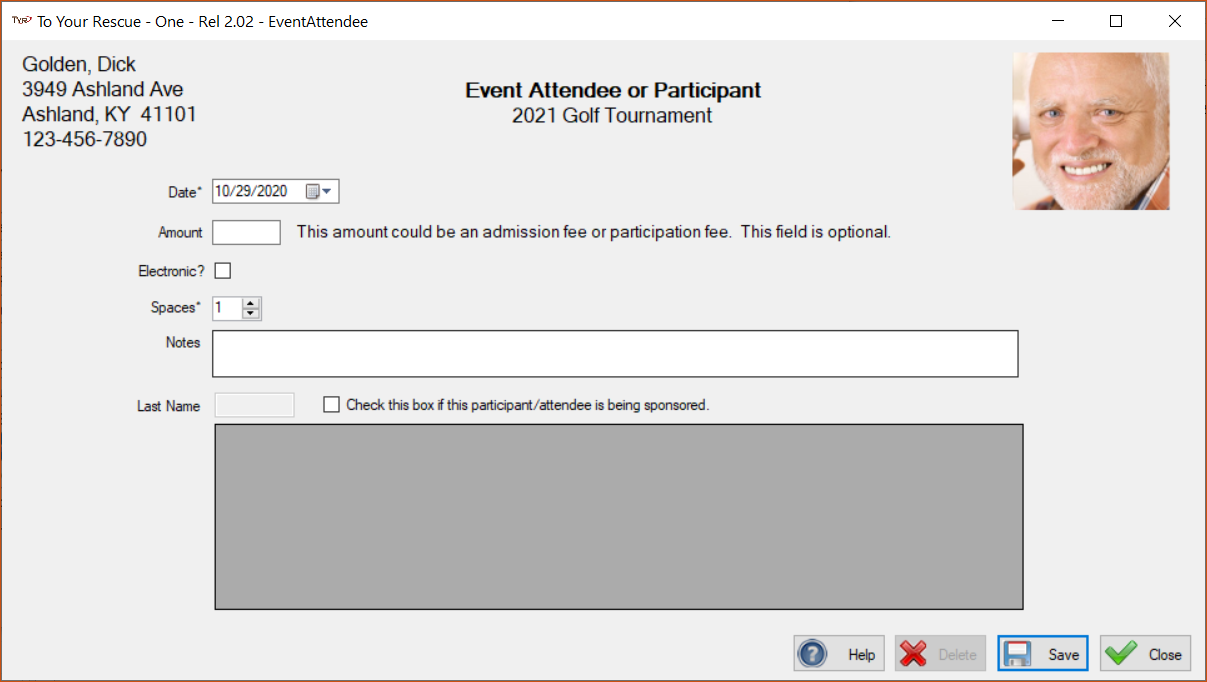
It’s important to record participants or attendees because you’ll want to contact last year’s attendees to see if they want to participate again this year. Record the amount they are paying (it’s optional) and how many spaces they will be encumbering. Some events have a crowd size limit so it is important to know how many spaces have been taken.
Some events have sponsors and usually with a sponsorship the sponsor will get a specific number of spaces (attendees/participants). You may be wanting to record an attendee that is being sponsored. If so check the box above the grid and a list of sponsors will appear. Select the sponsor and then click Save.
Top of Page
Other Contributors
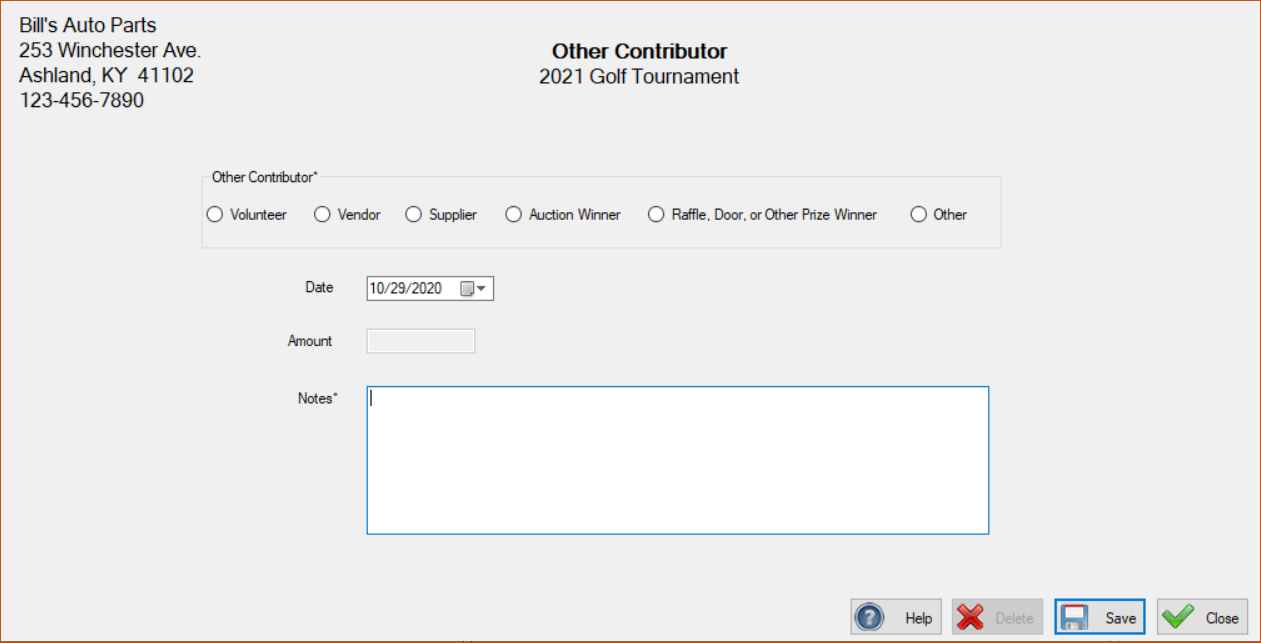
There are many other types event contributors other than those discussed above. The screen below is how you record the contributions of these other types. You’ll want to remember who your volunteers were, your vendors and suppliers, and your auction and prize winners. The type of contribution and notes are required as this is where you will give greater detail about the contribution.
Top of Page
Auction and Raffle Items
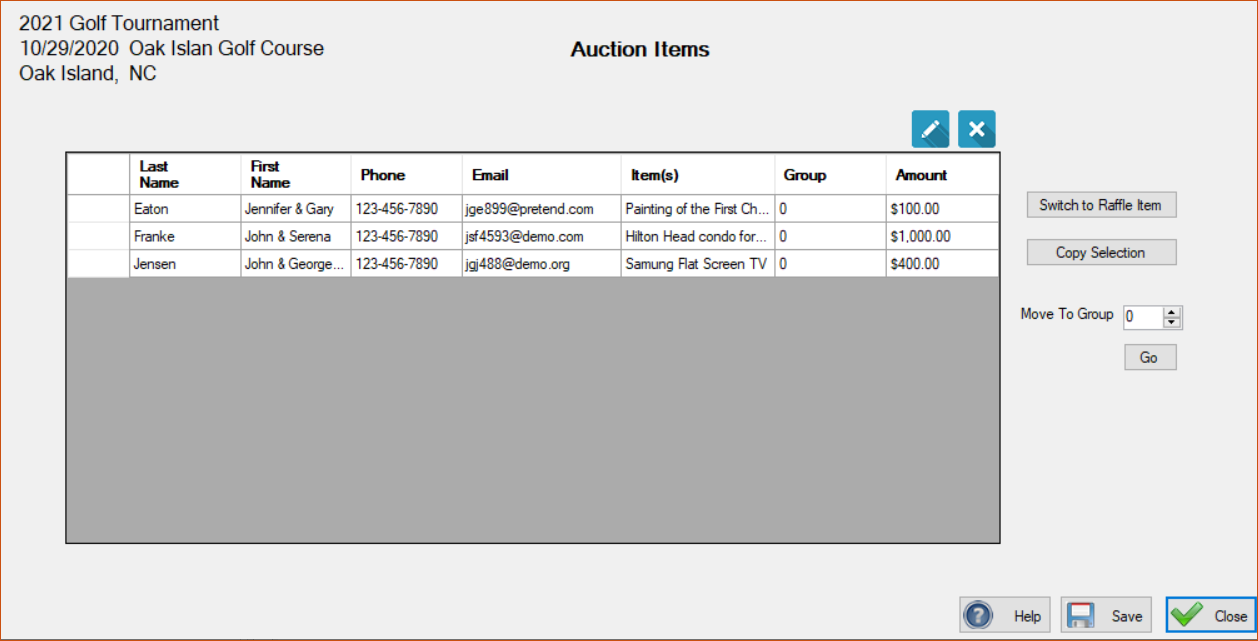
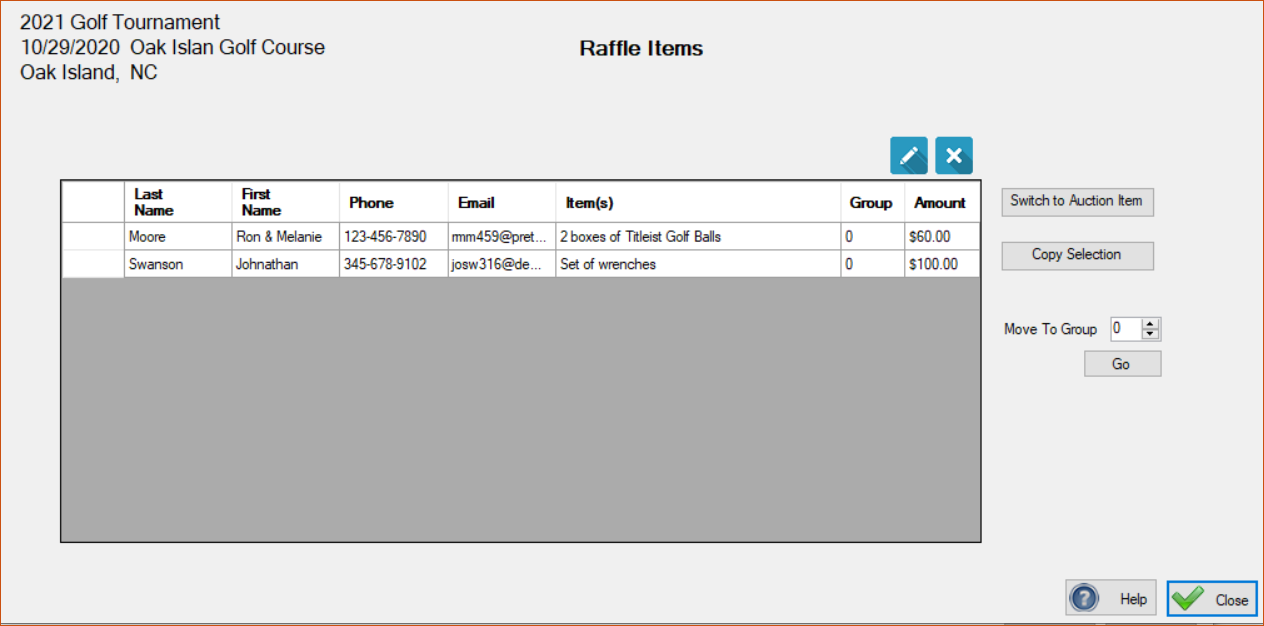
Keeping good records on auction items and raffle items is a good idea. TTR gives you an easy way to both record them (on the Event Donation screen) and to put items in groups because many times they are not auctioned or raffled as single items. And, most likely, you’ll change your mind various times about the groupings and whether or not they should be auction items or raffle items.
Top of Page
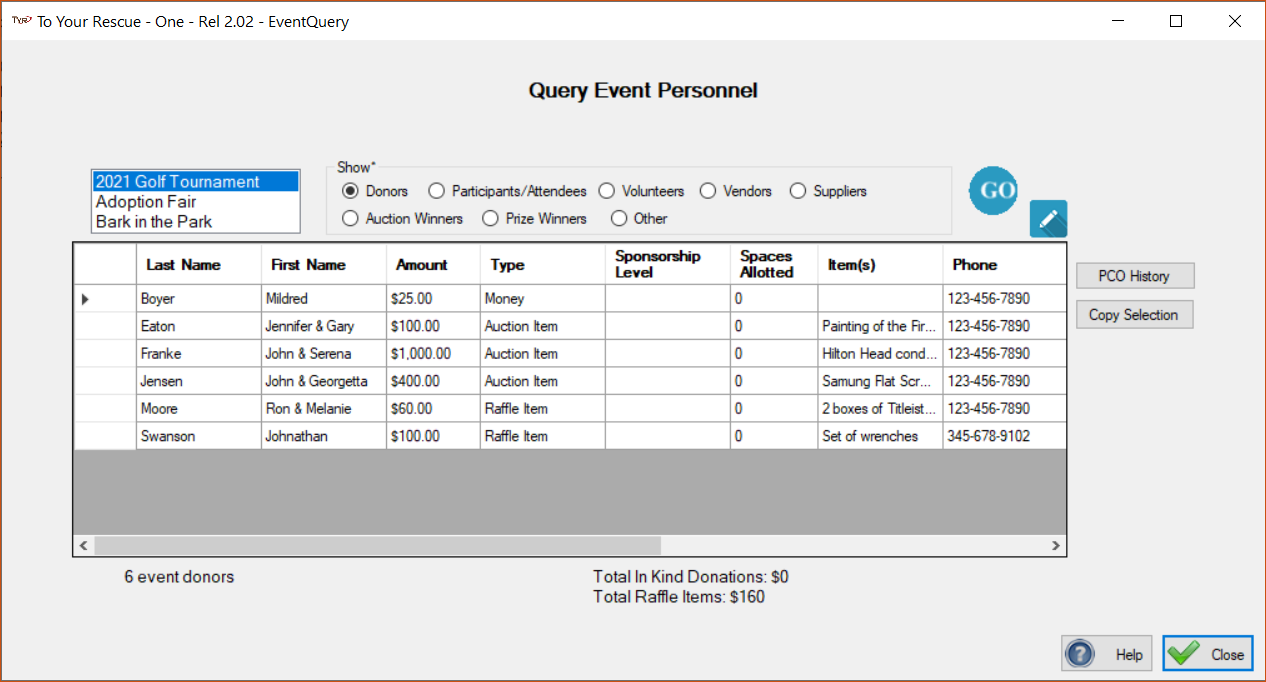
Query Event Personnel
You would use this program to see the personnel that have been involved with the event that you select and the role that they played. You can also use this feature to edit and delete event-related entries, regardless of where they were entered.