
The source of mail lists is your PCO file and you should take great care to keep this file accurate with names and addresses. Doing so will pay big dividends for your rescue. To help you keep your PCO file in good condition you can use the options on this screen to show you what is accurate and what needs correcting. Let’s discuss each of the options on the screen below. Below the screen image we’ll discuss each of the options on the screen.
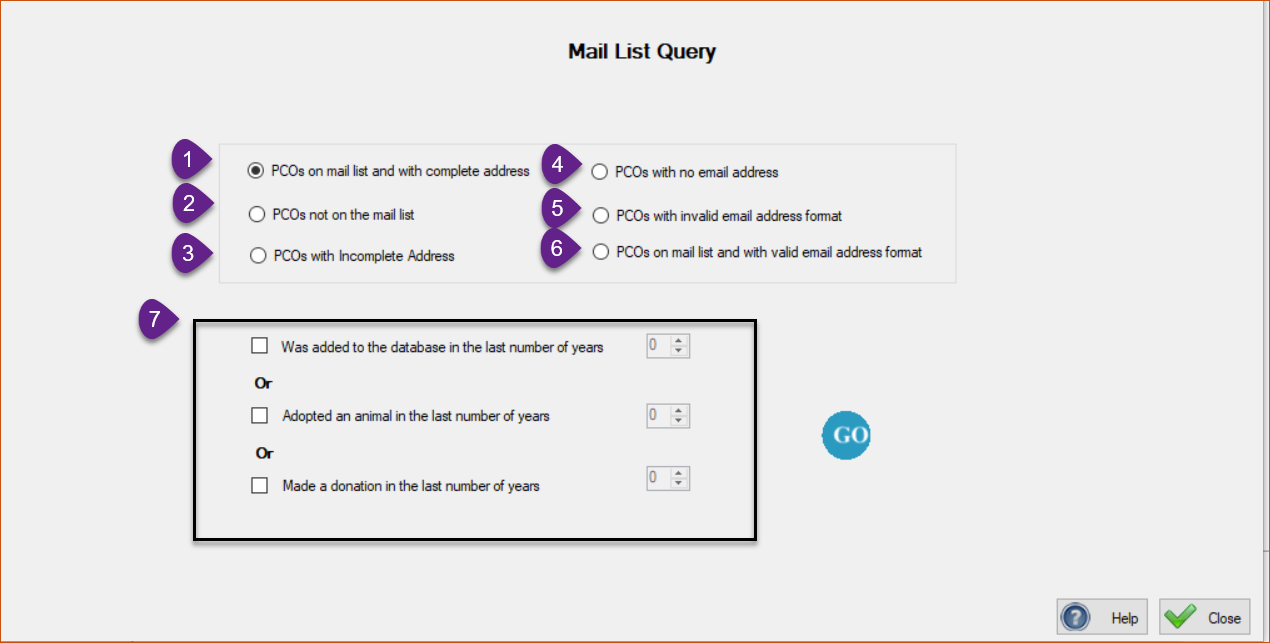
1. PCO’s on mail list and with compelte address – You would want to select this if you want to do a direct, regular mailing. You will get those PCOs that
are on the mailing list and have complete addresses. The complete address means that the Post Office will be able to deliver your newsletter (for example).
2. By selecting this you can see the PCO’s that are not on your mail list. It’s possible that you do want to send mail to one or more of them and if so you can put them back on the mail list.
3. You can see the PCO’s that have some deficiency in their address, possibly no street address or zip code, and you can make the necessary corrections.
4. If you want to send an email communication you can see your PCO’s that are missing email addresses.
5. This option let’s you see your PCO’s that do have email addresses but are not in the correct format; possibly no @ sign.
6. This option will give you the email addresses of those on your mail list that have acceptable email addresses.
7. This box can be used if you are preparing a direct, mailing in which you will ask for donations. Direct mailings cost money and some rescues only want to send to PCO’s that they feel offer the best chance of giving a donation. The options in this box give you ways to narrow down the mailing to these more likely donors.
The first option lets you target PCO’s that have been added to the database in the last specified number of years. These people are new to your family and you want to appeal for a donation from them. You are trying to convert them to long-term recurring donors.
The second option lets you target PCO’s that have adopted an animal in the past specified number of years. People that have adopted their best friend from you may be your best source of new donors. And recurring donors over a long period of time.
And the third option lets you target the PCO’s that have made a donation in the past number of years. People that have made donations in the past are the most likely to do so again.
We recommend using these filters so that you can avoid the expense of sending direct mail to PCO’s that are unlikely to donate.
What happens after you press the ‘Go’ button
Another screen will appear with a grid of the PCO’s that meet the criteria you have selected.
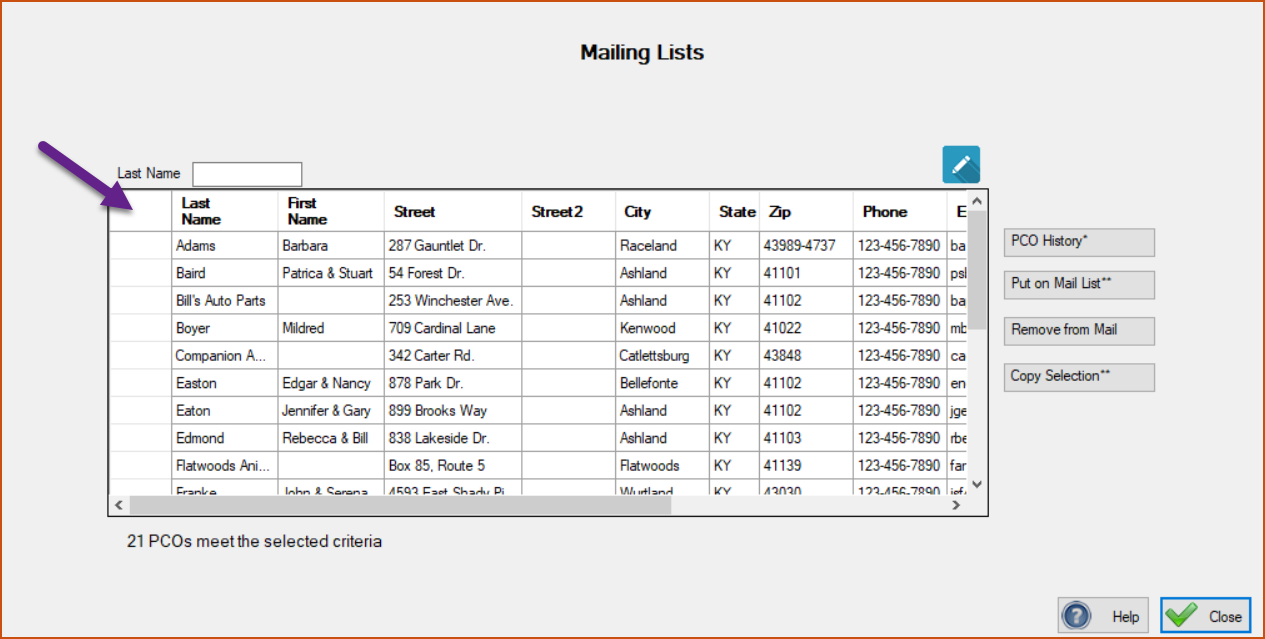
On this screen you will want to click in the cell the arrow is pointing to. It will select the entire grid and then you’ll click the ‘Copy Selection’ button. This will put the grid on your computer memory ‘clipboard’ and then you can go to a program like Microsoft Excel or Google Sheets and paste the grid there. The next step will be to work in that program to delete columns that you don’t want. What you will then have is a spreadsheet of just what you need to import into a program like MailChimp for emails or Word to produce mailing labels.
If you have trouble with producing the email list or the mailing labels then TTR personnel are here to help you. You could email the Excel spreadsheet to us and we would return the mailing labels.
You should stay in contact with your rescue family and we want to do everything that we can to help you do that.