TO THEIR RESCUE (TTR) User Guide

⌘K
  1. Home
  2. TO THEIR RESCUE (TTR) Use...
  3. REMINDERS
  4. Viewing & Printing Vaccinations, Procedures, Medications Reminders

Viewing & Printing Vaccinations, Procedures, Medications Reminders

Reminder Lists in TTR are also known as Reports. This page contains instructions for viewing and printing these reports:
  • Vaccination and procedure reminders
  • Medication reminders


Viewing & Printing a “Vaccinations and Procedures” Reminder List

TTR enables you to view and print a Reminder Report listing all uncleared reminders for vaccinations and procedures for the next 30 or 60 days or for all reminders in the system.
There are two ways to access a list of reminders to view and print that list:


  • Vaccinations and Procedures button on the TTR Home screen
  • Vaccinations/Procedures button under Reminders on the left side of the Manage Animals screen
To view and print the Reminder Report from the Vaccinations and Procedures button on the Home screen, perform these steps:

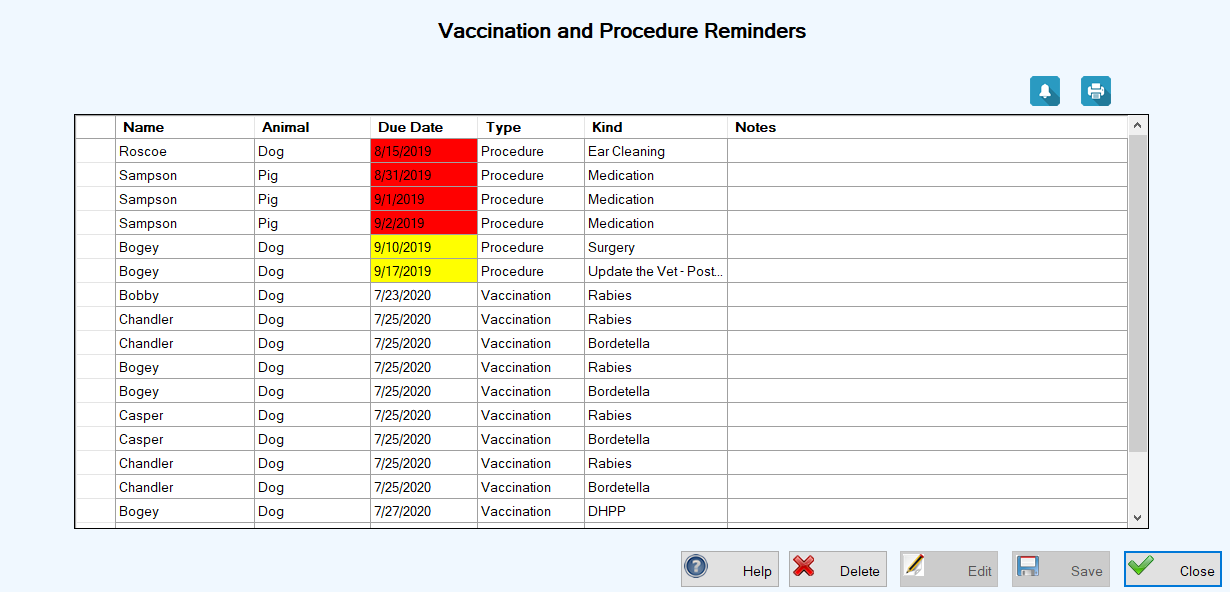
1.On the TTR Home screen, click the Vaccinations and Procedures button to open the Vaccination and Procedure Reminders screen.

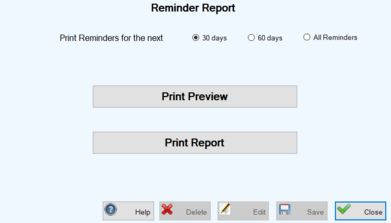
2.Click the Print Reminder List button () above the center grid to open the Reminder Report screen.


This screen allows you the options to view the report before printing it or to simply print the report without viewing it first.
  • If you wish to print the report without viewing it first, follow the instructions in Step 3.
  • If you wish to view the report before printing it, skip Step #3 and follow the instructions in Step 4.
3. To print the report without viewing it first, do this:
(a.) Select the date range for the reminders you want to include in the report.
(b.) Click the Print Report button. A standard Windows Print dialog box opens.
(c.) Select the desired printer and any other available print settings you wish.
(d.) Click OK. The report will be printed by your selected printer according to your chosen settings.
4. To view the report before printing it, do this:
(a.) Select the date range for the reminders you want to include in the report.
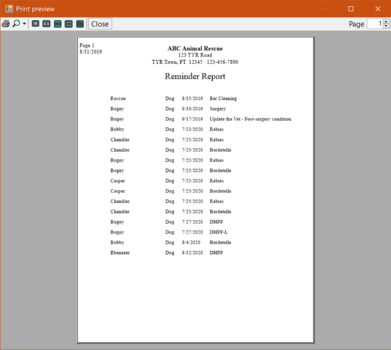
(b.) Click the Print Preview button. A standard Windows Print Preview dialog box opens.
(c.) Use the controls in the dialog box to view the report. The controls at the top left allow you to zoom in and out on the viewable page(s) and if the report contains multiple pages, you can use the buttons display up to six pages at a time. To advance forward through multiple pages, click the up arrow beside the Page Number selector at the top right.
                                                                                                                      
 (Important Note: While the Print Preview screen is open, the buttons on all other TTR screens are inactive. Therefore, you must close the Print Preview dialog box before you can perform any other tasks in TTR.)
(d.) Decide if you want to print the report.
  • To print the report directly from the Print Preview dialog box to your default printer, click the Print button at the upper left.
  • To print the report to a different printer or to make specific print settings that require the Windows Print dialog box, do this:
(i.) Close the Print Preview screen.
(ii.) Click the Print Report button.
(iii.) Perform Steps 3(c.) and 3(d.) above.
To view and print the Reminder Report from the Vaccinations/Procedures button on the Manage Animals screen, perform these steps:

1. On the TTR Home screen, click the Animals button to open the Manage Animals screen.

2.On the left side of the Manage Animals screen under Reminders, click the Vaccinations/Procedures button. The Vaccination and Procedure Reminders screen opens, displaying a list of all Vaccination and Procedure reminders in the system.
3. Follow Steps 2 through 4 above for viewing and printing the reminder report from the Vaccinations and Procedures button on the Home screen.


Viewing & Printing a “Med Reminders” List

1.Access the Med Reminders screen using one of these methods:

– Click the Today’s Meds button under Reminders on the TTR Home screen,
                               OR
– Click the Animals button on the TTR Home screen and then click the Meds button under Reminders at the lower left side of the Manage Animals screen.                                                     
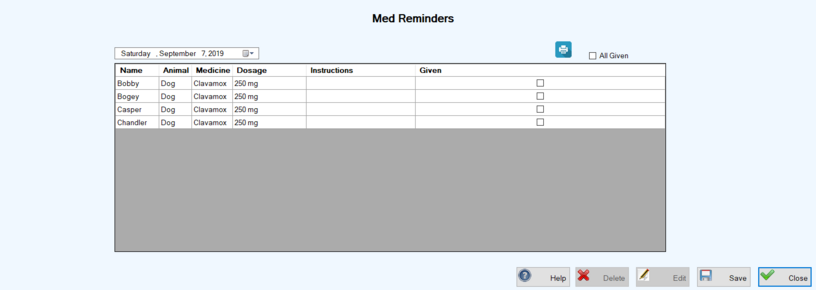
2. If necessary to see and print the reminders for a different date, enter or select the desired date in the date field above the center grid on the left to display a list of reminders for that date.

3.Click the Print () button above the center grid on the right to open the Med Reminders Report screen. The screen shows the date selected in Step 2.
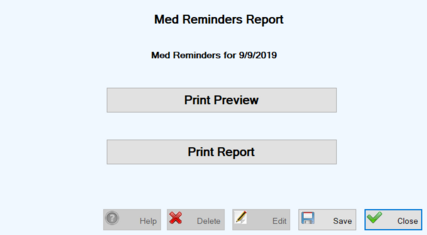
  • To print the report without viewing it first, follow Steps 3(b.) through 3(d.) above for viewing and printing the Reminder Report from the Vaccinations and Procedures button on the Home screen.

        To view the report before printing it, follow Steps 4(b.) through 4(d.) above for viewing and printing the Reminder Report from the Vaccinations and Procedures button on the Home screen.


How can we help?