
Adding an Animal Adoption for an Existing PCO
1.On the TTR Home screen, click the People, Companies, Organizations button to launch the Manage People, Companies, and Organizations screen.
2.Use one of these methods to select the PCO who adopted the animal:
OR
– In the Show field to the left of the center grid, select People or Companies and Organizations, and then in the Last Name field above the center grid, begin typing the letters of the PCO’s last name or organization name until the only item appearing in the center grid is the desired PCO, indicating it is selected because the row is highlighted and has an arrow in the leftmost cell.
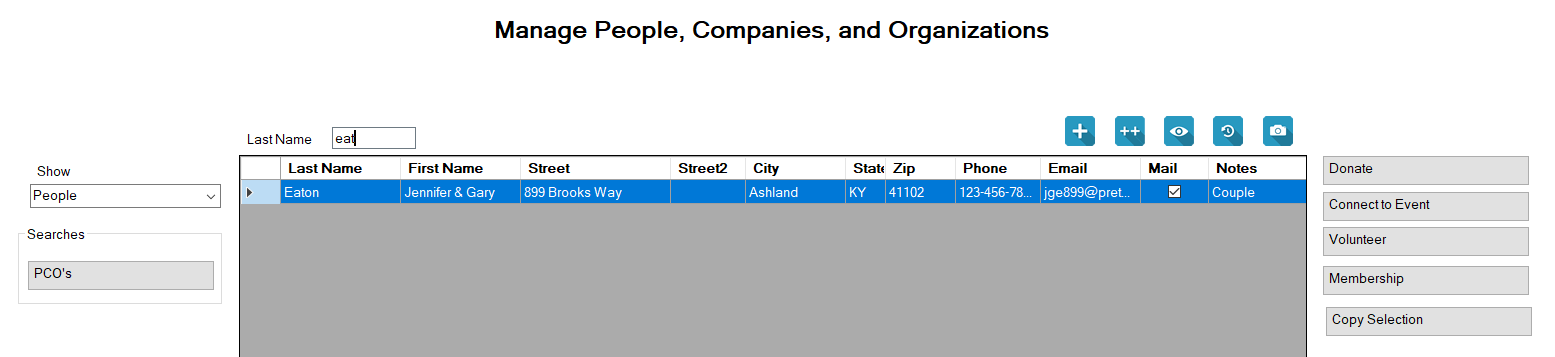
3.With the desired PCO selected, click the Adopt an Animal button to the right of the center grid under Animal Transactions to open the Adoption screen.

 ), Animal History (
 ), attached Photos and Docs (
 ), and associated Behaviors (
 ), and you can also view and print an Animal Report (
 ).
).4.Select the animal being adopted using one of these methods:
(a.) Use the scroll bar on the right to scroll down through the list until you see the row containing the animal’s information, and then click the leftmost cell on that row.
OR
(b.) Begin typing the letters of the animal’s name in the Animal Name field at the upper left until a single highlighted row containing the animal’s information is all that appears in the center grid.
5.The Date field defaults to today’s date. Change the date only if the adoption occurred on a date prior to today. (The system will not allow future dates for this procedure.)
6.In the optional Amount field, enter any fee paid for the adoption using the system convention for entering monetary amounts.
7.In the optional Notes field, add any helpful information regarding this adoption for future reference.
8.Click Save. You are returned to the Manage People, Companies, and Organizations screen where a confirmation message appears in the lower left corner.
Editing an Animal Adoption from the PCO Screen
1.Perform Steps 1 and 2 above for Adding an Animal Adoption for an Existing PCO.
2.With the desired PCO selected, click the blue History button () at the top right above the center grid. The PCO History screen appears, showing all recorded transactions for the selected PCO.
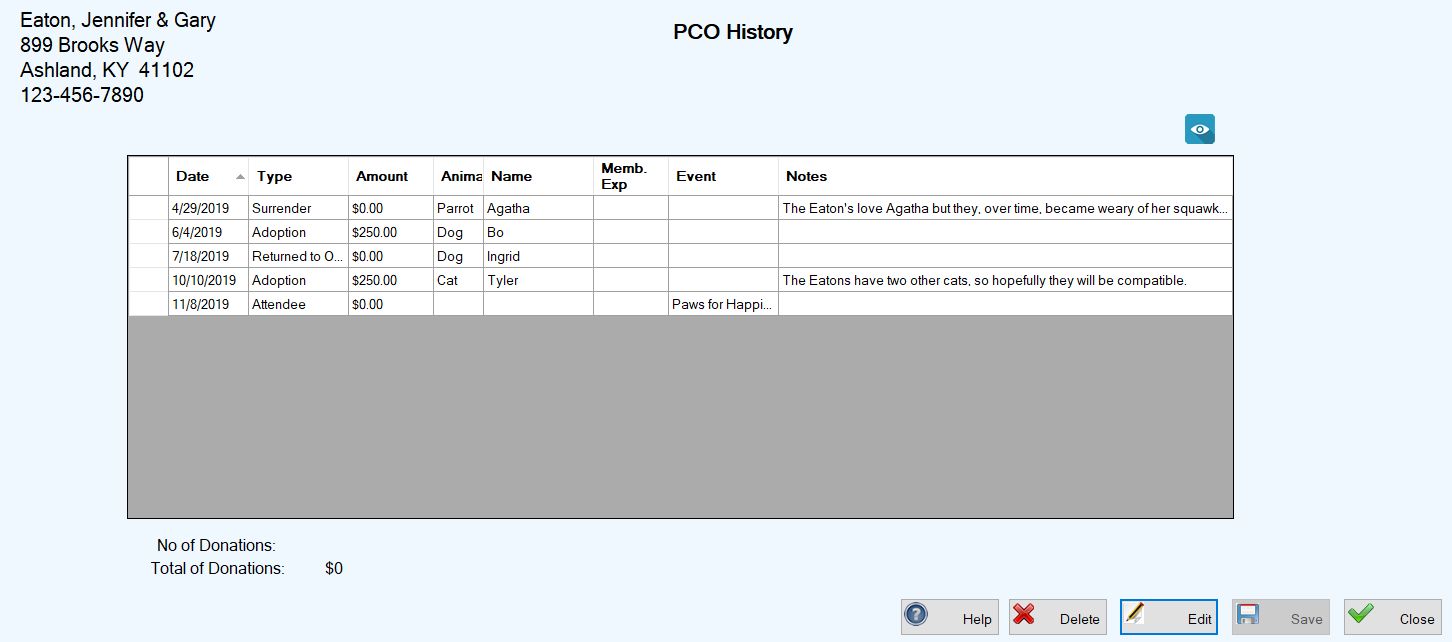
3.Select the Adoption transaction you wish to edit by double-clicking the leftmost cell on the row containing the adoption information. The Adoption screen opens, showing all the editable information, ready for your changes.

4.Enter your desired changes and click Save. You are returned to the PCO History screen, where your changes appear in the center grid, along with a confirmation message in the lower left corner of the screen.
Deleting an Animal Adoption from the PCO Screen
1.Perform Steps 1 and 2 for Editing an Animal Adoption from the PCO Screen.
2.Select the Adoption transaction you wish to delete by clicking the leftmost cell on the row containing the adoption information.
3.Click the Delete button. A confirmation popup appears:

4.To complete the deletion, click OK. You are returned to the PCO History screen, where the Adoption transacton no longer appears in the center grid, and an “Adoption deleted” confirmation message appears in the lower left corner of the screen.