
Adding a New SOAP Record
1.On the TTR Home screen under Modules, click Animals to open the Manage Animals screen.
2.In the center grid, select the record of the animal for which you want to create a SOAP record by clicking the cell at the farthest left on the row containing the animal’s information.
3.On the right side of the screen under Animal Health, click the SOAPs button to open the Manage SOAPs screen.
4.Click the Add New SOAP button ( ) to open the SOAP screen. (Note: You might see an example entry in the Subjective field.)
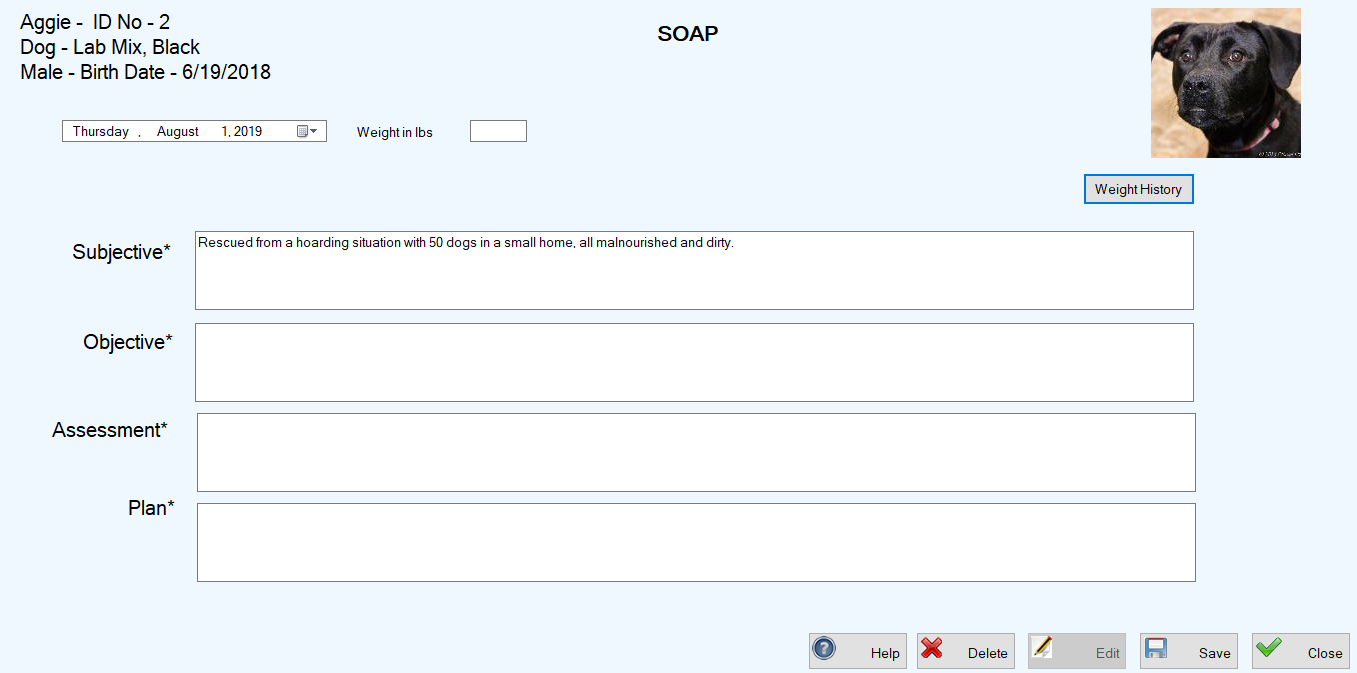
5.In the Date field at the upper left, keep today’s date or type in or use the Date Picker to enter a past date. (Note: The system will not accept a future date for this feature.)
6.If important to this SOAP record, enter the animal’s current weight in the Weight in lbs field.
 |
 |
|
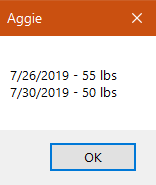
Animal with a Weight History
|
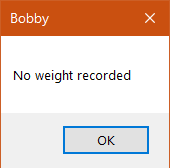
Animal with No Weight History Yet
|
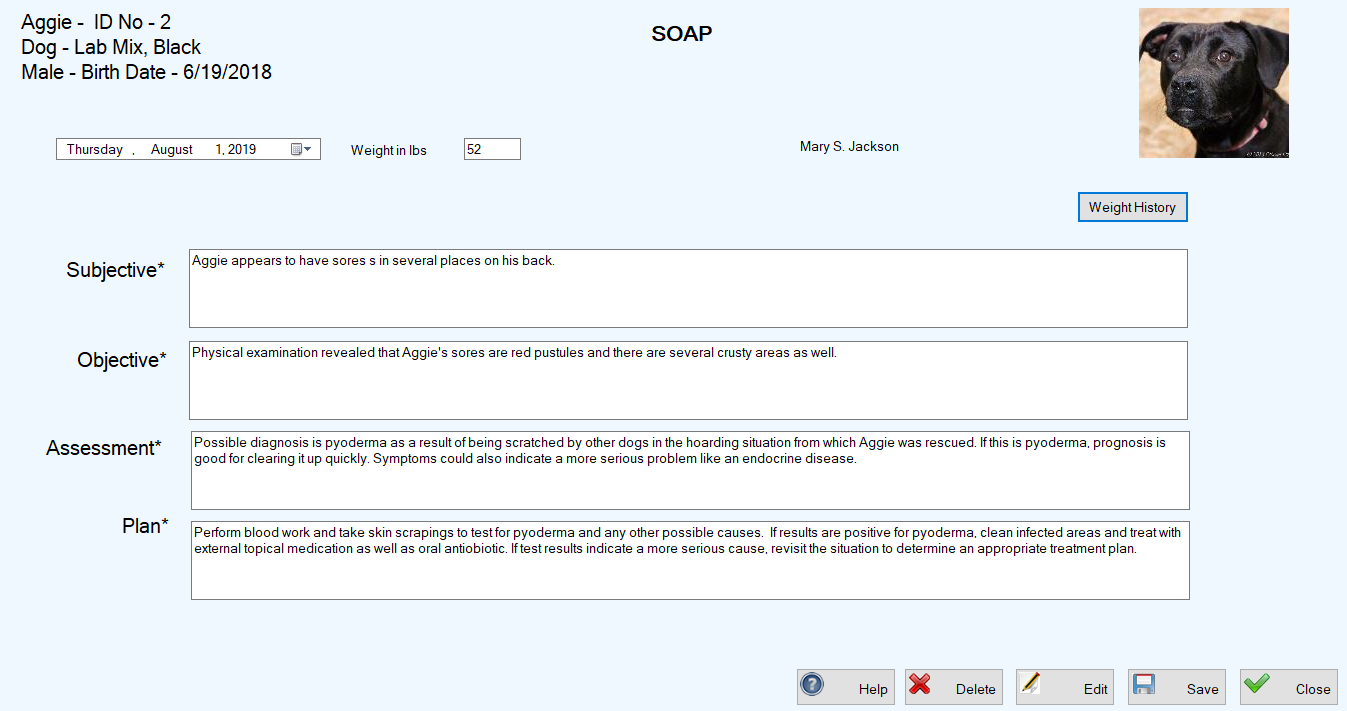
Viewing & Editing an Existing SOAP Record
1.On the TTR Home screen under Modules, click Animals to open the Manage Animals screen.
2.In the center grid, select the record of the animal for which you want to create a SOAP record by clicking the cell at the farthest left on the row containing the animal’s information.
3.On the right side of the screen under Animal Health, click the SOAPs button to open the Manage SOAPs screen.
4. Double-click the cell at the farthest left on the row containing the SOAP record you want to view and/or edit. The SOAP screen opens.
5.If you don’t want to make any changes, click Close. To make changes, enter your edits in the appropriate fields and click Save. You are returned to the Manage SOAPs screen where you can see the changed record in the center grid and a “SOAP modified” confirmation message in the lower left corner.
Deleting an Existing SOAP Record
1.On the TTR Home screen under Modules, click Animals to open the Manage Animals screen.
2.In the center grid, select the record of the animal for which you want to create a SOAP record by clicking the cell at the farthest left on the row containing the animal’s information.
3.On the right side of the screen under Animal Health, click the SOAPs button to open the Manage SOAPs screen.
4.In the center grid, select the SOAP record you want to delete by clicking the cell at the farthest left of the row containing the SOAP information.
5.Click the Delete button. A confirmation popup appears.
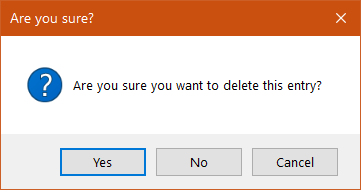
6.To complete the deletion, click “Yes.” You are returned to the Manage SOAPs screen where the deleted procedure or test has disappeared from the center grid and a confirmation message appears in the lower left corner.