
Important Information about Milestones
-
Birth, using information you entered in the “Approx Age” or “Actual Birth Date” fields
-
Intake, using the date you entered in the “Date of Intake” field
|
Milestone
|
Use when:
|
Grid location after assigning Milestone
|
|
Adoption
|
One of the PCOs in your database formally adopts an animal
|
Former Resident
|
|
Adoption Return
|
An adopter is no longer able to keep the animal and returns it to your shelter
|
Current Resident
|
|
Foster
|
An animal in your care is placed in a foster home while awaiting adoption
|
Current Resident
|
|
Foster Return
|
A foster “parent” returns an animal to your shelter
|
Current Resident
|
|
Lost
|
An animal in your care has gone missing
|
Former Resident
|
|
Found
|
A missing animal in your care has been found and returned to your shelter
|
Current Resident
|
|
Released
|
An animal that has been in your care is released back into its natural habitat
(Note: Once you save this milestone, you cannot change it.) |
Former Resident
|
|
Death
|
An animal in your care has died
|
Former Resident
|
|
Note
|
You simply want to add a note to the animal’s record
|
Either
|
|
Returned to Owner
|
One of the PCOs in your database is the animal’s owner and takes the animal back
|
Former Resident
|
|
Reintake
|
An animal that was Returned to Owner is brought back to the shelter
|
Current Resident
|
|
Transfer
|
An animal that has been in your care is transferred to the care of another shelter
|
Former Resident
|
Adding a New Milestone
1.On the TTR Home Screen under Modules, click Animals to open the Manage Animals screen.
2.In the center grid on the Manage Animals screen, select the row containing the animal to which you want to add a milestone by clicking the cell at the farthest left of the row.
3.In the “Choose an Action” dropdown list to the right of the grid, select Milestones at the top of the list to open the Manage Animal Milestones screen.
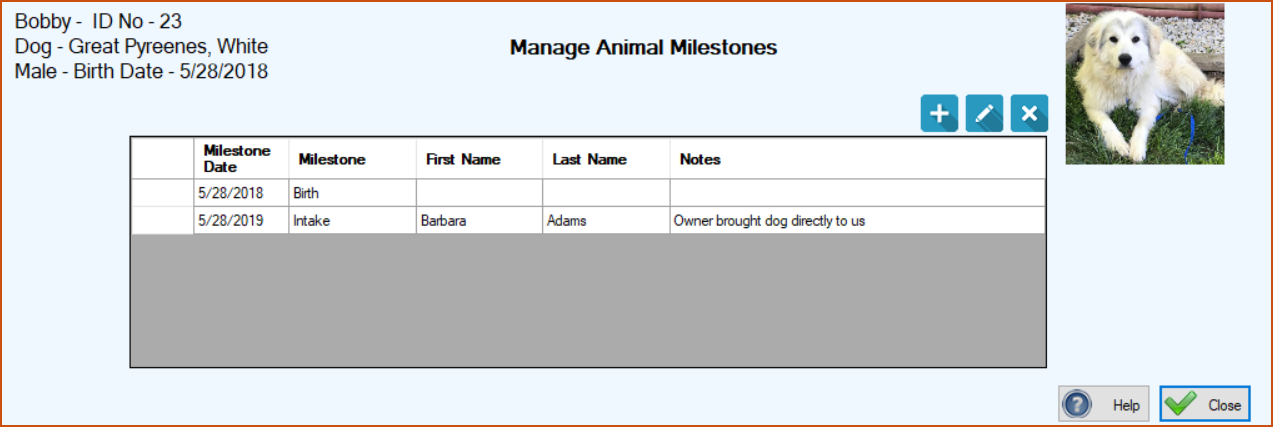
4.Click the Add New Milestone button ( ) to open the New Milestone screen.
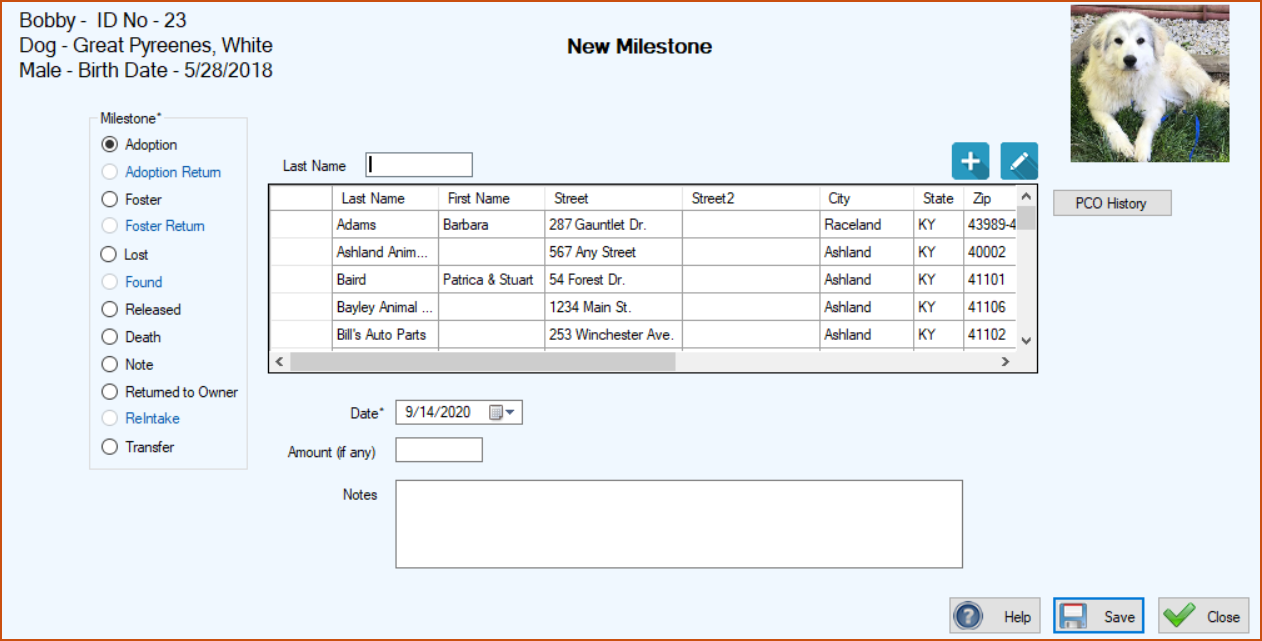
) from within this screen, as well as view and edit details of an existing PCO record ( ). If you forget to select a PCO and the milestone requires one, you will be reminded when you click the Save button and the message “Please select a PCO” appears at the lower left corner of the screen.
6.If the selected milestone requires an associated PCO record, the Last Name search field will become active. When this happens, begin to type letters of the last name in the Last Name field until you see the name in the grid, and then click the cell at the farthest left of the row containing the PCO name to select it.
If there is no record for the PCO, follow these steps to add one:
) button just above the center grid on the right. The Person(s), Company or Organization screen appears.(b.) Perform Steps 3 through 15 for Adding & Managing PCO Records. You are returned to the New Milestone screen, where your new PCO record appears highlighted in the center grid, and a confirmation message appears in the lower left corner of the screen.
8.The Amount field becomes active for certain milestones for which you might receive donations or fees (Adoption, Returned to Owner, Transfer). Enter the amount of any fee or donation associated with this milestone.
9.If Notes has an asterisk, this field requires an entry, so type in all important information regarding this milestone. If there is no asterisk, an entry in the Notes field is optional but usually helpful for future reference.
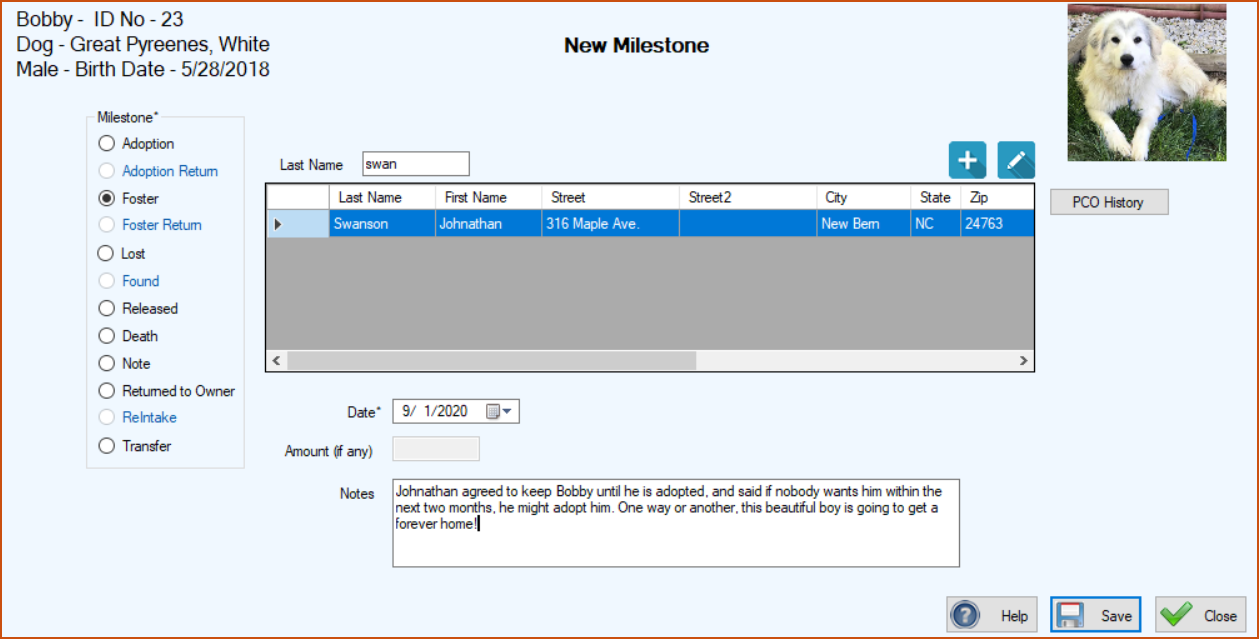
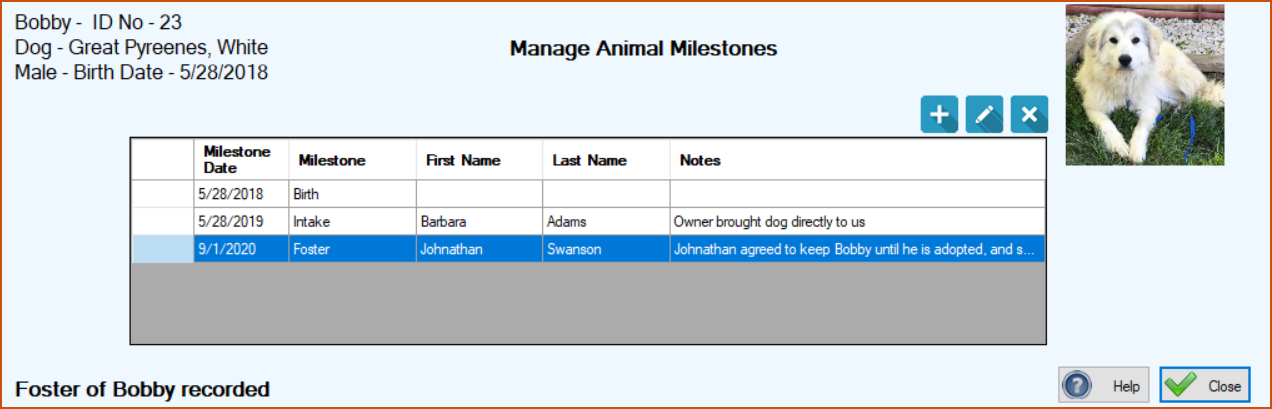
10. Click Save. You will be returned to the Manage Animal Milestones screen where the new milestone appears in the grid and a confirmation message appears at the lower left of the screen.
Editing an Existing Milestone
-
On the TTR Home Screen under Modules, click Animals to open the Manage Animals screen.
-
In the center grid on the Manage Animals screen, click the cell at the farthest left on the row containing the animal whose milestone you want to edit.
-
In the “Choose an Action” dropdown list to the right of the grid, select Milestones at the top of the list to open the Manage Animal Milestones screen.
-
In the center grid on the Manage Animal Milestones screen, double-click the cell at the farthest left on the row containing the milestone you want to edit. The detail screen for the milestone will open with all editable fields ready for you to make your changes.
-
Enter your changes and click Save. You will be returned to the Manage Animal Milestones screen where you will see a confirmation message in the lower left corner.
Deleting a Milestone
1.On the TTR Home Screen under Modules, click Animals to open the Manage Animals screen.
2.In the center grid on the Manage Animals screen, click the cell at the farthest left on the row containing the animal whose milestone you want to delete.
3.In the “Choose an Action” dropdown list to the right of the grid, select Milestones at the top of the list to open the Manage Animal Milestones screen.
4.In the center grid on the Manage Animal Milestones screen, click the cell at the farthest left on the row containing the milestone you want to delete.
5.Click the Delete button. You will see a confirmation popup window with a message similar to this (“Foster” indicates the specific milestone type you are deleting):
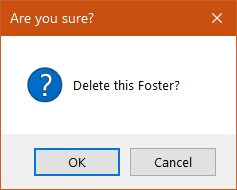
6.To complete the deletion, click OK. You will be returned to the Manage Animals screen, where you will see a “Milestone Deleted” confirmation message in the lower left corner.