
To View an Attached File or Web Page
1.On any screen with an “Attachments” selection in the Actions dropdown list at the right side of the screen OR a Photos, Documents, etc. button ( ) at the upper right on the screen, select Attachments or click the Photos, Documents, etc. button () to open the Manage Media, Documents, URLs, and Notes screen.
2.In the center grid, select the row containing the item you want to view by clicking the farthest left cell.
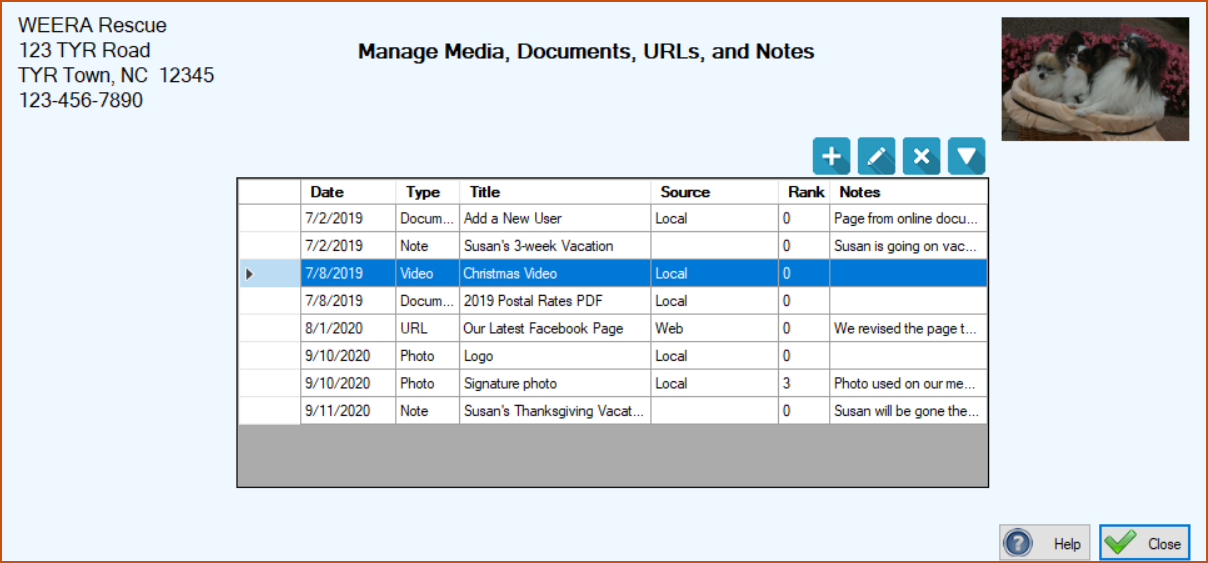
3.Click the Open File ( ) button at the upper right of the grid. The resulting action depends on the type of attachment:
|
Attachment Type
|
System Action
|
|
Photo, video, or document
|
The file opens in the default application associated with the file type on your computer, e.g., Windows Media Player for video files, Windows Photos for image files, Microsoft Word or Adobe Acrobat Reader for documents. (Note: If you have more than one application that can open the file type, you will see the usual Windows popup asking you to select the application you want to use to open the file.)
|
|
URL
|
Your default web browser will open and display the web page to which the URL is directed.
|
To View an Attached Note
1.Perform Step 1 above.
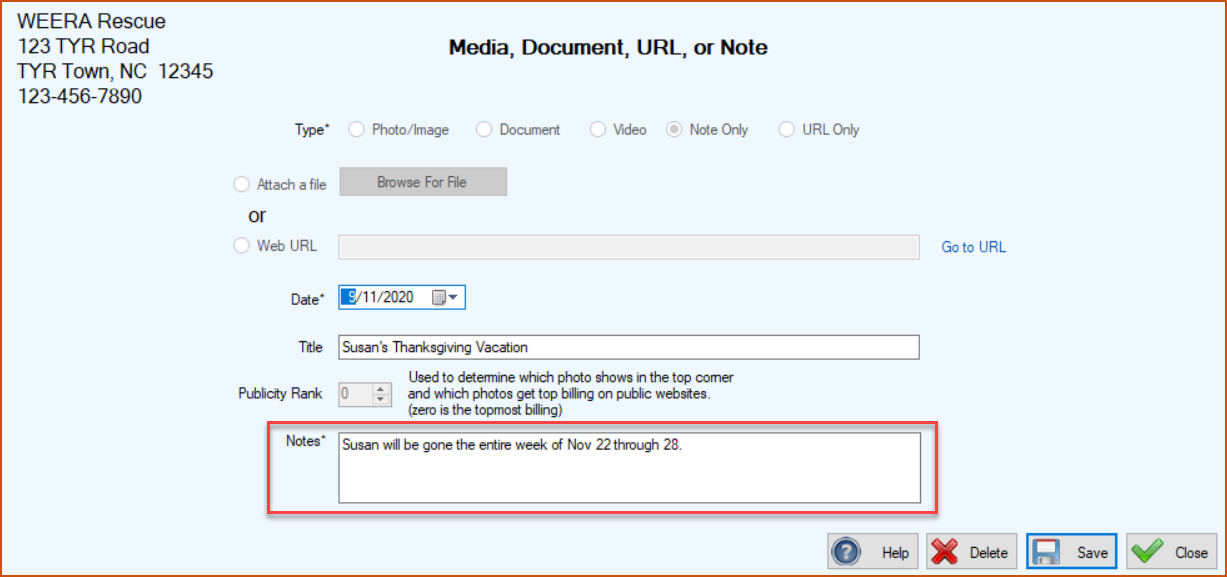
2.Double-click the farthest left cell on the row in the center grid containing the Note you want to view. The Media, Document, URL, or Note screen opens, displaying full details of the Note.
To Download an Attached Photo, Video, or Document
1.Perform Steps 1 through 3 for viewing an attached file (see top of this page).
2.When the file opens in its native application, e.g., Windows Photos, use the application’s “Save As” feature to save a copy of the file to a location of your choice.