

To Add a Membership Type
1. On the TTR Home screen under Customization, select Membership Types.
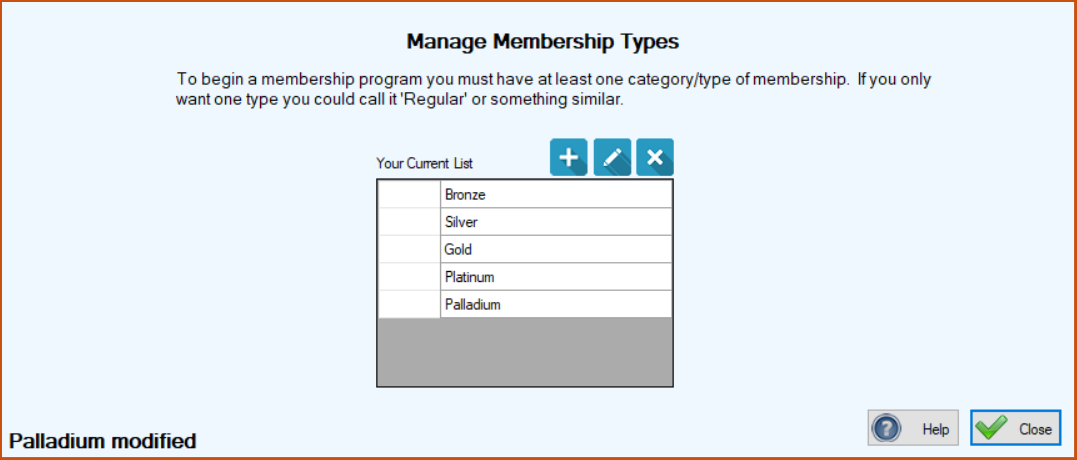
The Manage Membership Types screen appears, with a note at the top explaining that your membership program must have at least one Membership Type in order to activate the Membership features in TTR. If you have already created some Membership Types, they appear in the center grid under “Your Current List.”

2.Click the blue Add button ( ). The Membership Type screen appears.

3.Enter the name of the new Membership Type and click Save. The Membership Type screen closes and you are returned to the Manage Membership Types screen where the Membership Type you just added appears in the center grid, along with a confirmation message in the lower left corner.

To Edit a Membership Type
1. On the TTR Home screen under Customization, select Membership Types to open the Manage Membership Types screen.
2. Double-click the cell at the farthest left of the row containing the Membership Type you want to edit. The Membership Type screen opens, ready for editing.
3.Make the desired change in the Membership Type field and click Save. The Membership Type screen closes and you are returned to the Manage Membership Types screen where can see your change in the center grid, along with a confirmation message in the lower left corner.
To Delete a Membership Type
1.On the TTR Home screen under Customization, select Membership Types to open the Manage Membership Types screen.
2. On the Manage Membership Types screen, select the row containing the item you want to delete by clicking the empty cell at the farthest left of the row.
3.Click the Delete button ( ). A popup window appears to confirm that you really want to delete the item.

4.To complete the deletion, click OK. You are returned to the Manage Membership Types sceen, where the membership type you deleted is gone from the center grid, and a confirmation message appears in the lower left corner.
