Adding a Veterinarian Name
1. On the TTR Home screen, click Veterinarians in the Customization section, or click Customization on the horizontal navigation bar at the top of the Home screen and select Veterinarians from the dropdown list.
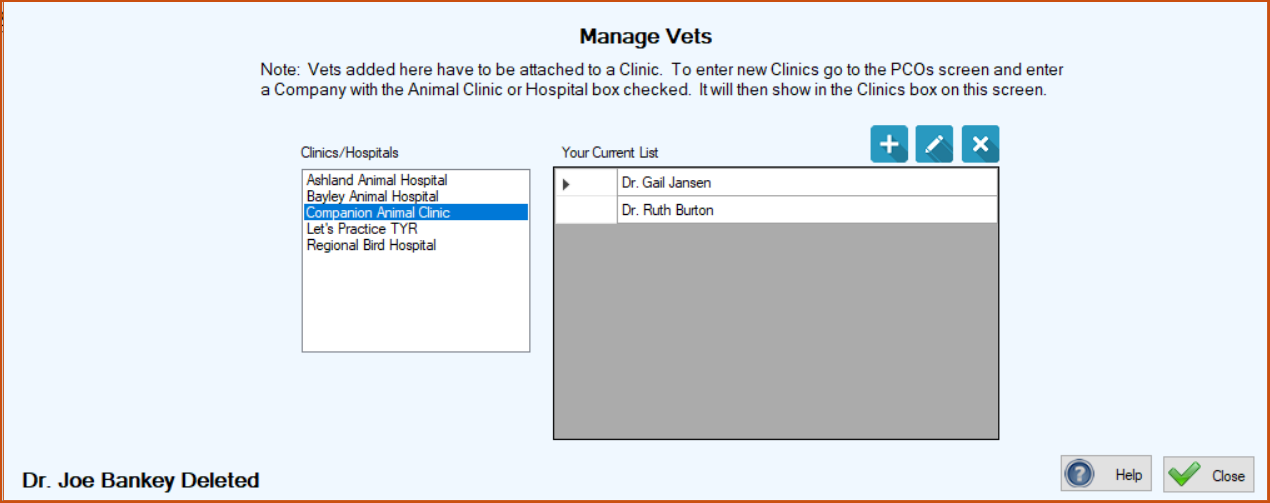
The Manage Vets screen appears, with an important note at the top stating that you must first create a record for the animal clinic or hospital with which the vet is associated. If the name of the clinic or hospital does not appear in the list on the left side of the screen, follow the procedures for Adding & Managing PCO Records, and then begin this procedure again to add the vet’s name.
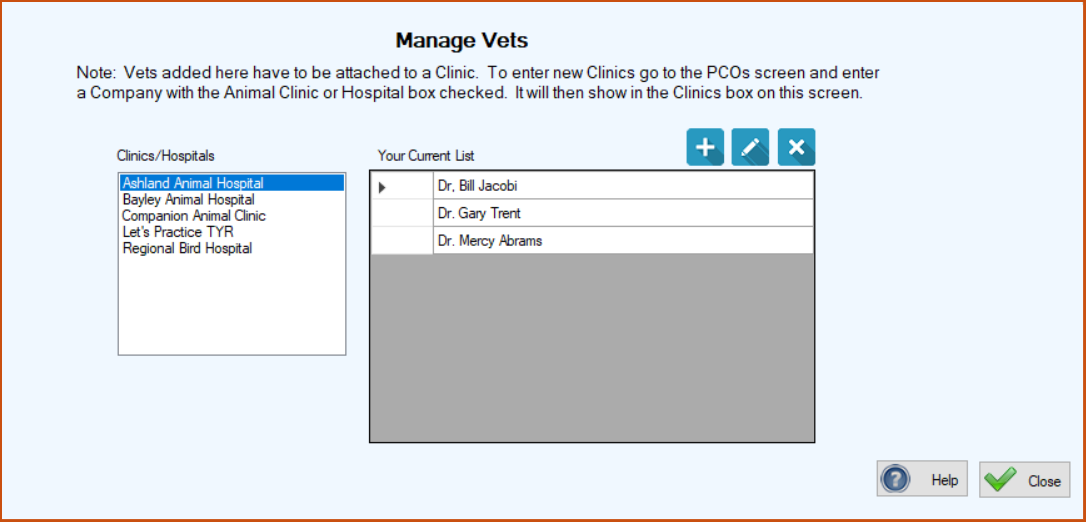
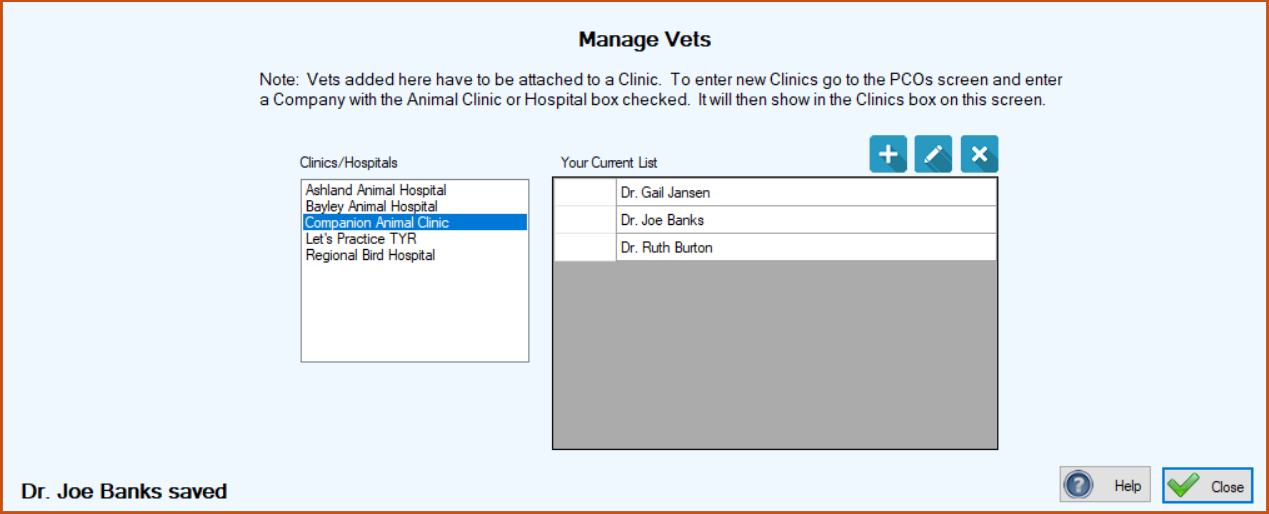
2.In the Clinics/Hospitals list on the left, click the name of the facility with which the vet is associated. (Note: If any vets are already set up in your TTR system for that clinic or hospital, their names will appear under Your Current List in the center grid.)
3.Click the blue Add button ( ). The Clinic Vets screen appears, showing the name of the selected hospital or clinic and the empty Veterinarian field ready for you to add the vet’s name.
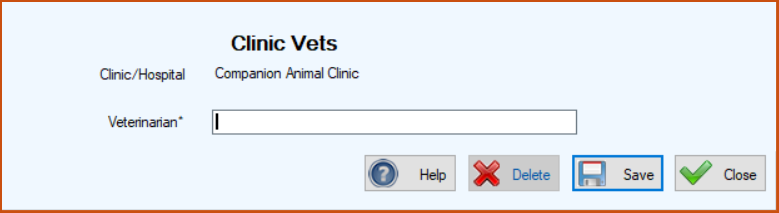
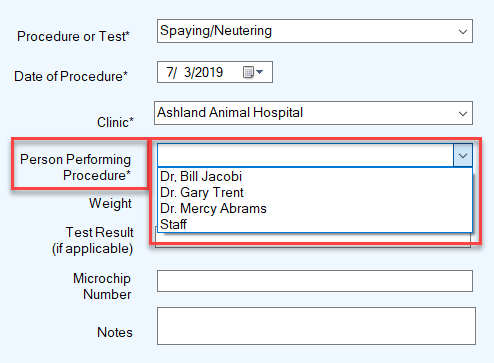
4.In the Veterinarian field, type the name of the vet, e.g., Dr. Joe Banks. (Note: Sometimes different staff people at a clinic might administer a medication, vaccination, or procedure, so in addition to the names of the veterinarians, you might also want to create a generic selection of “Staff.”)
5.Click Save. The Clinic Vets screen closes and you are returned to the Manage Vets screen where you can see the name of the vet you just added in the center grid under “Your Current List” and a confirmation message in the lower left corner.
Editing a Veterinarian Name
1.On the TTR Home screen, click Veterinarians in the Customization section, or click Customization on the horizontal navigation bar at the top of the Home screen and select Veterinarians from the dropdown list. The Manage Vets screen appears.
2.In the Clinics/Hospitals list on the left, click the name of the facility attached to the vet whose name you want to edit. The list of vets’ names appear in the center grid under “Your Current List.”
3.In the center grid, double-click the cell to the immediate left of the name you want to edit. The Clinic Vets screen appears, showing the name of the selected hospital or clinic and the selected vet’s name in the Veterinarian field, ready for you to edit.
4.In the Veterinarian field, type your change.
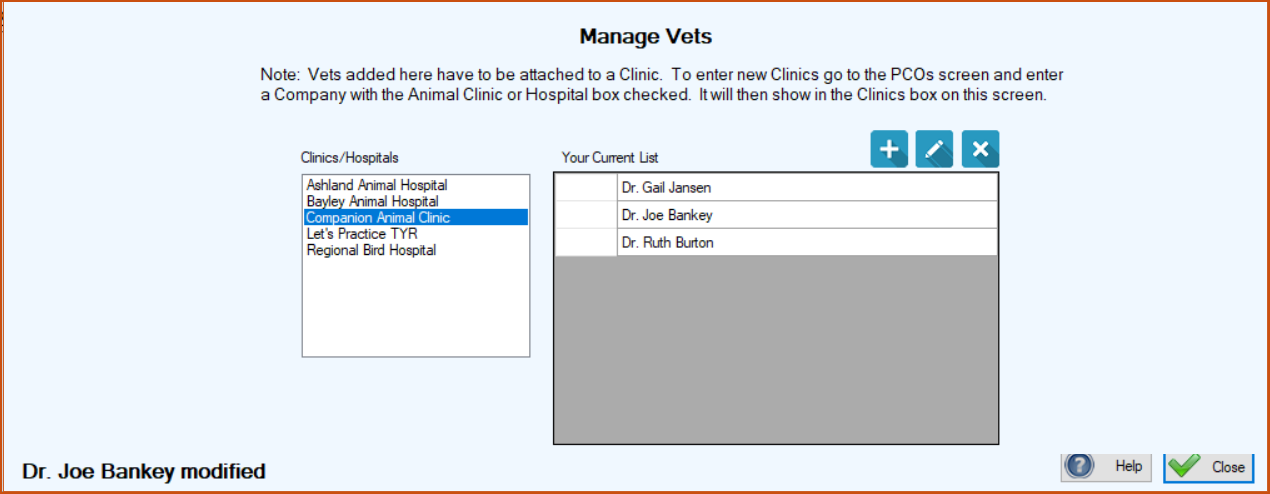
5.Click Save. The Clinic Vets screen closes and you are returned to the Manage Vets screen where your change appears under “Your Current List” in the center grid, along with a confirmation message in the lower left corner.
Deleting a Veterinarian Name
1.On the TTR Home screen, click Veterinarians in the Customization section, or click Customization on the horizontal navigation bar at the top of the Home screen and select Veterinarians from the dropdown list. The Manage Vets screen appears.
2.In the Clinics/Hospitals list on the left, click the name of the facility attached to the vet whose name you want to delete. The list of vets’ names appear in the center grid under “Your Current List.”
3.On the row containing the vet name you want to delete, click the cell at the farthest left to select the entire row.
4.Click the Delete button ( ). A popup window appears to confirm you really want to delete the name.
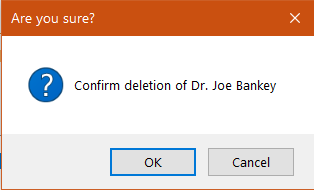
5.To complete the deletion, click OK. You are returned to the Manage Vets screen where the name you deleted has disappeared from the center grid and a confirmation message appears in the lower left corner.