
If your organization shelters or fosters rescued animals, one of the important pieces of information on the Animal record is how you acquired the animal.
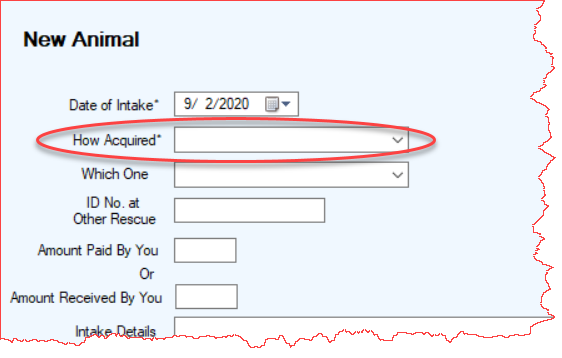
You will populate the mandatory “How Acquired*” field on the new animal record by selecting an established option from a drop-down list. The TTR application comes with four common choices already available: Other Rescue/Shelter/Sanctuary, Owner Surrender, Born at Rescue, and Public. However, if you acquire animals from sources other than these four, you can add items to the list using the steps below. You can also edit and delete any of the items you add, but not the four preinstalled options.
Adding an Acquisition Way
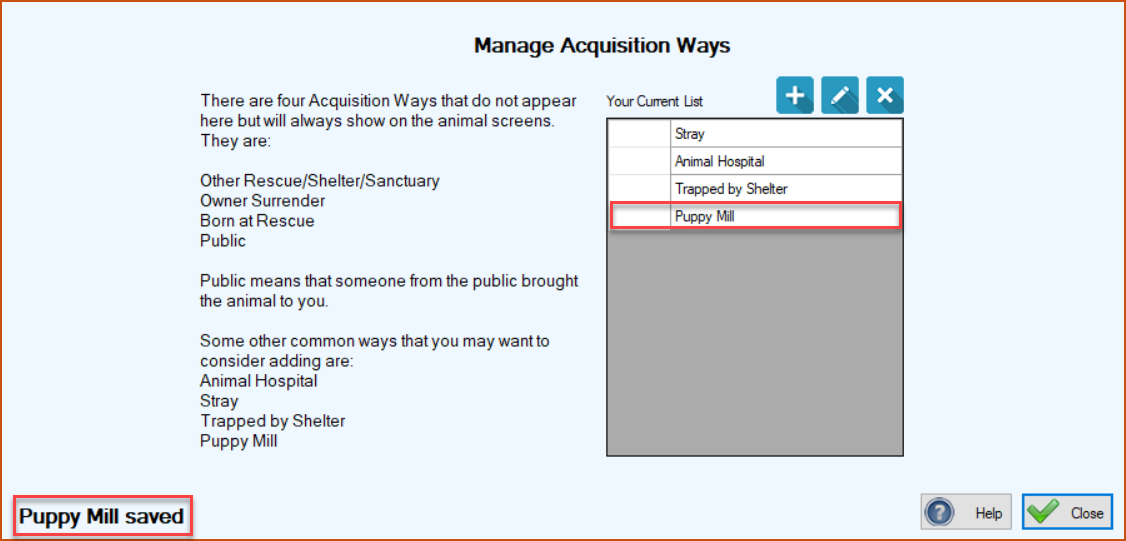
1.On the TTR Home screen, click the Animal Acquisition Ways button in the Customization section, or click Customization on the horizontal navigation bar at the top of the Home screen and select Animal Acquisition Ways from the dropdown list. The Manage Acquisition Ways screen appears.
Before adding an acquisition method, read the information on the left side of the screen. If the acquisition method you want to add does NOT already exist, either as one of the four “built-in” ways or as an item in the grid under the title “Your Current List,” proceed to Step 2.
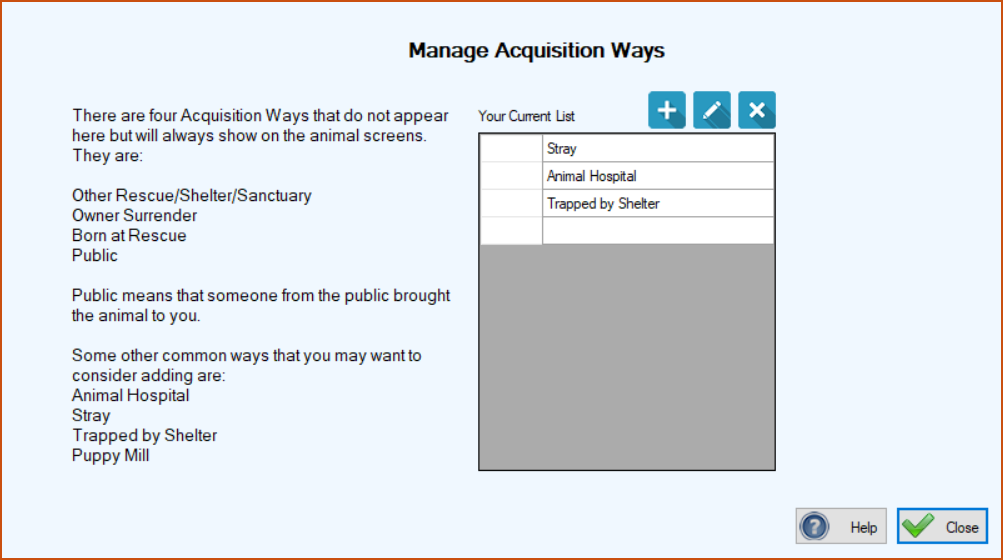
2.Click the blue Add button ( ). The Acquisition Way screen appears, with most of the same reminders you saw on the Manage Acquisition Ways screen.
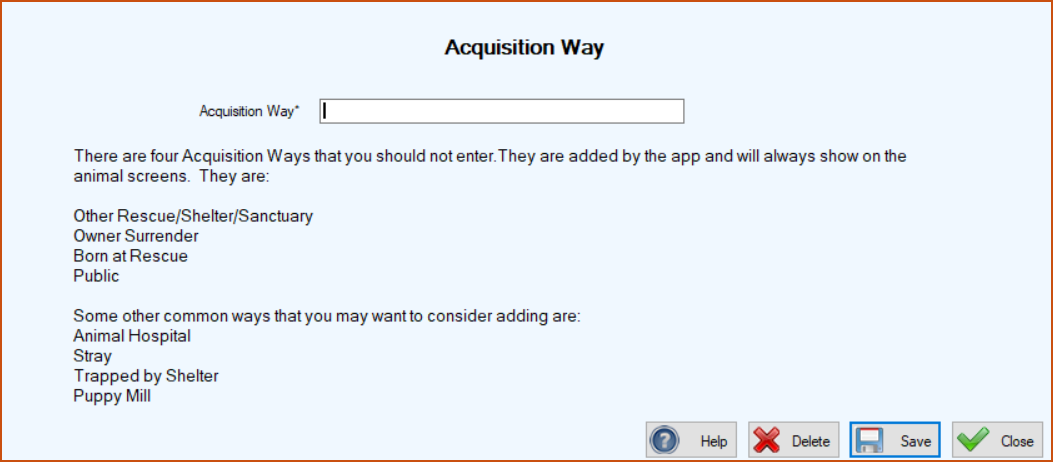
3.In the Acquisition Way* field, type the word or phrase describing the new Acquisition Way you want to add.
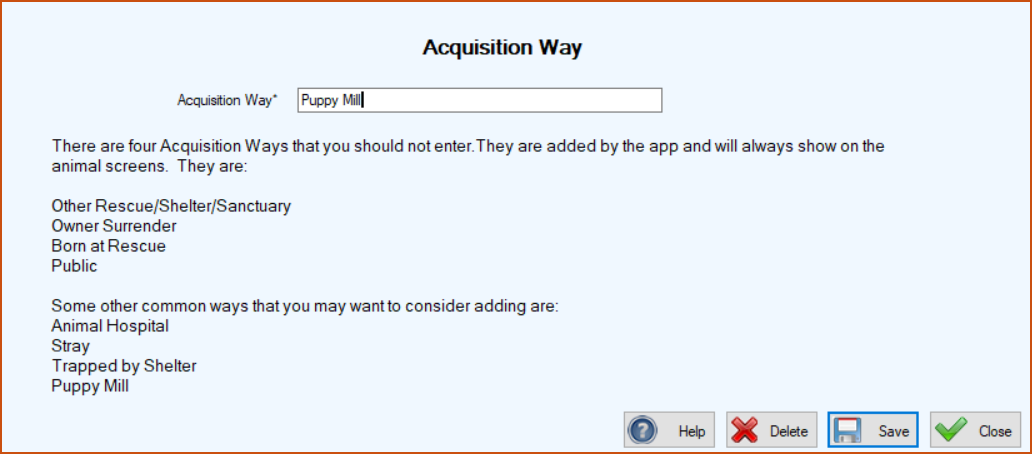
4.Click Save. You are returned to the Manage Acquisition Ways screen, where the item you just added appears in Your Current List in the grid, along with a confirmation message at the lower left of the screen.
To Edit an Existing Acquisition Way
1.On the Manage Acquisition Ways screen in the grid under “Your Current List,” double-click the blank cell to the immediate left of the item you want to edit. The Acquisition Way screen appears, with your selected item populated in the Acquisition Way* field, ready to be edited.
2. Type your changes in the Acquisition Way* field and click Save. You are returned to the Manage Acquisition Ways screen, where the changed item appears in Your Current List in the grid, along with a confirmation message at the lower left of the screen showing the item was modified.
To Delete an Existing Acquisition Way
1.On the Manage Acquisition Ways screen in the grid under “Your Current List,” select the entire row of the item you want to delete by clicking the blank cell to its immediate left.
2. Click the blue Delete button ( ). A popup appears to verify you really want to delete the item.
). A popup appears to verify you really want to delete the item.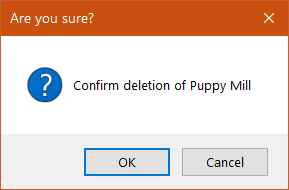
3. To complete the deletion, click OK. You are returned to the Manage Acquisition Ways screen, where the deleted item has disappeared from Your Current List in the grid. You will also see a confirmation message at the lower left of the screen showing the item was deleted.