
Adding Organization Details
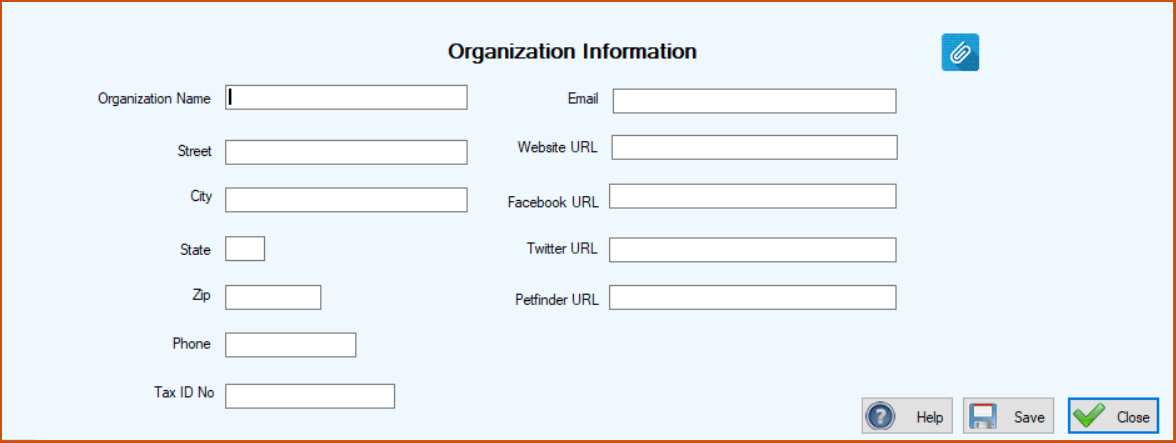
On the Home screen in the Customization section, click the Organization Info button, or click Customization on the horizontal navigation bar at the top of the Home screen and select Organization Info from the dropdown list.
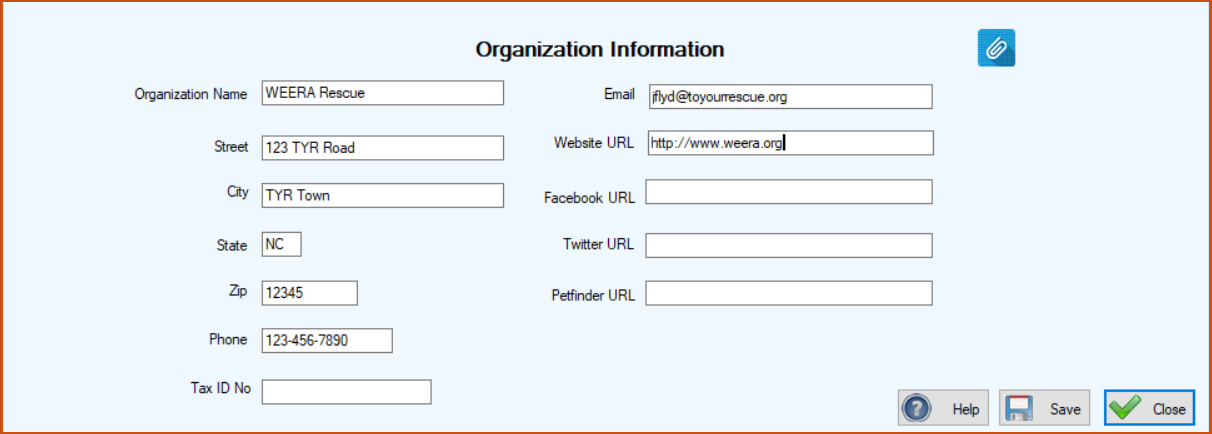
 ) and follow the instructions in the section entitled “Managing Attachments (Documents, Photos, Videos, URLs, Notes).“
Click Save. The Organization Information window closes and you are returned to the Home screen, where your information now appears in the upper left corner, and a confirmation message appears in the lower left corner. If you attached a logo, photo, or other image file to which you gave the title “Logo” or “logo” in Step 3 above, it will appear in the upper right corner the next time you log in.
Changing Organization Information
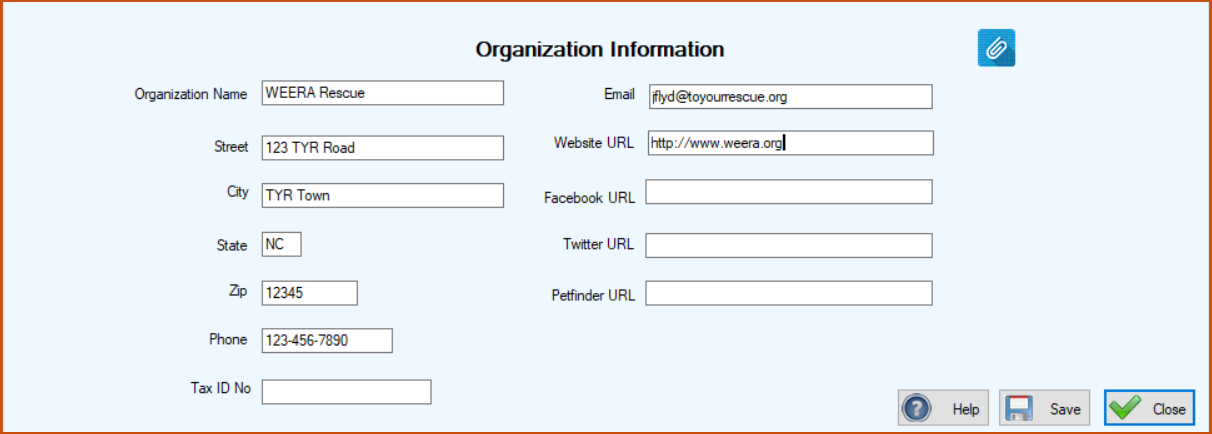
2. Enter your desired changes and click the Save button. The Organization Information window closes and you are returned to the Home screen, where your changed information now appears in the upper left corner, and a confirmation message appears in the lower left corner.
Note: To change your logo, click the Photos, Documents, etc. button () and follow the instructions for Attaching & Managing Documents, Images, Photos, & Videos.