
You can change your personal password and your name, email address and phone number at any time in TTR by following the steps below.
To Change Password
-
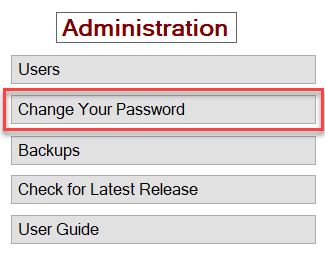
On the Home screen under Administration at the lower right, click the Change Your Password button, or click Administration on the horizontal navigation bar at the top of the Home screen and select Change Your Password from the dropdown list.

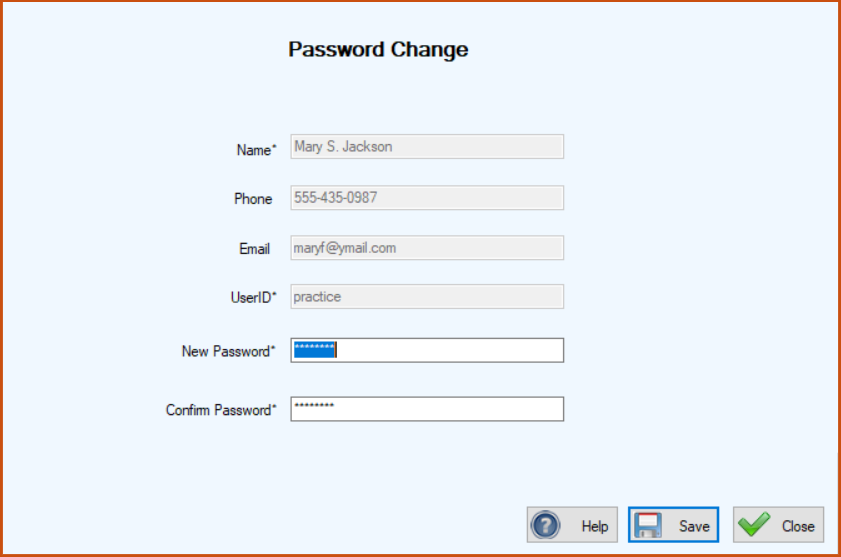
The Password Change screen appears, with editable Password fields populated with your encrypted current password.
-
Delete the existing encrypted password from both the New Password and Confirm Password fields.
-
Type a new password in the New Password field.
Important Note: Be careful to type the exact characters for the password you want because the system will show you only asterisks for security purposes.
-
Type the same password again in the Confirm Password field, being careful to type the same characters you entered in the New Password field.
-
Click Save.
– If the entries in the New Password and Confirm Password fields match, you will receive a confirmation message at the lower left of the screen that your password has been changed.
– If the entries in the New Password and Confirm Password fields DO NOT match, the screen will look like this: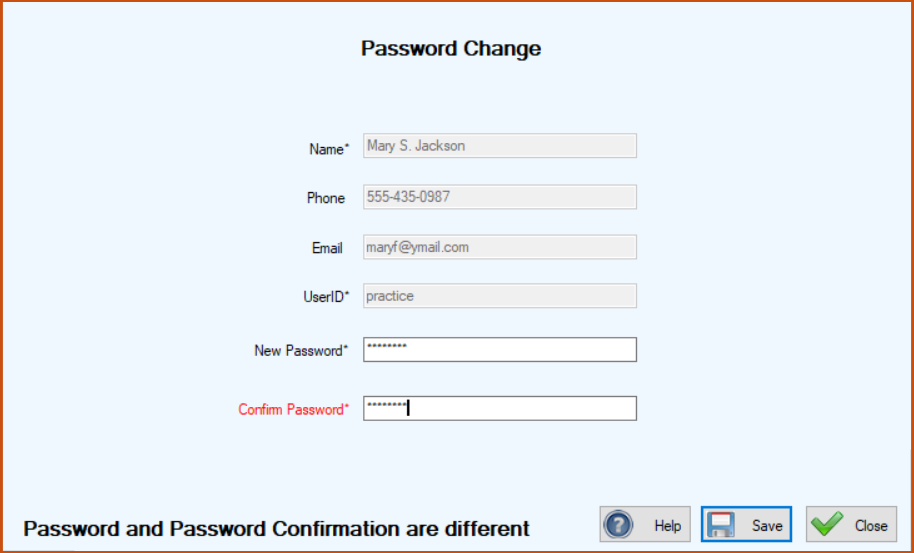 Try retyping your new password in the Confirm Password field and then click Save. If you receive the same message, carefully retype your new password in both fields and click Save.
To Change Name, Phone, and/or Email Address
-
These steps are covered on the page entitled Adding & Editing Users.