
The TTR Home screen is your control center and it can be branded with your organization’s name, address, phone, and logo. It is divided into five major sections:
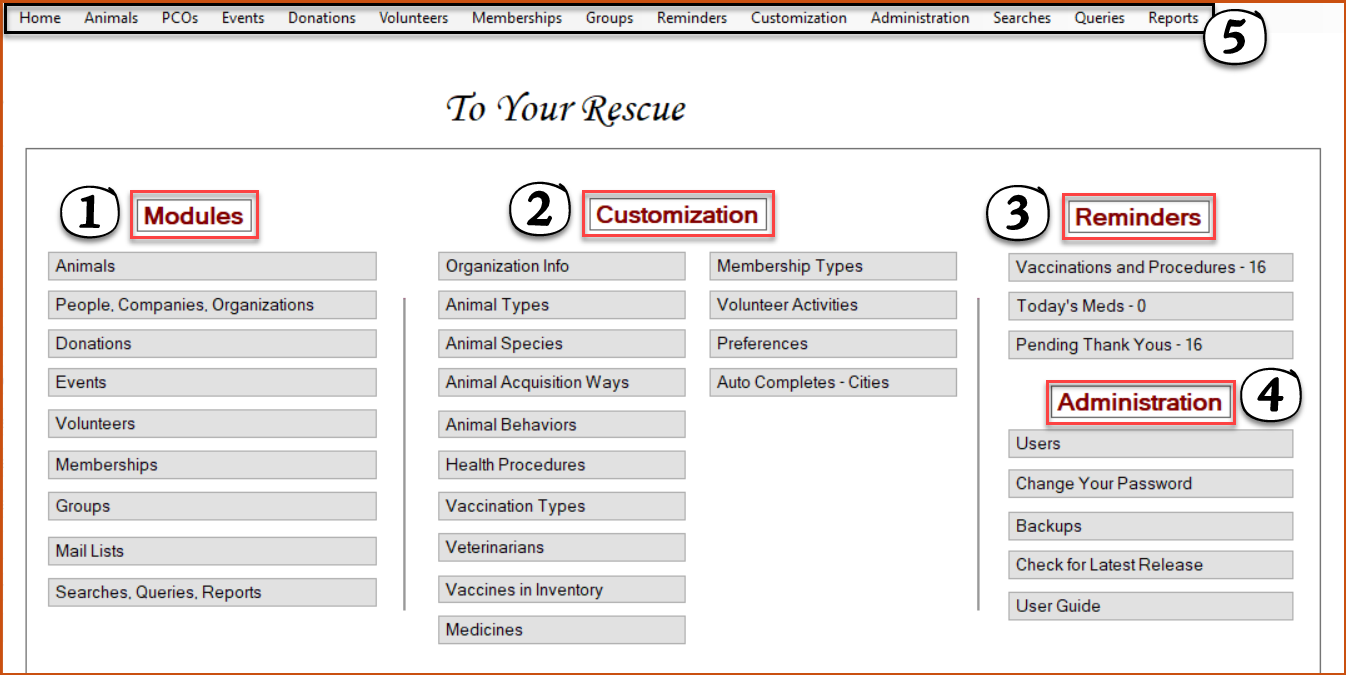
1. Modules: Here you can launch screens to add and manage records for animals, people, companies and organizations, all of which form the basis of your system. You can also access other optional screens to create and view records for items like donations, events, and groups, and you can initiate searches and queries and run reports from here.
2. Customization: The controls here enable you to make To Their Rescue your own. You can make changes to your organization information if needed, and you can set up drop-down pick lists of the types of animals you rescue, the ways in which you acquire the animals, animal behaviors you want to include in reports, vets you use, types of vaccinations and medical procedures your animals receive, etc. You can even select screen colors that are appealing to your eye.
3. Reminders: These reminders become part of your daily “to do” list and are derived from entries you make on some of the screens in the Modules section.
4. Administration: This section is where you will add and manage users and make backups. You can also choose to change your own password from here at any time, and use the User Guide button to go to the home page of the online TTR User Guide.
5. Horizontal Navigation Bar: This horizontal navigation bar at the top of the screen provides another way to access the same screens you can open with the buttons in sections 1 through 4. Simply click a tab on the bar, and one of two results will occur:
(a) If there is only a single screen associated with that tab, the screen will open, or
(b) If there are multiple screens associated with the tab, a dropdown list will appear, from which you can select the screen you need by moving your cursor down the list and clicking on the desired screen, which will then open.
(NOTE: This navigation bar also appears on the Manage Animals screen and the Manage People, Companies, and Organizations screen, saving you time by giving you access to all the Home Screen features without the need to return to this Home screen.)
Important Note about the Home Screen
While you are logged into TTR, the Home screen remains open, regardless of how many other screens you have open. (When other screens are open, the Home screen stays in the background.)