If you forget your password, simply follow these steps to create a new one:
1. Launch the TTR application to access the Login screen.
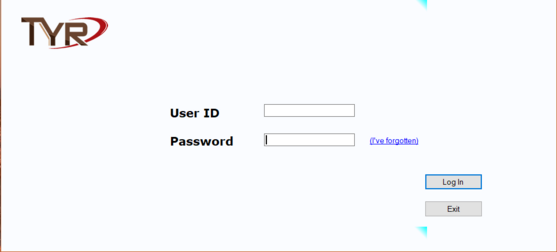
2. Type in your User ID.
3. Click the “(I’ve forgotten)” link beside the Password field.
Note: If you forget to enter your User ID, this message will pop up as soon as you click the link:
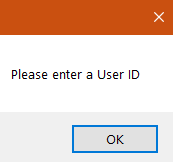
Click OK, then enter your User ID and click (I’ve forgotten) again.
The Password Change window appears, requiring you to create a new password.
4. Type a new password in the New Password field.
5. Type the same password again in the Confirm Password field.
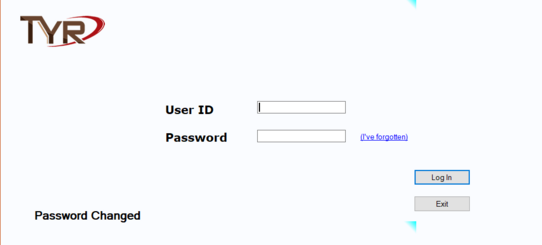
6. Click Save. You are returned to the Login screen, with a message at the lower left showing Password Changed. (If you need login instructions, click here.)