
To help ensure a successful start with TTR, we strongly recommend following the steps listed below in the order presented when setting up your system. (Note: The blue hyperlinks take you directly to an instruction page for that task.)
- Please pay special attention to item #8 Make a backup of your database.
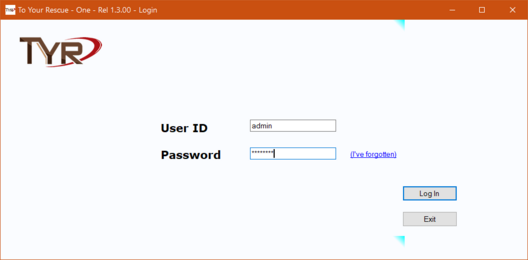
- Install the application and then log in with User ID “admin” and password “password.”
- Explore the Home screen and then learn the screen conventions and recommended data formats.
- Add another administrative user. There should be at least two Administrators for your system. (Administrators have access to all system features and records, and are the only users who can add, change, and inactivate other users.)
- Decide if you want to inactivate the “generic” administrative user included in the installation package. IMPORTANT NOTE: After you create at least one other administrative user in Step 3 above, you can inactivate the Administrator user that was included in the installation package. CAUTION: BEFORE YOU DO THIS, PERFORM STEP 3 ABOVE TO MAKE SURE YOU HAVE AT LEAST ONE OTHER USER DESIGNATED AS AN ADMINISTRATOR! If you decide to continue using the “admin” User ID, make sure you change the password for the Administrator user to something more secure than “password.”
- Customize your system by working through the Customization section of the Home screen, starting with Customizing Your Organization Information. Examine all the Customization buttons on the Home screen and set up everything you expect to use, such as Animal Types. (Each button is explained in the INSTALLATION, SETUP, & ADMINISTRATION section.)TIP:
Most of the Customization items create helpful “pick lists” for use on various Animals and People screens throughout the TTR application, saving you keystrokes by not having to type repetitive information.IMPORTANT NOTE: You can gain significant benefits from using TTR for purposes other than keeping track of animals. For example, you might just want to keep track of donations, events, or membership programs. In that case, you will not need to set up any of the customization items related to animals. However, regardless of your reasons for using TTR, you will definitely need to set up records for people, companies, and organizations (PCOs) because those records are inextricably linked to every other module in the system. It is on the screen for the specific person, business, or organization that you add activities like fostering or adopting an animal, making a donation, attendance at an event, membership in a particular group, and so on. As you work through the Customization section of the Home screen, ignore the buttons that do not apply to your purpose for using TTR. For the buttons that do apply, find the relevant Help pages in the navigation pane to the left of this screen, click the page title, and then follow the instructions contained there. - Add records for the people, businesses, and organizations you work with, including health clinics, hospitals, and other animal rescue organizations. These names will become available for selection when entering relevant information in other records, making your work faster and easier.
- Add the veterinarians you work with at the health clinics. These names will become available for selection in other records.
- Make a backup of your database. Backing up your database every day to an external location is your first line of data security. In the instructions for Backing Up Your Database, we provide several options to consider for external storage locations. If you decide to place your backups on a CD, DVD, flash drive, or external hard drive, make sure that device is always kept in a safe and secure location where it can’t be damaged or destroyed and is always accessible.IMPORTANT NOTE REGARDING BACKUPS: The primary purpose for backing up your database to an external location outside of your computer is in case your computer crashes. It’s important to save your backups to an external location because if your computer’s hard drive fails or your computer crashes completely, you will NOT be able to retrieve your data if it is stored only on your computer. TTR personnel can always provide you with a link to download the software, but we cannot restore your data for you. That’s why you absolutely MUST do regular database backups. Always remember that restoring the TTR application and your database is easy if you have an accessible copy of your database stored outside of your computer.
What’s next?
Once you have completed all these steps, you will be well-equipped to move into the other parts of the application. Decisions about what to do next are yours. Remember, TTR has many features, but you only need to set up and use those features that are applicable to your needs.